
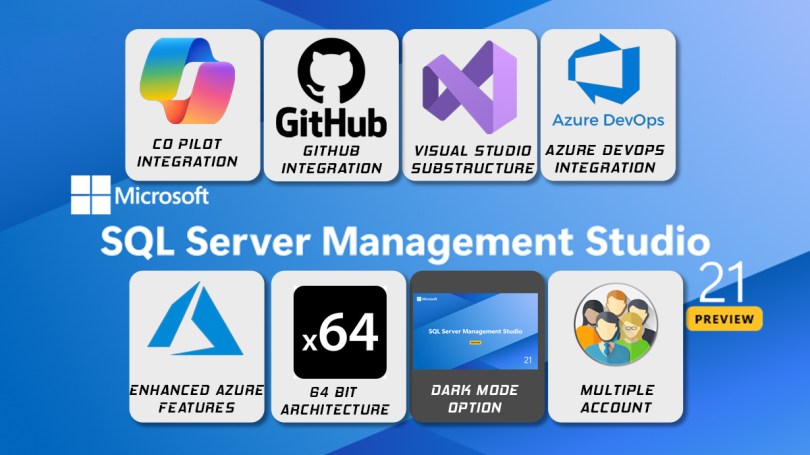
Version 21 of SQL Server Management Studio was released as a preview .
I want to take a quick look at the new features and talk about my impressions.
You can use the link here for installation.
https://aka.ms/ssms/21/preview/vs_SSMS.exe
First of all, I would like to say that an installation based on Visual Studio 2022 is now performed. When you start the installation, a screen like the one below appears.


After the installation is complete, a screen like the one below appears and you can make changes to the application from there.

When you open, you are greeted by a screen like this. Everything has turned into deep blue. Of course, we find it a little strange. Well, we have been used to this SSMS in yellow tones since SQL 2000. No matter how modern it seems, we find it a little strange. But I think we will be impressed by the minimalism that the blue color gives in time .
The opening time is about 4 seconds. This time is the same in SSMS 19 and 20. Therefore, the delay we are used to in preview versions was not present here.
SSMS splash screens.


A direct database connection screen appearing when SSMS opens . Although these were slightly different in versions 19 and 20, they allowed us to make a direct connection.
In SSMS 21, the connection screen does not appear directly.
SSMS 19
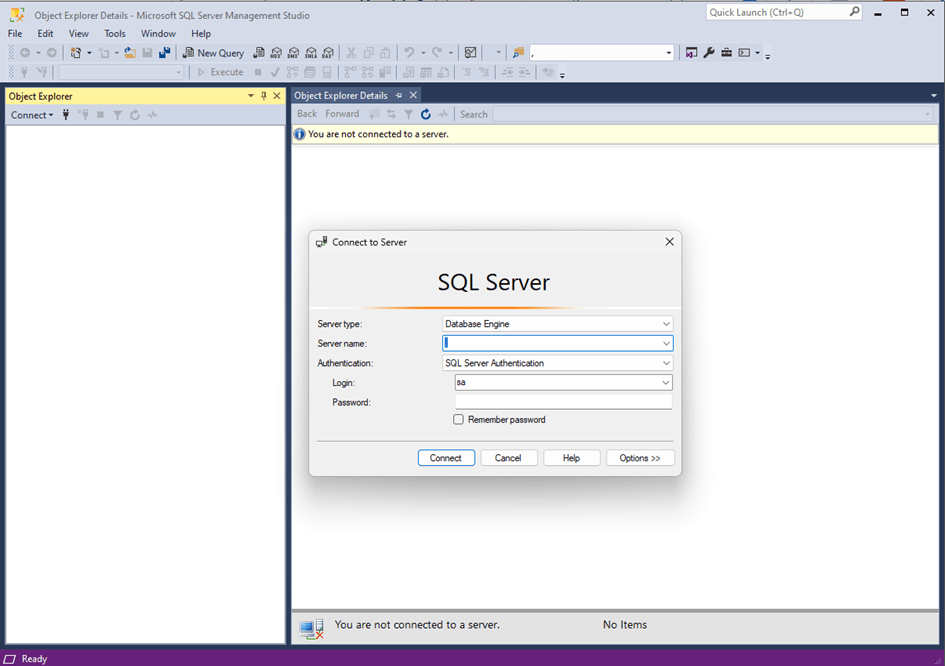
SSMS 20

SSMS 21

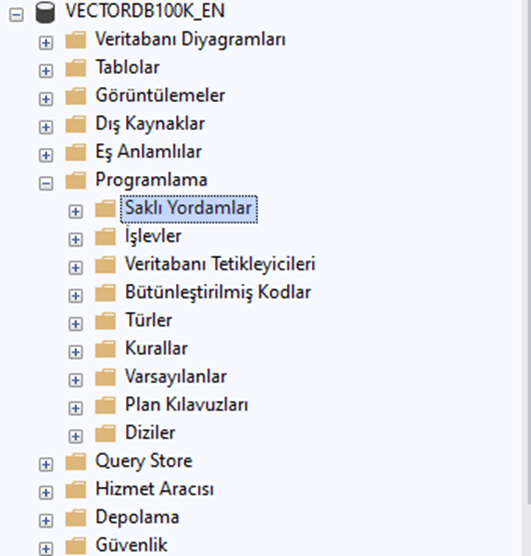
The strangest thing about the startup was that everything was completely in Turkish. Because during installation, the language of the operating system is used as the default language, and this version has support for Polish, Turkish and Czech.
Well, far from home. I felt like I was watching a match on Azerbaijani television. It turns out we have internalized every menu. I didn’t understand anything in my native language. 😊I’m leaving a few examples here.

Of course, when we go to the tools>options menu and select the language settings to change the language, we realize that English is not available and needs to be installed.

Visual Studio installer to install it. So we run the file we downloaded again and click the “Change” button.

English from the language packs and install it.
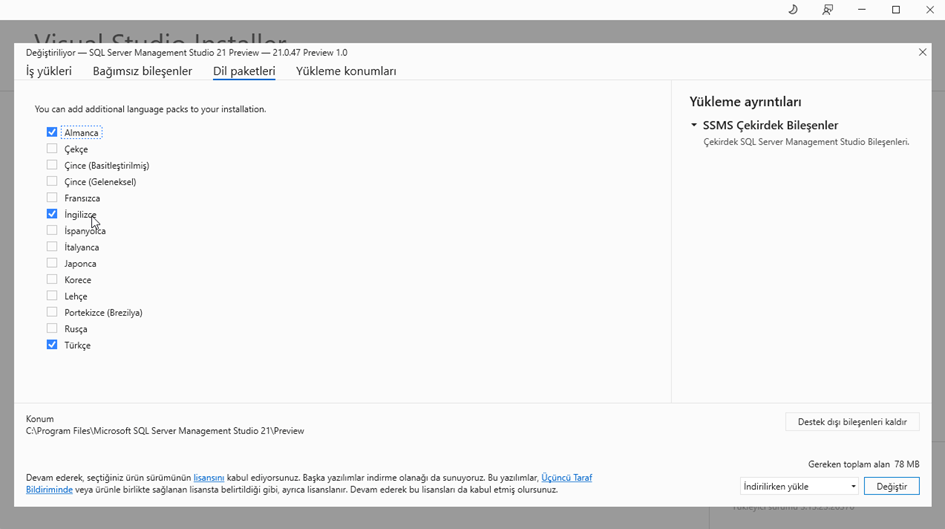
For this feature to be valid, the system needs to be restarted . By system, I mean the computer. This situation is sad, frankly.
I did the restart process before translating it to Turkish and I don’t want to do it again, I am sharing the English version with you as a screenshot. Here you can see the image of the process of translating the current language from English to Turkish .

Ok, now that the installation and configuration are complete, let’s see what’s new.
64-Bit Support: A Faster and Reliable SSMS
“Out of memory ” error from time to time . Especially when we pull large rows or large volumes of data, SSMS unfortunately explodes. We encounter this error because it works mostly on 32-bit architecture. Now SSMS comes completely 64-bit in the Visual Studio environment and this problem is minimized. It is also an ideal approach especially for situations where we experience a lot of crashes. I haven’t tried it yet, but I will share my experiences as I try it.
Always Encrypted Wizard
SSMS 21 introduces a new wizard for encrypting and evaluating sensitive data. This allows you to use Tasks > Always You can quickly perform column-based encryption via the Encrypted Wizard menu. Of course, the collation of the columns changes here. The system gives this warning.
Example: You can quickly use this wizard to keep users’ passwords and phone numbers encrypted on an e-commerce platform .
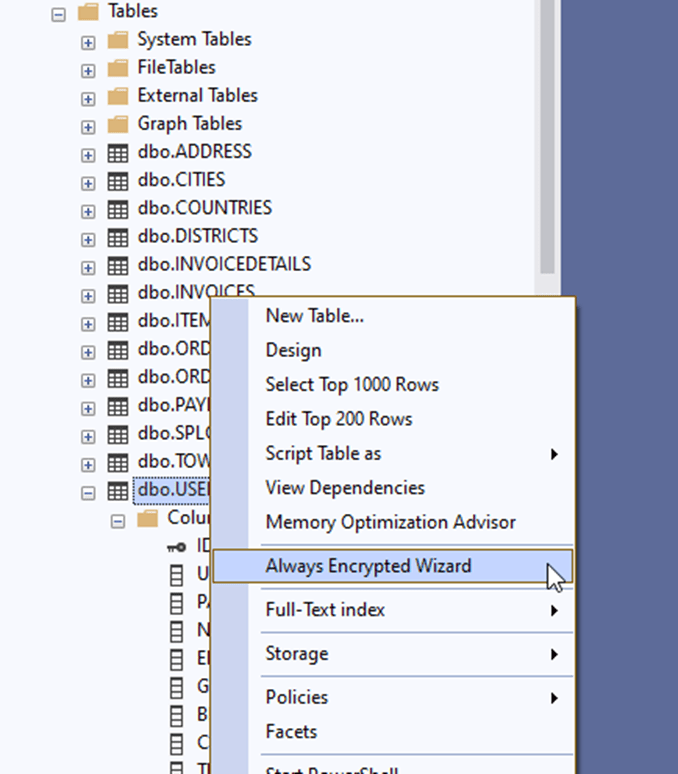

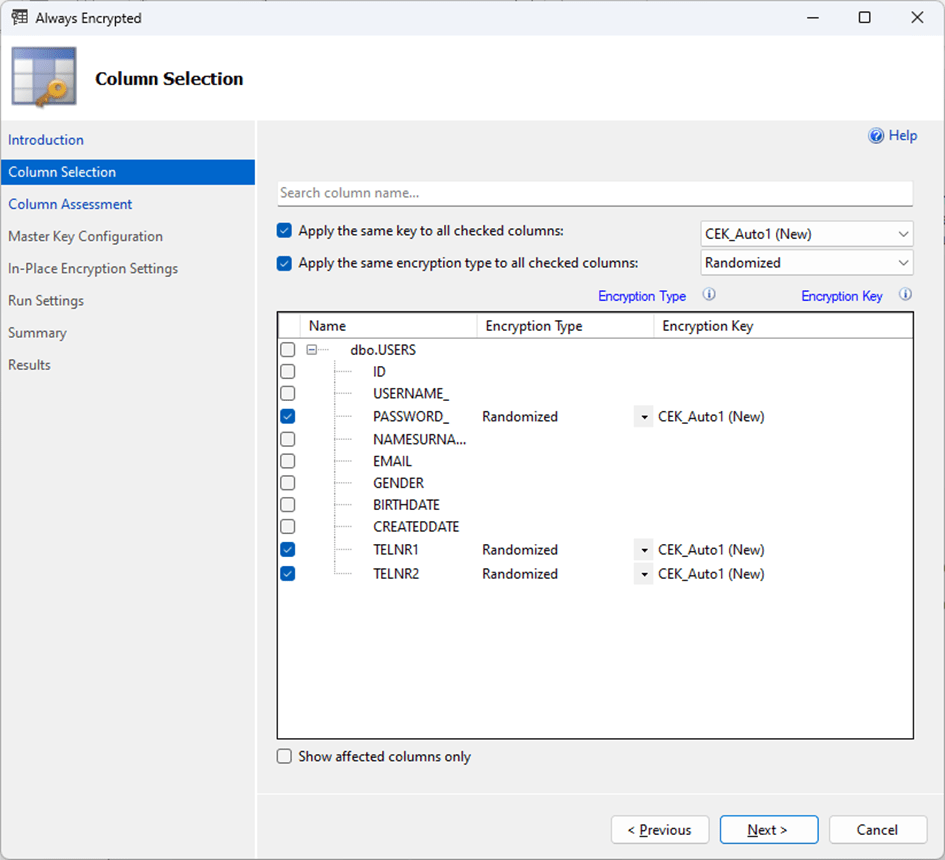
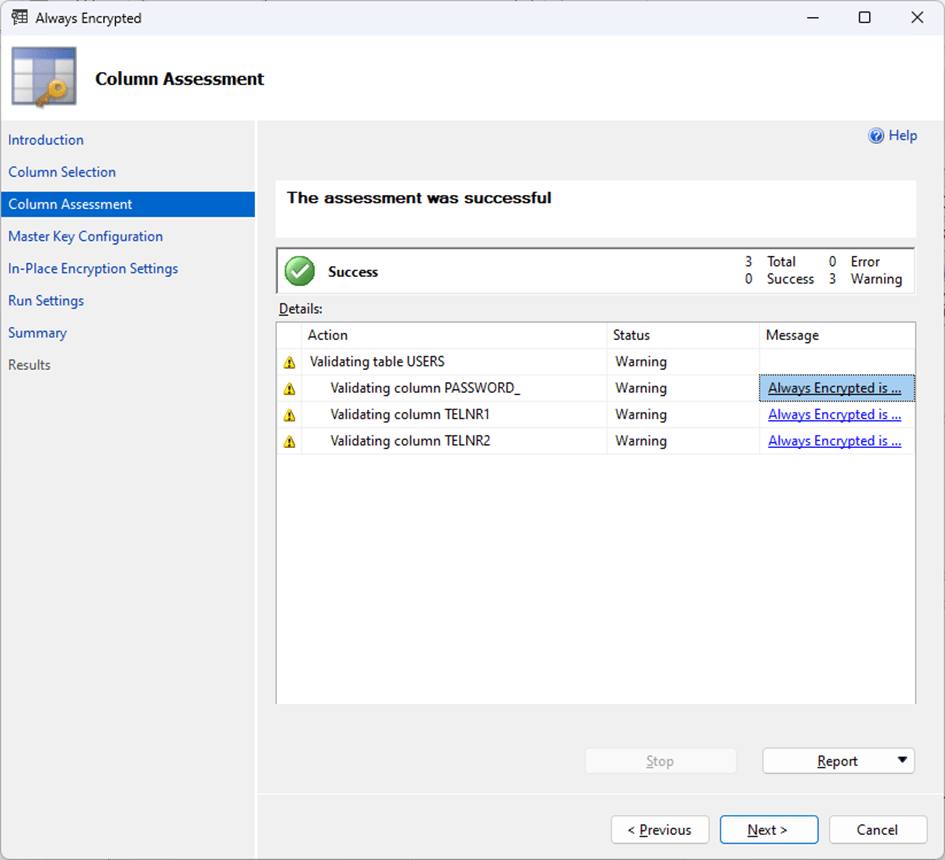

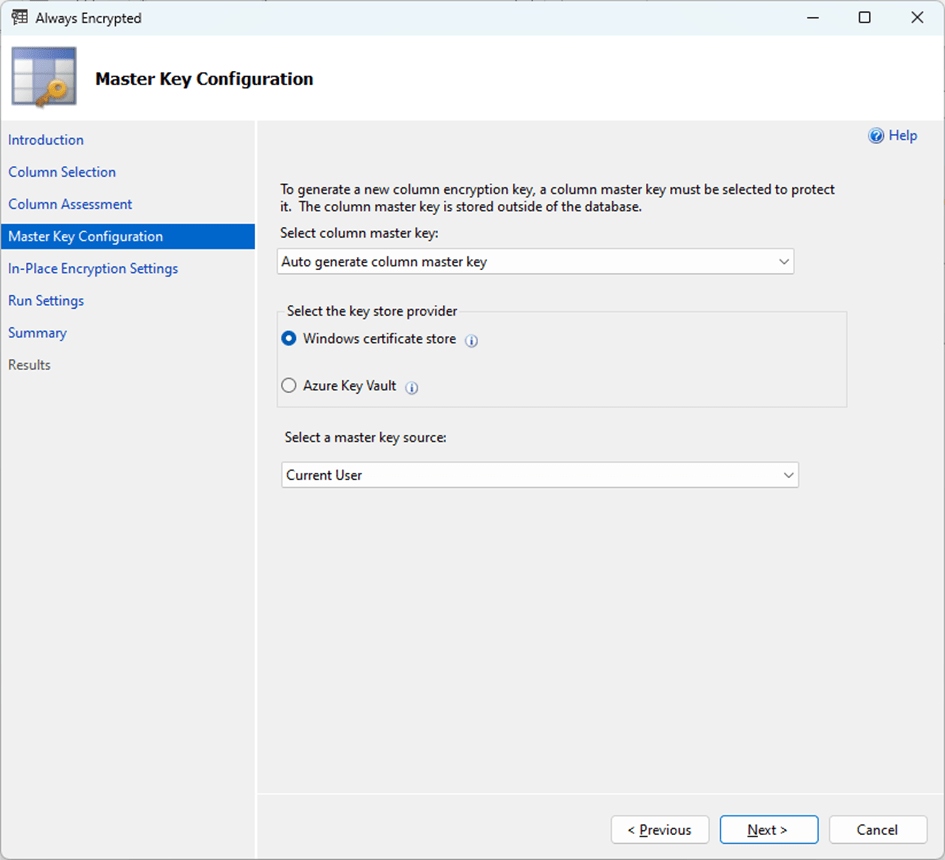

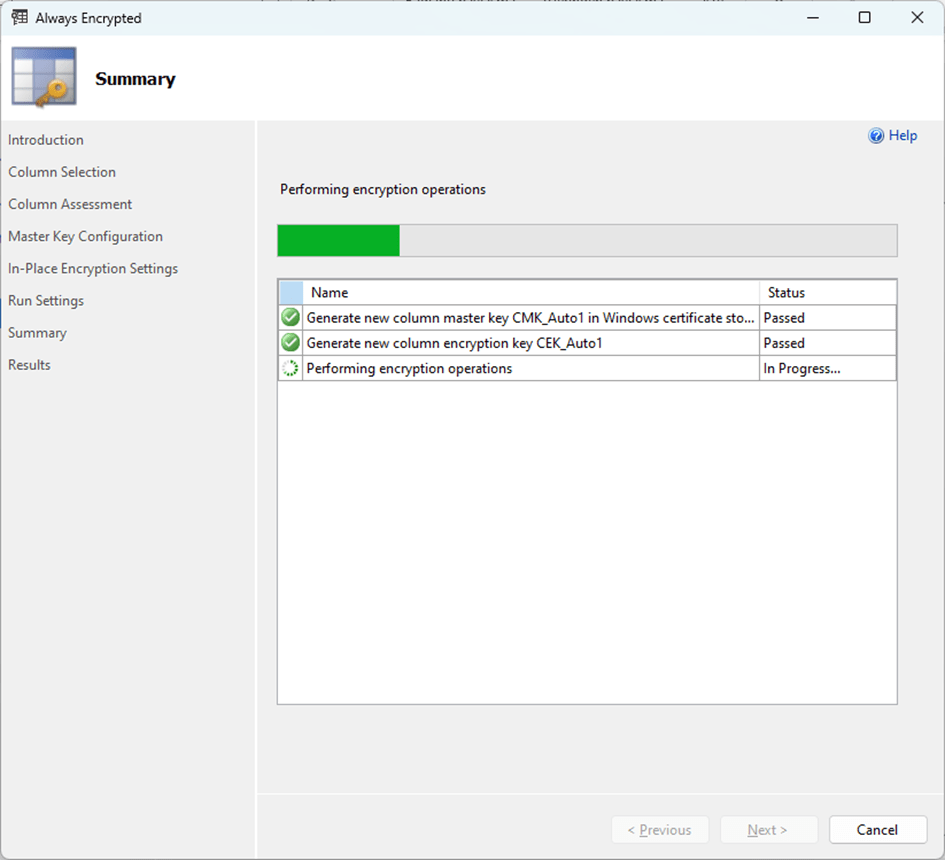
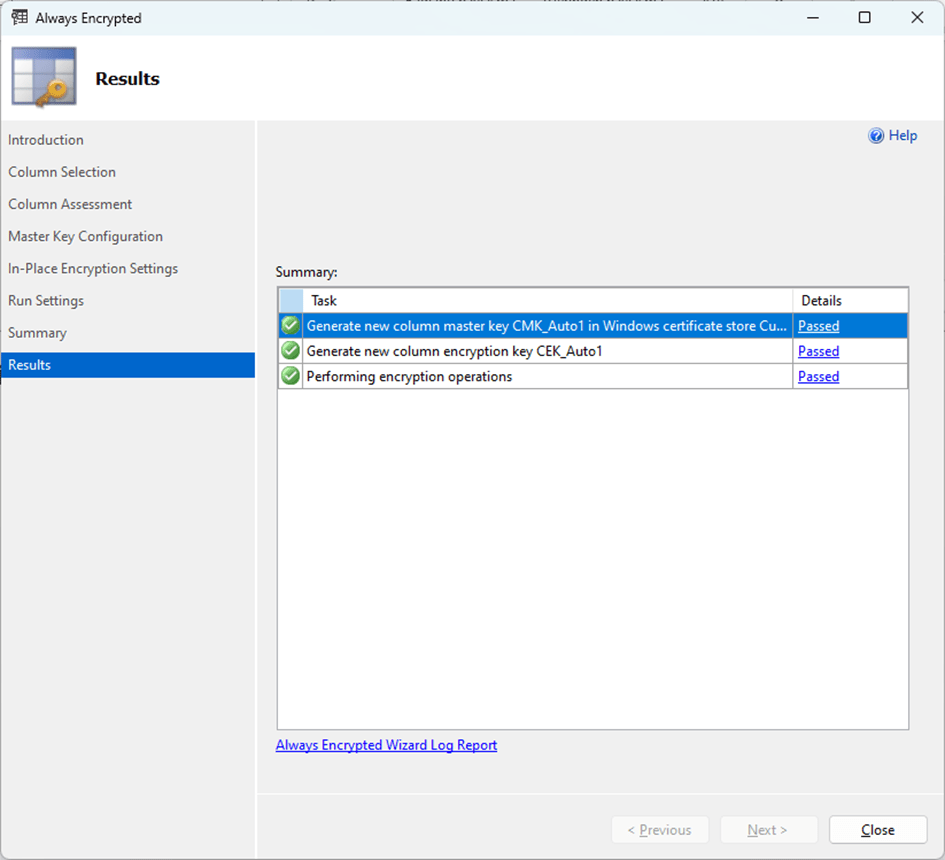
The fields we specified are now kept encrypted .

Azure Authentication and Integrations
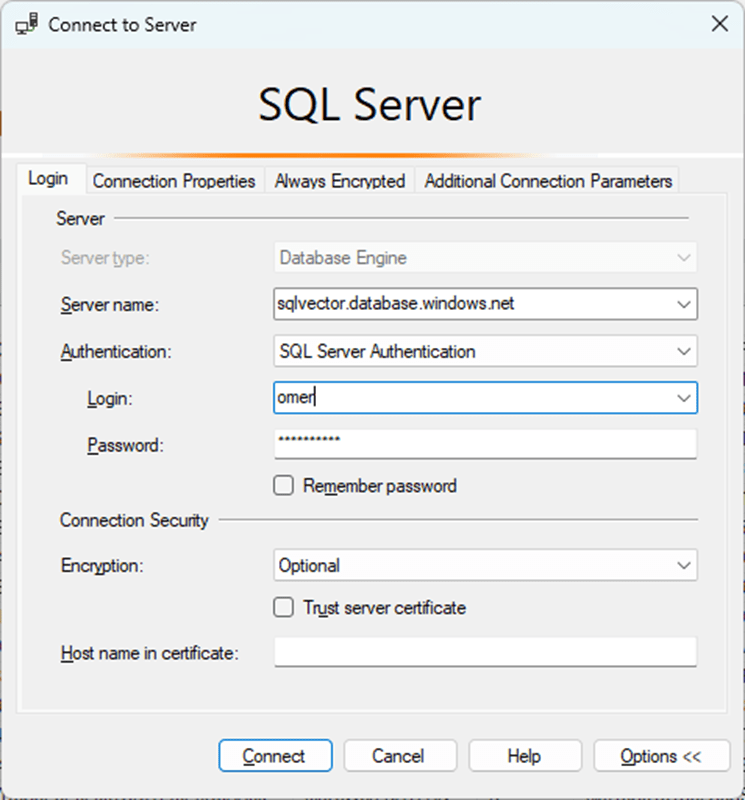
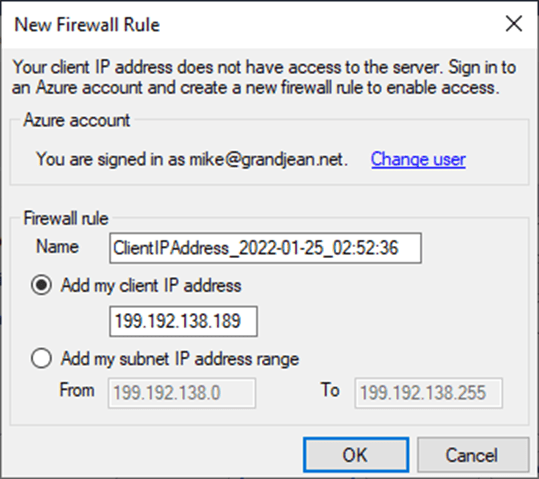
Azure SQL databases , SSMS 21 has simplified the authentication and configuration processes. Operations such as adding Azure firewall rules, configuring Service Level Objectives (SLOs), and creating linked servers can now be performed in a more user-friendly way.
Example:
- The validation steps required to define firewall rules while creating an Azure SQL Database can be easily done in the SSMS interface.
Dark Mode: Eye-Friendly Working Experience
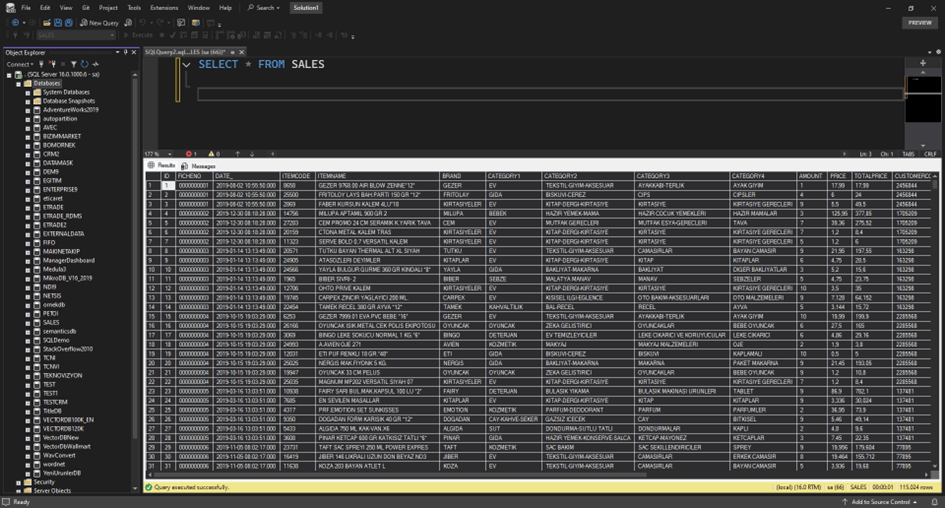
When I went to the Fabric Europe Conference and talked about the innovations in Fabric, the thing that people applauded the most was the Dark Mode support. Very interesting. It is a feature that does not make any sense to me and I do not even like using it, but it is really an addiction for many people and yes! SSMS is now dark It comes with mode support. Type theme in the search field in Tools> Options and select Color You can change it from the Theme section.
The interpretation is up to you. Personally, it’s not my style at all. I ‘ll continue with Light . Old school .

Git Integration: A New Era in CI/CD Processes
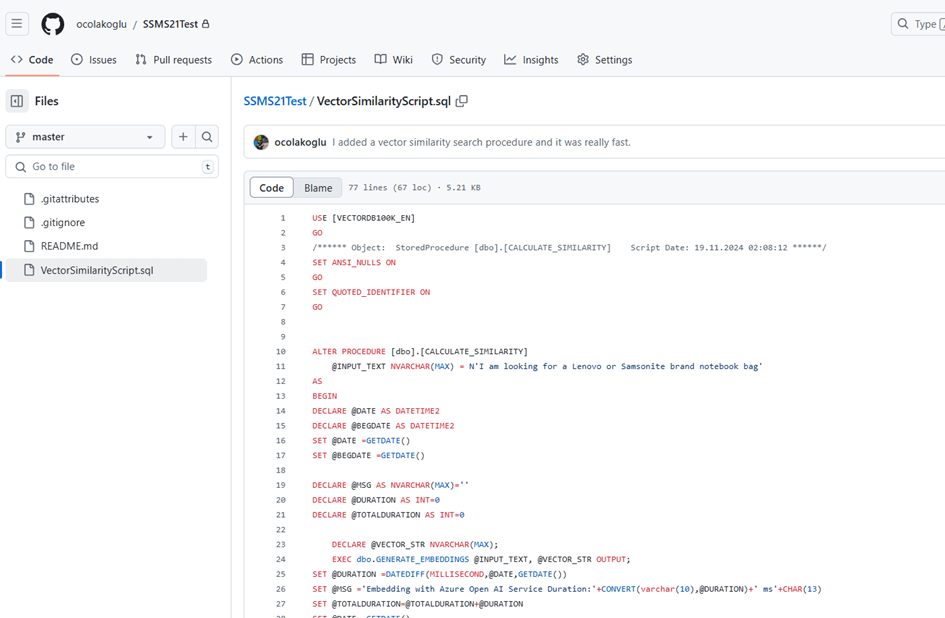
Git integration was something we were waiting for and really needed. After all, many Developer and db admin may be working on a system and project and version tracking is of great importance .
Example Usage: Multiple developers working on a database project can track and manage changes made to queries and procedures through Git integration.
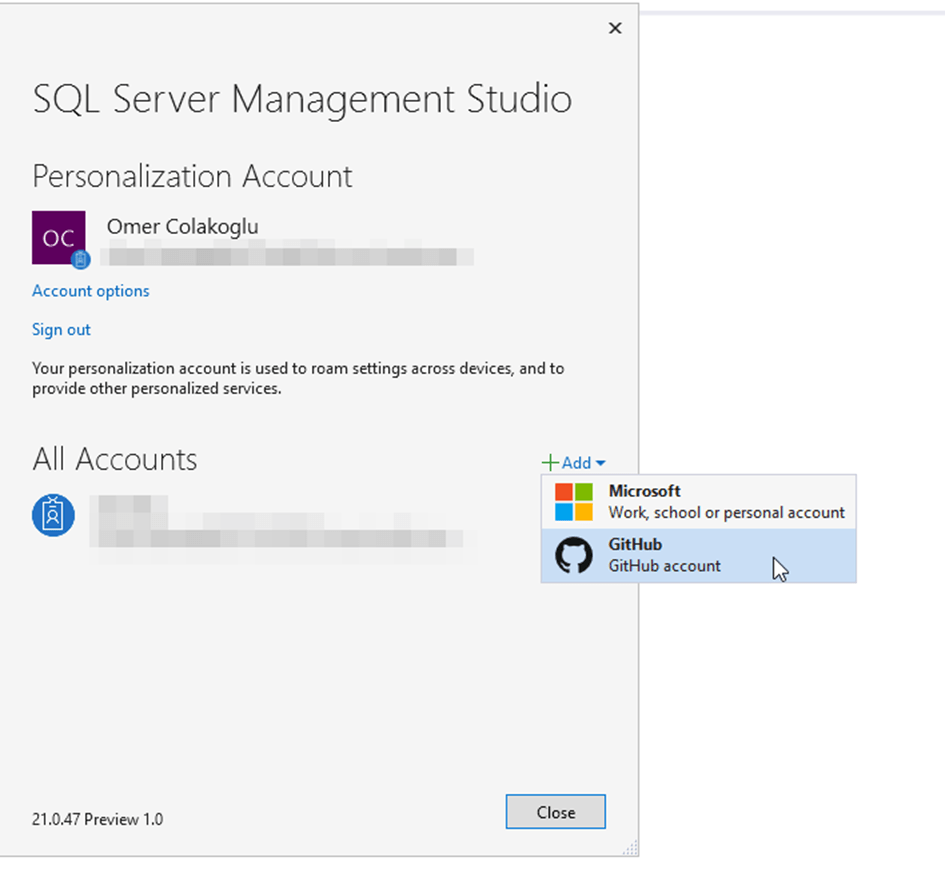
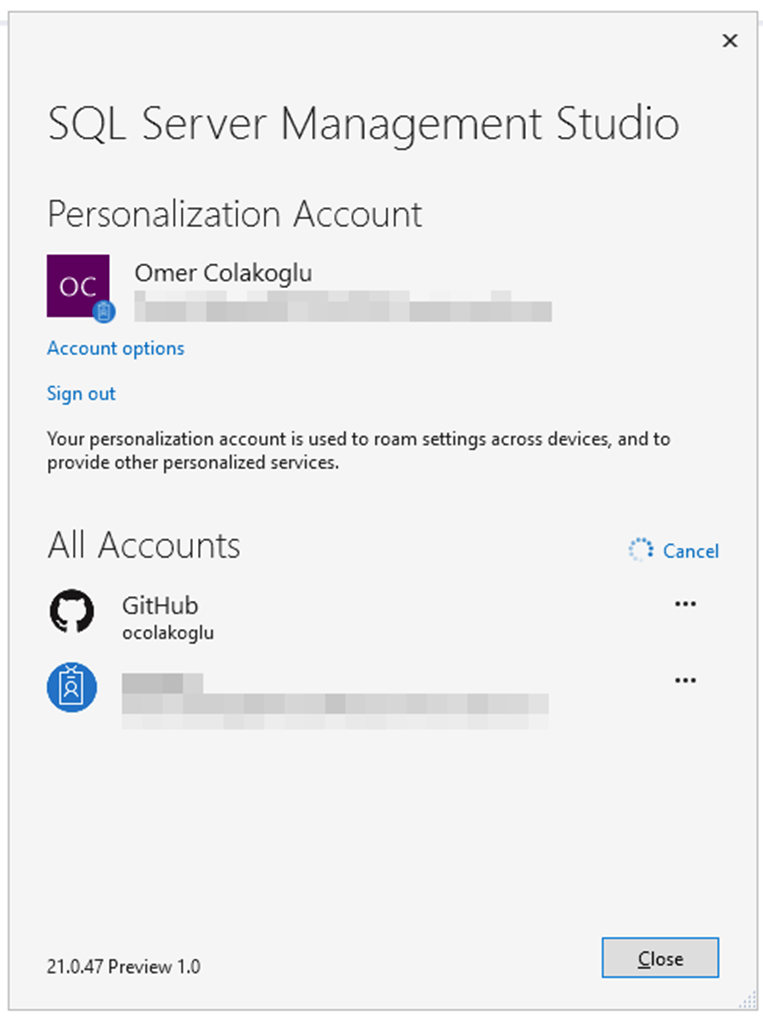
Adding a Github account

Repo cloning

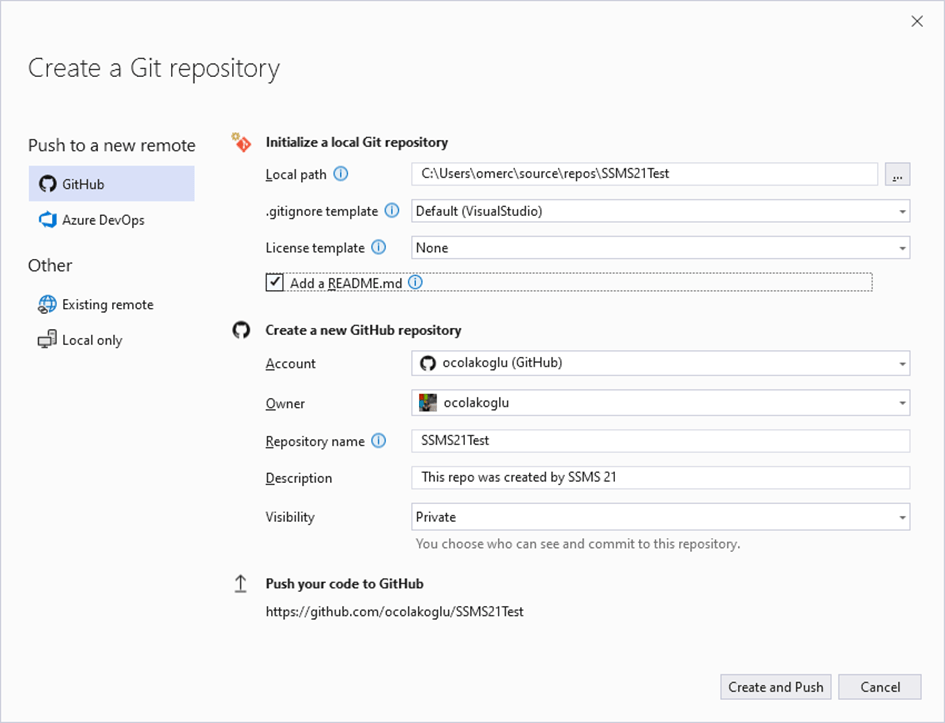
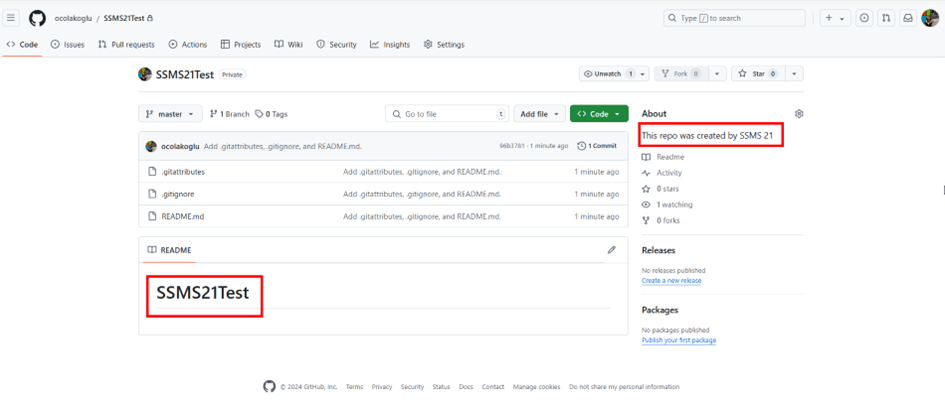
As you can see, the repo we created was created on our Github page.
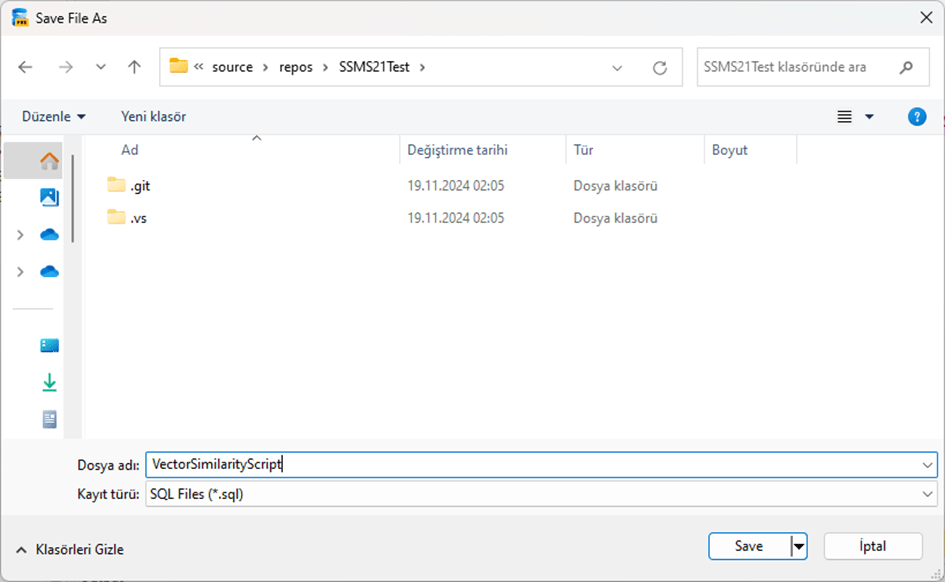
a SQL query file to our local repo.

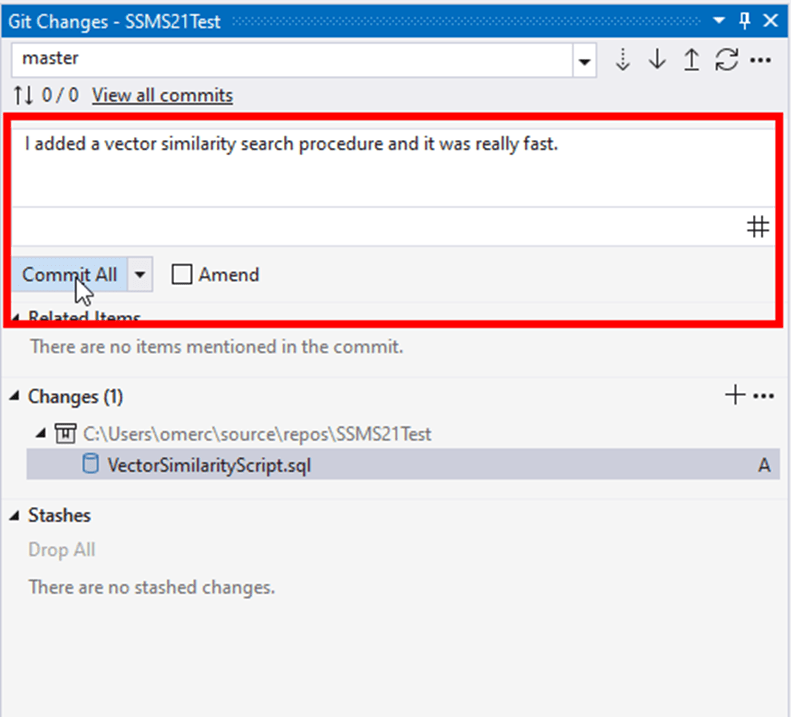
Go> View Branch We see the change by saying history .

Commit and Push by writing a description .

Voila ! We now have a versionable repo on github .
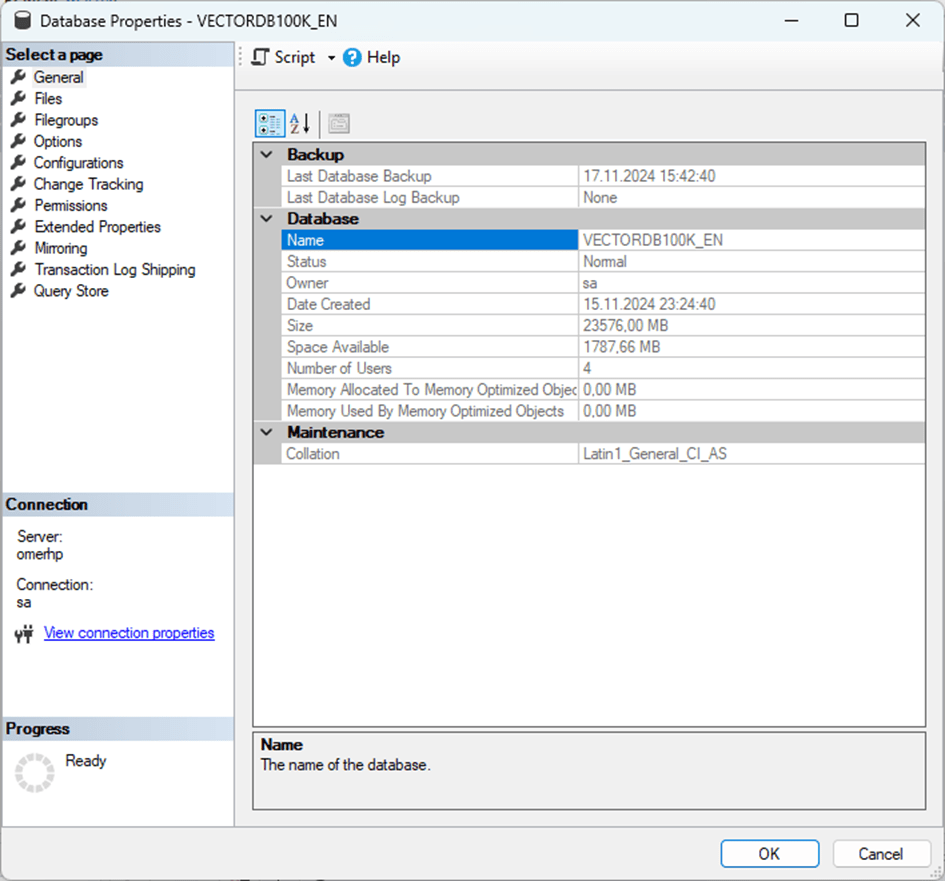
Database Properties and Configurations
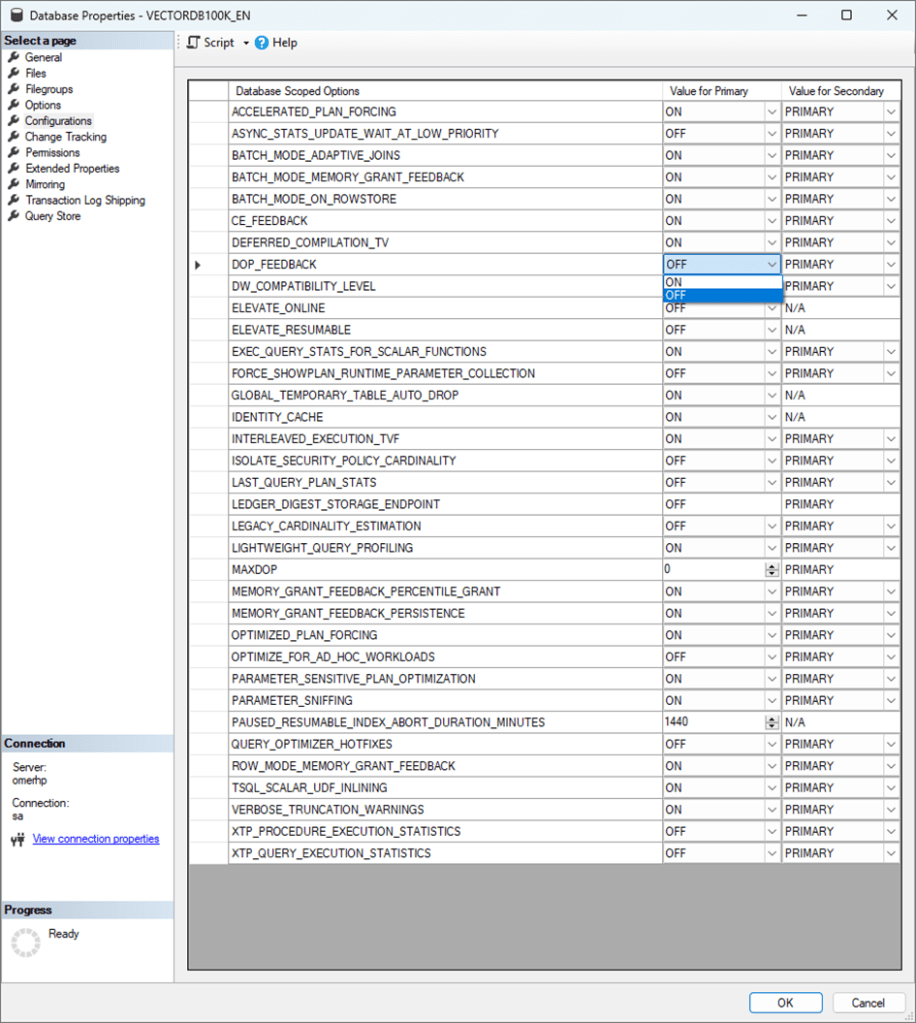
SSMS 21 has come with a very nice feature. Many things we used to do with code The database feature is now on a new page.
What’s missing? Every feature for performance optimization that we can’t remember saying “what was the name of this” is right in front of our eyes. It’s really nice.
Database Drivers :
SSMS 20.2 uses version 5.1.4 of the Microsoft.Data.SqlClient library, SSMS 21 uses version 5.1.6. This offers improvements in security, performance, consistency and stability.
The effects of this update can be summarized as follows:
1. Performance Improvements: The new version improves the performance of SQL Server connections, enabling faster data transfers. It provides lower latency and a smoother experience, especially for large data queries and heavy-load applications.
2. Enhanced Security: Version 5.1.6 enhances security in data communication with TLS 1.3 support and other security updates. This provides connections that are more resilient to data leaks and vulnerabilities.
3. Azure Integration: This release provides greater compatibility with cloud services such as Azure SQL Database and Azure Synapse , and improvements in Azure Active Directory (AAD) authentication support, resulting in fewer connection errors when connecting to databases running in Azure.
4. Bug Fixes and Stability: Many bugs reported in previous versions have been fixed and stability in connection management has been improved. This should help reduce issues that cause SSMS to crash or disconnect.
5. New Features: Microsoft.Data.SqlClient 5.1.6 improves compatibility with the latest versions of SQL Server and supports new features. For example, Always There are improvements in support for security features such as Encrypted .
These updates enable SSMS 21 users to work more efficiently and securely with SQL Server in both local and cloud environments. Users working with large-scale data projects or Azure-based databases will especially feel the benefits of this update.
Language Support:
As I mentioned before, Turkish, Polish and Czech language support is available but it doesn’t mean anything to me.
Libraries:
upgraded in SSMS 21 .
1. Azure. Core (v1.41.0)
- Why? Azure.Core is a library that hosts the core components of the Azure SDKs .
- Effects of the Update:
- Provides better error handling and resilience.
- It offers more stable connections to cloud services such as Azure SQL database .
- Contains optimizations that increase performance.
- Example Usage:
- There are fewer timeouts and connection interruptions when authenticating with Azure Active Directory.
2. DacFx (v162.4.92)
- Why? DacFx (Data- tier Application Framework) is used to package, deploy and manage SQL Server databases .
- Effects of the Update:
- Faster performance in database deployment and backup operations.
- Enhanced compatibility for SQL Server 2022 and Azure SQL Database.
- schema comparison and database publishing operations.
- Example Usage:
- a large-scale database deployment, processing time is reduced compared to older versions.
3. Server Management Objects (SMO) (v17.100.52)
- What is it? SMO is an API for programmatically interacting with SQL Server objects .
- Effects of the Update:
- Supports new features of SQL Server (for example, Always Encrypted and Query Store improvements).
- Provides a more stable and faster management API .
- Reduces the risk of errors and crashes.
- Example Usage:
- Creating a table programmatically is faster and error-free.
4. System.Text.Json (v8.0.4)
- Why? System.Text.Json is a modern and fast library for JSON processing in .NET .
- Effects of the Update:
- Faster JSON serialization and parsing.
- More efficient performance with less memory consumption.
- Advanced error handling features.
- Example Usage:
- Query results returned in JSON format on SSMS are processed and displayed faster.
General Advantages
These library updates allow SSMS 21 to:
- It improves performance.
- Provides better compatibility with modern features of Azure SQL Database and SQL Server.
- Increases reliability and stability.
Thanks to these updated libraries , SSMS provides a more robust experience in both local and cloud-based SQL Server operations.
Map Mode :
One of the nice features that comes with SSMS 21 is map mode , namely map mode. This is a nice tool that allows us to easily navigate long SQL statements.

Integrated Terminal:
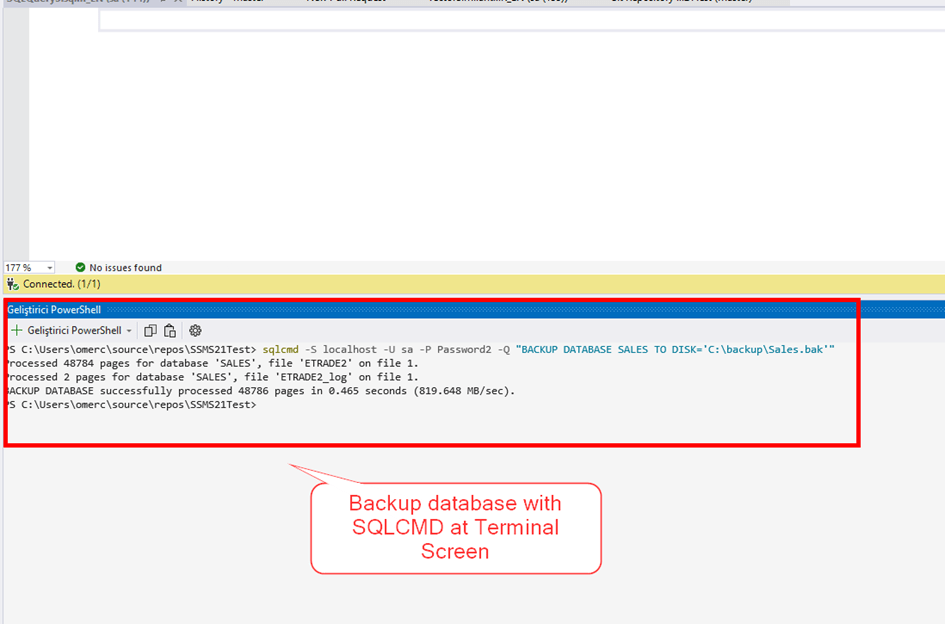
One of the features that make SSMS 21 modern is that you can open a Terminal screen and use PowerShell. The feature that allowed us to write scripts . This was a really necessary feature.
Advantages of Integrated Terminal Feature
- Command Line and PowerShell Support:
- SQLCMD commands, PowerShell commands, or other command line operations can be run directly without leaving SSMS .
- Provides faster database management and automation.
- Reduces Transition Between Vehicles:
- All operations can be performed within SSMS without the need to open an external terminal application.
- Easy Access:
- View menu.
- It provides a user-friendly interface for terminal access that developers constantly need.
Usage Scenarios
- Database Management:
- Using SQLCMD for backup and restore operations.
- PowerShell commands to check database status and session information .
- Automation:
- SQL Server tasks with PowerShell .
- a script that checks the status of all databases .
- Troubleshooting:
- Troubleshooting operations by running queries via terminal or reading log files.
Co- Pilot Support
Co Pilot support has also come in this version of SSMS 21, but it is not currently available in general . I am private I have requested a preview and will update this article when I receive a response. It probably makes more sense to write a standalone article for Co- Pilot anyway.
What are my expectations?
– In the database For years we have been expecting a structure that we can see as a preview when we pull it with a query for images kept in binary format.

-It can be a nice server monitor screen. A more interactive and more useful management screen.
transpose the data in the Query Result section . Oracle has this feature and uses it as a vertical grid.

a chart , not just a grid, and to analyze the results.
-When we say save results as, I would expect at least an excel , json , xml file to come up.
Conclusion
SSMS 21
-64 bit support
– Github integration support
-Up-to-date library and driver support
– Always encrypted wizard
-Database properties screen
-Enhanced capabilities for Azure SQL
It seems that it has made developments by analyzing the needs with features like these.
Of course, the most important feature is co- pilot support. However, I can’t say anything because I haven’t tried it yet.
Apart from that, we look forward to them meeting some of the simple expectations I have written above.
Hope to see you in another article…
 Ömer Çolakoğlu