Computer Engineer, IT Manager, Education volunteer, Developer, Videographer, Blogger "FIRST NEVER FOLLOWS!"
Yazar: omercolakoglu
Omer started as Software Developer in the sector in 2003 and met SQL Server in the following years and worked as SQL Server DBA since 2006. He is currently working as the IT Manager of a private company.
Omer is also online course instructor on a lot of online educational portal such as Udemy, Turkcell Gelecegi Yazanlar, BTK Academy.
He has more than 300.000 students from 107 countries of the world.
Also he is a member of many IT Communities and he works for educational purposes in IT Industry.
Omer spoke at two Tedx events, went to more than 40 universities as a speaker.
You can watch his short story from the Microsoft Turkey youtube channel.
https://www.youtube.com/watch?v=FO5IRzp-6Yg
In this article, we will learn how to index Json data on SQL Server to perform fast searches.
As we know, Json type data are actually string expressions and can be stored as NVARCHAR(Max) on SQL Server.
The biggest advantage of using Json is that it does not need to be in a structured format in a field and there is no need to make changes to the structure of the database when we want to keep more and different information in the future.
For example, while there is information about the material used in the cover of a product in a product list, there is no need for it in the other. You can add and go. When you want to query, you can only bring what is there.
So, how do we query data in Json format in SQL Server?
The Json commands that we can use with native T-SQL in SQL Server are as follows.
SELECT – FOR Clause
Used to return the output of a query in JSON format.
Example:
SELECT * FROM TableName FOR JSON AUTO;
Returns TableName data in JSON format.
OPENJSON
Transforms JSON data into SQL Server tables (presents it as chunks and rows/columns).
Example:
SELECT * FROM OPENJSON('{"id":1, "name":"John"}');
Returns JSON in a tabular format: key, value, type.
JSON Functions
What does it do? It includes several functions that make it easy to work with JSON data:
JSON_VALUE()
Used to return the value of a key in JSON. Can only return plain (scalar) values (e.g. number or text).
Usage Example:
SELECT JSON_VALUE('{"id":1, "name":"John"}', '$.name') AS Name;
Features:
Path: The JSON path ($) where the relevant value is located is specified.
It can only return plain values such as text, numbers, etc., it is not used to return objects or arrays.
JSON_QUERY()
Used to return more complex data, such as a subobject or array within JSON.
Example:
SELECT JSON_QUERY('{"id":1, "details":{"age":30, "city":" Newyork "}}', '$.details') AS Details;
Output : {“age”:30, “city”:”Newyork”}
Features:
Used to return an array or object.
Cannot be used for scalar values, JSON_VALUE() is preferred instead.
JSON_MODIFY()
Used to update JSON data, change a value, or add a new value.
Example:
SELECT JSON_MODIFY('{"id":1, "name":"John"}', '$.name', 'Jane') AS UpdatedJson;
Output : {“id”:1, “name”:”Jane”}
Features:
Replaces the value in the specified JSON path.
Can be used to add a new key.
Can be used to delete an existing key (by setting it to NULL).
Summary:
JSON_VALUE() : To get scalar values,
JSON_QUERY() : To get sub-objects or arrays,
JSON_MODIFY() : Used to update, add or delete JSON data.
ISJSON
Checks if a text is valid JSON.
Example:
SELECT ISJSON('{"key":"value"}') AS IsValidJSON; -- returns 1
Returns 1 if valid JSON, 0 otherwise.
JSON_OBJECT (Transact-SQL)
Creates a JSON object from key-value pairs.
Example:
SELECT JSON_OBJECT('id', 1, 'name', 'John') AS JsonObject;
Output : {“id”:1, “name”:”John”}
JSON_ARRAY
Creates an array in JSON format.
Example:
SELECT JSON_ARRAY(1, 'John', 3.14) AS JsonArray;
Output : [1, “John”, 3.14]
With these commands, we can create, edit, query and validate JSON data in SQL Server. JSON support makes it easier to integrate with applications and makes working with unstructured data efficient.
Now let’s talk about the index usage that we need when searching in a data containing JSON.
Now we have a dataset like this. 75,959 rows and Json data as an example.
{"Product_Name": "Dell Optiplex Micro 7010MFF Plus", "Category": "Mini Desktop", "Description": "The Dell Optiplex Micro 7010MFF Plus is a powerful mini desktop computer featuring Intel Core i5 13500T processor, 32GB DDR5 RAM, and 4TB SSD storage. It runs on Windows 11 Home operating system and comes in black color. is designed for professional use and offers wireless features, Bluetooth connectivity, and Intel UHD Graphics 770.", "Color": "Black", "Operating System": "Windows 11 Home", "Graphics Card Type": "Internal Video Card ", "Ram Type": "DDR5", "Processor Number": "13500T", "Wireless Feature": "Yes", "Bluetooth": "Yes"}
Here the ATTRIBUTES field is in json format and is kept as NVARCHAR(MAX).
Now, if we want to get products whose Product_Name property starts with ‘Dell%’ in json, we write a query like this. Here we use the JSON_VALUE function.
As you can see, 247 rows of data arrived.
Now let’s look at the execution plan and read count.
As can be seen, the clustered index scans, that is, it scans the entire table, and the total number of pages it reads is 46781. Since each page is 8 KB, this corresponds to a reading of approximately 365 MB.
Now let’s try to put an index on this Json data.
Since Json data is text data, we cannot put an index directly. However, we can add a computed field here and put an index on this field.
For example, if we want to index the Product_Name information in Json,
We can add a field to the table. This field will be a computed field and will automatically get the value of Product_Name in the Json.
ALTER TABLE WEBITEMS
ADD Json_PRODUCTNAME AS JSON_VALUE ( ATTRIBUTES , '$.Product_Name' )

CREATE INDEX IX_JSON_PRODUCTNAME
ON WEBITEMS ( Json_PRODUCTNAME )
ALTER TABLE WEBITEMS
ADD Json_PRODUCTNAME AS JSON_VALUE ( ATTRIBUTES , ‘$.Product_Name’ )
Then we add an index to this field.
Now let’s look at our query performance. As you can see, this time it found the correct index and the number of reads dropped from 46781 to 771. A performance increase of approximately 60 times.
Here we can also use the calculated field we added as is.
Conclusion:
In this article, we learned how to query Json data when it is kept as NVARCHAR(max) in SQL Server and how to index Json data.
First of all, I would like to say that an installation based on Visual Studio 2022 is now performed. When you start the installation, a screen like the one below appears.
After the installation is complete, a screen like the one below appears and you can make changes to the application from there.
When you open, you are greeted by a screen like this. Everything has turned into deep blue. Of course, we find it a little strange. Well, we have been used to this SSMS in yellow tones since SQL 2000. No matter how modern it seems, we find it a little strange. But I think we will be impressed by the minimalism that the blue color gives in time .
The opening time is about 4 seconds. This time is the same in SSMS 19 and 20. Therefore, the delay we are used to in preview versions was not present here.
SSMS splash screens.
A direct database connection screen appearing when SSMS opens . Although these were slightly different in versions 19 and 20, they allowed us to make a direct connection. In SSMS 21, the connection screen does not appear directly.
SSMS 19
SSMS 20
SSMS 21
The strangest thing about the startup was that everything was completely in Turkish. Because during installation, the language of the operating system is used as the default language, and this version has support for Polish, Turkish and Czech.
Well, far from home. I felt like I was watching a match on Azerbaijani television. It turns out we have internalized every menu. I didn’t understand anything in my native language. 😊I’m leaving a few examples here.
Of course, when we go to the tools>options menu and select the language settings to change the language, we realize that English is not available and needs to be installed.
Visual Studio installer to install it. So we run the file we downloaded again and click the “Change” button.
English from the language packs and install it.
For this feature to be valid, the system needs to be restarted . By system, I mean the computer. This situation is sad, frankly.
I did the restart process before translating it to Turkish and I don’t want to do it again, I am sharing the English version with you as a screenshot. Here you can see the image of the process of translating the current language from English to Turkish .
Ok, now that the installation and configuration are complete, let’s see what’s new.
64-Bit Support: A Faster and Reliable SSMS
“Out of memory ” error from time to time . Especially when we pull large rows or large volumes of data, SSMS unfortunately explodes. We encounter this error because it works mostly on 32-bit architecture. Now SSMS comes completely 64-bit in the Visual Studio environment and this problem is minimized. It is also an ideal approach especially for situations where we experience a lot of crashes. I haven’t tried it yet, but I will share my experiences as I try it.
Always Encrypted Wizard
SSMS 21 introduces a new wizard for encrypting and evaluating sensitive data. This allows you to use Tasks > Always You can quickly perform column-based encryption via the Encrypted Wizard menu. Of course, the collation of the columns changes here. The system gives this warning.
Example: You can quickly use this wizard to keep users’ passwords and phone numbers encrypted on an e-commerce platform .
The fields we specified are now kept encrypted .
Azure Authentication and Integrations
Azure SQL databases , SSMS 21 has simplified the authentication and configuration processes. Operations such as adding Azure firewall rules, configuring Service Level Objectives (SLOs), and creating linked servers can now be performed in a more user-friendly way.
Example:
The validation steps required to define firewall rules while creating an Azure SQL Database can be easily done in the SSMS interface.
Dark Mode: Eye-Friendly Working Experience
When I went to the Fabric Europe Conference and talked about the innovations in Fabric, the thing that people applauded the most was the Dark Mode support. Very interesting. It is a feature that does not make any sense to me and I do not even like using it, but it is really an addiction for many people and yes! SSMS is now dark It comes with mode support. Type theme in the search field in Tools> Options and select Color You can change it from the Theme section.
The interpretation is up to you. Personally, it’s not my style at all. I ‘ll continue with Light . Old school .
Git Integration: A New Era in CI/CD Processes
Git integration was something we were waiting for and really needed. After all, many Developer and db admin may be working on a system and project and version tracking is of great importance .
Example Usage: Multiple developers working on a database project can track and manage changes made to queries and procedures through Git integration.
Adding a Github account
Repo cloning
As you can see, the repo we created was created on our Github page.
a SQL query file to our local repo.
Go> View Branch We see the change by saying history .
Commit and Push by writing a description .
Voila ! We now have a versionable repo on github .
Database Properties and Configurations
SSMS 21 has come with a very nice feature. Many things we used to do with code The database feature is now on a new page.
What’s missing? Every feature for performance optimization that we can’t remember saying “what was the name of this” is right in front of our eyes. It’s really nice.
Database Drivers :
SSMS 20.2 uses version 5.1.4 of the Microsoft.Data.SqlClient library, SSMS 21 uses version 5.1.6. This offers improvements in security, performance, consistency and stability.
The effects of this update can be summarized as follows:
1. Performance Improvements: The new version improves the performance of SQL Server connections, enabling faster data transfers. It provides lower latency and a smoother experience, especially for large data queries and heavy-load applications.
2. Enhanced Security: Version 5.1.6 enhances security in data communication with TLS 1.3 support and other security updates. This provides connections that are more resilient to data leaks and vulnerabilities.
3. Azure Integration: This release provides greater compatibility with cloud services such as Azure SQL Database and Azure Synapse , and improvements in Azure Active Directory (AAD) authentication support, resulting in fewer connection errors when connecting to databases running in Azure.
4. Bug Fixes and Stability: Many bugs reported in previous versions have been fixed and stability in connection management has been improved. This should help reduce issues that cause SSMS to crash or disconnect.
5. New Features: Microsoft.Data.SqlClient 5.1.6 improves compatibility with the latest versions of SQL Server and supports new features. For example, Always There are improvements in support for security features such as Encrypted .
These updates enable SSMS 21 users to work more efficiently and securely with SQL Server in both local and cloud environments. Users working with large-scale data projects or Azure-based databases will especially feel the benefits of this update.
Language Support:
As I mentioned before, Turkish, Polish and Czech language support is available but it doesn’t mean anything to me.
Libraries:
upgraded in SSMS 21 .
1. Azure. Core (v1.41.0)
Why? Azure.Core is a library that hosts the core components of the Azure SDKs .
Effects of the Update:
Provides better error handling and resilience.
It offers more stable connections to cloud services such as Azure SQL database .
Contains optimizations that increase performance.
Example Usage:
There are fewer timeouts and connection interruptions when authenticating with Azure Active Directory.
2. DacFx (v162.4.92)
Why? DacFx (Data- tier Application Framework) is used to package, deploy and manage SQL Server databases .
Effects of the Update:
Faster performance in database deployment and backup operations.
Enhanced compatibility for SQL Server 2022 and Azure SQL Database.
schema comparison and database publishing operations.
Example Usage:
a large-scale database deployment, processing time is reduced compared to older versions.
3. Server Management Objects (SMO) (v17.100.52)
What is it? SMO is an API for programmatically interacting with SQL Server objects .
Effects of the Update:
Supports new features of SQL Server (for example, Always Encrypted and Query Store improvements).
Provides a more stable and faster management API .
Reduces the risk of errors and crashes.
Example Usage:
Creating a table programmatically is faster and error-free.
4. System.Text.Json (v8.0.4)
Why? System.Text.Json is a modern and fast library for JSON processing in .NET .
Effects of the Update:
Faster JSON serialization and parsing.
More efficient performance with less memory consumption.
Advanced error handling features.
Example Usage:
Query results returned in JSON format on SSMS are processed and displayed faster.
General Advantages
These library updates allow SSMS 21 to:
It improves performance.
Provides better compatibility with modern features of Azure SQL Database and SQL Server.
Increases reliability and stability.
Thanks to these updated libraries , SSMS provides a more robust experience in both local and cloud-based SQL Server operations.
Map Mode :
One of the nice features that comes with SSMS 21 is map mode , namely map mode. This is a nice tool that allows us to easily navigate long SQL statements.
Integrated Terminal:
One of the features that make SSMS 21 modern is that you can open a Terminal screen and use PowerShell. The feature that allowed us to write scripts . This was a really necessary feature.
Advantages of Integrated Terminal Feature
Command Line and PowerShell Support:
SQLCMD commands, PowerShell commands, or other command line operations can be run directly without leaving SSMS .
Provides faster database management and automation.
Reduces Transition Between Vehicles:
All operations can be performed within SSMS without the need to open an external terminal application.
Easy Access:
View menu.
It provides a user-friendly interface for terminal access that developers constantly need.
Usage Scenarios
Database Management:
Using SQLCMD for backup and restore operations.
PowerShell commands to check database status and session information .
Automation:
SQL Server tasks with PowerShell .
a script that checks the status of all databases .
Troubleshooting:
Troubleshooting operations by running queries via terminal or reading log files.
Co- Pilot Support
Co Pilot support has also come in this version of SSMS 21, but it is not currently available in general . I am private I have requested a preview and will update this article when I receive a response. It probably makes more sense to write a standalone article for Co- Pilot anyway.
What are my expectations?
– In the database For years we have been expecting a structure that we can see as a preview when we pull it with a query for images kept in binary format.
-It can be a nice server monitor screen. A more interactive and more useful management screen.
transpose the data in the Query Result section . Oracle has this feature and uses it as a vertical grid.
a chart , not just a grid, and to analyze the results.
-When we say save results as, I would expect at least an excel , json , xml file to come up.
Conclusion
SSMS 21
-64 bit support
– Github integration support
-Up-to-date library and driver support
– Always encrypted wizard
-Database properties screen
-Enhanced capabilities for Azure SQL
It seems that it has made developments by analyzing the needs with features like these.
Of course, the most important feature is co- pilot support. However, I can’t say anything because I haven’t tried it yet.
Apart from that, we look forward to them meeting some of the simple expectations I have written above.
In this article, you will learn the concept of Vector Search, which is the SQL Server equivalent of the concept of artificial intelligence, which has entered every aspect of our lives, and how I do the vector search process, which is not yet in SQL Server On Prem systems, with the T-SQL codes I wrote. Since the article is quite long, I wanted to write here what you will learn after reading what is explained here. Based on it, you can decide whether you are interested in it or not.
1.What is the vector search process and the concept of vector?
2.Instead of searching for text in the form of Select * from Items where title_ like ‘Lenovo%laptop%bag%’ that we know in SQL Server
When it is said “I am looking for a Lenovo notebook bag”, how to search like a prompt?
Or how can the same result be brought when “I am looking for a notebook backpack with Lenovo Brand” is written in a Turkish dataset?
3.How to vectorize a text?
4.What is cosine distance? How to calculate the similarity of two vectors?
5.How to quickly perform a vector search on SQL Server?
6. How to use Clustered Columnstore Index and Ordered Clustered Columnstore index for advanced performance?
7.How can we create a vector index, which is a feature that is not available in SQL Server.
Or you can download the database I worked on it here: VectorDB100K_EN
1.Introduction
The process we do when we search in SQL Server is obvious, right?
For example, let’s say “Lenovo Notebook Bag” is the phrase we searched for.
Here’s how we can call it.
SELECT * FROM WEBITEMS WHERE TITLE_ LIKE ‘%LENOVO NOTEBOOK BAG%’
We see that there is no result from this, because there is no product in which these three words are neighboor to each other.
In this case, these three words can be mentioned in separate places, but we can write them as follows with the logic that they should be in the same sentence.
SELECT ID, DESCRIPTION_ FROM WEBITEMS WHERE
DESCRIPTION_ LIKE N'%Lenovo%'
AND DESCRIPTION_ LIKE N'%Notebook%'
AND DESCRIPTION_ LIKE N'%Bag%'
As you can see, here are some records that fit this format.
Another alternative method is to perform this search with the fulltext search search operation.
SELECT ID,DESCRIPTION_EN  FROM WEBITEMS WHERE
CONTAINS(DESCRIPTION_EN,N'Lenovo')
AND CONTAINS(DESCRIPTION_EN,N'Notebook')
AND CONTAINS(DESCRIPTION_EN,N'Bag')
Of course, the fulltext search process is a structure that works very, very fast compared to others.
Now we have gone over our existing knowledge so far.
2.Vector search operation and vector concept
Now I’m going to introduce you to a new concept. “Vector Search”
Especially after concepts such as GPTs, language models, artificial intelligence came out, the rules of the game changed considerably. We now do a lot of our work by writing prompts. Because artificial intelligence is smart enough to understand what we want with the prompt.
So what’s going on on the SQL Server side at this point?
There are also the concepts of Vector Store and Vector Search.
Basically, here’s the thing.
It converts a text expression into a vector array of a certain length (I used it here with 1536 elements) and keeps the data that way.
The vector here consists of 1536 floats.
We convert all the lines of a column that we keep as text in the table to vector and store them as vectors inside, and when we want to search, we convert the text expression we want to search into vectors and calculate the similarity between these two vectors for all rows and try to find the closest one.
For example, let’s say the sentence we want to search for.
“I am looking for a Lenovo or Samsonite notebook bag.”
When we convert this to vector, we get the following result.
DECLARE @STR AS NVARCHAR(MAX);
SET @STR = 'I am looking for a Lenovo or Samsonite notebook bag.'
DECLARE @VECTOR AS NVARCHAR(MAX);
EXEC GENERATE_EMBEDDINGS @STR, @VECTOR OUTPUT;
SELECT @VECTOR AS VECTOR1536;
“I am looking for a Lenovo or Samsonite notebook bag.”
The procedure called GENERATE_EMBEDDINGSdoes the conversion to vector.
This procedure is not a procedure in SQL Server. AzureSQL has this feature, but not on-prem.
Here, it connects to the Azure OpenAI service and performs the conversion to vector.
Now let’s look at how we make a comparison between two vectors.
Here we use a formula called cosine distance.
3.Vector Similarity Comparison Cosine Distance
Cosine distance is a distance metric used to measure similarity between two vectors. It is based on the angle between two vectors.
When vectors are facing the same direction, they are considered similar, as they look in different directions, the distance between them increases.
Simply put:
Cosine distance calculates the cosine of the angle between two vectors and gives the degree of similarity.
The larger the cosine of the angle (close to 1), the more similar the two vectors are.
As the cosine distance value approaches 0, the vectors are similar to each other, and as they approach 1, they are different.
It is used to measure content similarity, especially in large data sets such as text and documents.
Of course, since the concept we call vector here is a series with 768 elements, we are talking about a subject that includes all the elements of the vector.
As can be seen in the picture below
Which is a search phrase
‘I am looking for a Lenovo or Samsonite notebook bag.’
With the record in the database
“Lenovo ThinkPad Essential Plus 15.6 Eco Backpack Lenovo 4X41A30364 15.6 Notebook Backpack OverviewThe perfect blend of professionalism and athleticism, the ThinkPad Essential Plus 15.6 Backpack (Eco) can take you from the office to the gym and back with ease. Spacious compartments keep your devices and essentials safe, organized, and accessible, while ballistic nylon and durable hardware protect against the elements and everyday wear and tear. Dedicated, separate laptop compartmentProtect your belongings with the hidden security pocket and luggage strap. Stay hydrated with two expandable side water bottle pockets. Laptop Size Range: 15 – 16 inches, Volume (L): 15, Bag Type: Backpack, Screen Size (inch): 15.6, Color: Black, Warranty Period (Months): 24, International Sales: None, Stock Code: HBCV00000VIMV8 Number of Reviews: 18Reviews Brand: Lenovo Seller: JetKlik Seller Rating: 9.6”
You see the vectors of the sentence translated into vectors and the similarity between them.
Being able to search for similarities from the database through vectors allows us to use the database like a chatbot.
In this case, we can perform a search operation like writing a prompt. There is already such a command in Azure SQL.
It calculates the cosine distance between two vectors and the similarity accordingly.
You can access the article on the subject from the link below.
Here, we’ll try to perform a situation that already exists on Azure SQL on On Prem SQL Server.
First of all, let’s look at how to convert to vector.
We have a table like below.
In this table, the DESCRIPTION_ field is a non-structured text field that contains all the properties of the product. Since we are going to search on this field, we must convert this field to vector.
Since there is no code that converts directly to vector on SQL Server for now, we will do this with an external plugin here. There are a variety of language models here. For example, we can use the Azure Open AI service.
I wrote a procedure like this.
CREATE PROCEDURE [dbo].[GENERATE_EMBEDDINGS]
@INPUT_TEXT NVARCHAR(MAX) = N'I am looking for a Lenovo or Samsonite brand notebook bag',
@VECTORSTR NVARCHAR(MAX) OUTPUT
AS
set @input_text=replace(@input_text,'"','\"')
DECLARE @Object AS INT;
DECLARE @ResponseText AS NVARCHAR(MAX)
DECLARE @StatusText AS nVARCHAR(800);
DECLARE @URL AS NVARCHAR(MAX);
DECLARE @Body AS NVARCHAR(MAX);
DECLARE @ApiKey AS VARCHAR(800);
DECLARE @Status AS INT;
DECLARE @hr INT;
DECLARE @ErrorSource AS VARCHAR(max);
DECLARE @ErrorDescription AS VARCHAR(max);
DECLARE @Headers  nVARCHAR(MAX);
DECLARE @Payload  nVARCHAR(MAX);
DECLARE @ContentType  nVARCHAR(max);
--SET NOCOUNT on
SET @URL = 'https://omeropenaiservice.openai.azure.com/openai/deployments/text-embedding-ada-002/embeddings?api-version=2023-05-15';
SET @Headers = 'api-key: 584eXXXXXXXXXXXXXXXXXXXXXXX';

--Payload to send
SET @Payload = '{"input": "' + @input_text + '"}';


SET @ApiKey = 'api-key: 584eXXXXXXXXXXXXXXXXXXXXXX'
--SET @URL = 'https://api.openai.com/v1/embeddings';
SET @Body =  '{"input": "' + @input_text + '"}'-- '{"input": "' + @input_text + '"}';--'{"model": "text-embedding-ada-002", "input": "' + REPLACE(@input_text, '"', '\"') + '"}';

print @body
-- Create OLE Automation object
EXEC @hr = sp_OACreate 'MSXML2.ServerXMLHTTP', @Object OUT;
IF @hr <> 0
BEGIN
EXEC sp_OAGetErrorInfo @Object, @ErrorSource OUT, @ErrorDescription OUT;
PRINT 'Failed to create OLE object';
PRINT 'Error Source: ' + @ErrorSource;
PRINT 'Error Description: ' + @ErrorDescription;
RETURN;
END

-- Open connection
EXEC @hr = sp_OAMethod @Object, 'open', NULL, 'POST', @URL, 'false';
IF @hr <> 0
BEGIN
EXEC sp_OAGetErrorInfo @Object, @ErrorSource OUT, @ErrorDescription OUT;
PRINT 'Failed to open connection';
PRINT 'Error Source: ' + @ErrorSource;
PRINT 'Error Description: ' + @ErrorDescription;
EXEC sp_OADestroy @Object;
RETURN;
END

-- Set request headers
EXEC @hr = sp_OAMethod @Object, 'setRequestHeader', NULL, 'Content-Type', 'application/json';
EXEC @hr = sp_OAMethod @Object, 'setRequestHeader', NULL, 'api-key', '584XXXXXXXXXXXXXXXXXXXXX';
IF @hr <> 0
BEGIN
EXEC sp_OAGetErrorInfo @Object, @ErrorSource OUT, @ErrorDescription OUT;
PRINT 'Failed to set Content-Type header';
PRINT 'Error Source: ' + @ErrorSource;
PRINT 'Error Description: ' + @ErrorDescription;
EXEC sp_OADestroy @Object;
RETURN;
END

EXEC @hr = sp_OAMethod @Object, 'setRequestHeader', NULL, 'Authorization', @ApiKey;
IF @hr <> 0
BEGIN
EXEC sp_OAGetErrorInfo @Object, @ErrorSource OUT, @ErrorDescription OUT;
PRINT 'Failed to set Authorization header';
PRINT 'Error Source: ' + @ErrorSource;
PRINT 'Error Description: ' + @ErrorDescription;
EXEC sp_OADestroy @Object;
RETURN;
END

-- Send request
EXEC @hr = sp_OAMethod @Object, 'send', NULL, @Body;
IF @hr <> 0
BEGIN
EXEC sp_OAGetErrorInfo @Object, @ErrorSource OUT, @ErrorDescription OUT;
PRINT 'Failed to send request';
PRINT 'Error Source: ' + @ErrorSource;
PRINT 'Error Description: ' + @ErrorDescription;
EXEC sp_OADestroy @Object;
RETURN;
END

-- Get HTTP status
EXEC @hr = sp_OAMethod @Object, 'status', @Status OUT;
IF @hr <> 0
BEGIN
EXEC sp_OAGetErrorInfo @Object, @ErrorSource OUT, @ErrorDescription OUT;
PRINT 'Failed to get HTTP status';
PRINT 'Error Source: ' + @ErrorSource;
PRINT 'Error Description: ' + @ErrorDescription;
EXEC sp_OADestroy @Object;
RETURN;
END

-- Get status text
EXEC @hr = sp_OAMethod @Object, 'statusText', @StatusText OUT;
IF @hr <> 0
BEGIN
EXEC sp_OAGetErrorInfo @Object, @ErrorSource OUT, @ErrorDescription OUT;
PRINT 'Failed to get HTTP status text';
PRINT 'Error Source: ' + @ErrorSource;
PRINT 'Error Description: ' + @ErrorDescription;
EXEC sp_OADestroy @Object;
RETURN;
END

-- Print status and status text
PRINT 'HTTP Status: ' + CAST(@Status AS NVARCHAR);
PRINT 'HTTP Status Text: ' + @StatusText;

IF @Status <> 200
BEGIN
PRINT 'HTTP request failed with status code ' + CAST(@Status AS NVARCHAR);
EXEC sp_OADestroy @Object;
RETURN;
END

-- Get response text
DECLARE @json TABLE (Result NVARCHAR(MAX))
INSERT  @json(Result)
EXEC    dbo.sp_OAGetProperty @Object, 'responseText'
SELECT  @ResponseText = Result FROM @json

-- Print response text
--SELECT @ResponseText;

-- Destroy OLE Automation object
DECLARE @t AS TABLE (EmbeddingValue nVARCHAR(MAX))

-- Splitting embedded array

SET @vectorstr = (
SELECT EmbeddingValue + ','
FROM (
SELECT value AS EmbeddingValue
FROM OPENJSON(@ResponseText, '$.data[0].embedding')
) t
FOR XML PATH('')
)

SET @vectorstr = SUBSTRING(@vectorstr, 1, LEN(@vectorstr) - 1)
Here is how it’s used.
The vector uses the “text-embedding-ada-002” model and creates a vector with 1536 elements.
Alternatively, we can write a code ourselves in Python without using Azure and we can do vector transformation through another model.
from flask import Flask, request, jsonify
import openai

app = Flask(__name__)

# Azure OpenAI API connection details
openai.api_type = "azure"
openai.api_key = "8nnCxxxxxxxxxxxxxxxxxxxxxxxxxxxxxxxxxxxxxxxxxxxxxxxxx"
openai.api_base = "https://omeropenaiservice.openai.azure.com/"
openai.api_version = "2024-08-01-preview"

# Embedding model and maximum token limit
EMBEDDING_MODEL = "text-embedding-ada-002"
MAX_TOKENS = 8000
app.config['MAX_CONTENT_LENGTH'] = 16 * 1024 * 1024

# Function to generate embeddings using Azure OpenAI API
def get_embedding(text):
    embeddings = []
    tokens = text.split()  # Split the text into tokens using whitespace

    # Split the text into chunks and process each chunk
    for i in range(0, len(tokens), MAX_TOKENS):
        chunk = ' '.join(tokens[i:i + MAX_TOKENS])
        response = openai.Embedding.create(
            engine=EMBEDDING_MODEL,  # Use 'engine' instead of 'model' in Azure OpenAI
            input=chunk
        )
        embedding = response['data'][0]['embedding']
        embeddings.append(embedding)
        print(f"Chunk {i // MAX_TOKENS + 1} processed")  # Log progress
    return embeddings

# API endpoint for vectorization
@app.route('/vectorize', methods=['POST'])
def vectorize():
    data = request.json
    text = data.get('text', '')

    if not text or text.strip() == "":
        return jsonify({"error": "Invalid or empty input"}), 400

    try:
        vector = get_embedding(text)
        return jsonify({"vector": vector})
    except Exception as e:
        return jsonify({"error": str(e)}), 500

if __name__ == '__main__':
    app.run(host='0.0.0.0', port=5000)
Alternatively, we can write a code ourselves in Python without using Azure and we can do vector transformation through another model.
This code creates a vector with 1536 elements, which takes a string expression into it and consequently converts the vector according to the “all-mpet-base-v2” model.
from flask import Flask, request, jsonify
from sentence_transformers import SentenceTransformer

# Initialize Flask app and model
app = Flask(__name__)
model = SentenceTransformer('all-mpnet-base-v2')

# Define an endpoint that returns a vector
@app.route('/get_vector', methods=['POST'])
def get_vector():
    # Retrieve text from JSON request
    data = request.get_json()
    if 'text' not in data:
        return jsonify({"error": "Request must contain 'text' field"}), 400

    try:
        # Convert the text to a vector
        embedding = model.encode(data['text'])

        # Convert the embedding vector to a list and return as JSON
        return jsonify({"vector": embedding.tolist()})

    except Exception as e:
        return jsonify({"error": str(e)}), 500

# Run the Flask app
if __name__ == '__main__':
    app.run(host="0.0.0.0", port=5000)
Now let’s write the TSQL code that will call this API from SQL.
create PROCEDURE [dbo].[GENERATE_EMBEDDINGS_LOCAL]
    @str NVARCHAR(MAX),
    @vector NVARCHAR(MAX) OUTPUT
AS
BEGIN
DECLARE @Object INT;
DECLARE @ResponseText NVARCHAR(MAX);
DECLARE @StatusCode INT;
DECLARE @URL NVARCHAR(MAX) = 'http://127.0.0.1:5000/get_vector';
DECLARE @HttpRequest NVARCHAR(MAX);
DECLARE @StatusText AS nVARCHAR(800);
DECLARE @Body AS NVARCHAR(MAX);
DECLARE @ApiKey AS VARCHAR(800);
DECLARE @Status AS INT;
DECLARE @hr INT;
DECLARE @ErrorSource AS VARCHAR(max);
DECLARE @ErrorDescription AS VARCHAR(max);
DECLARE @Headers  nVARCHAR(MAX);
DECLARE @Payload  nVARCHAR(MAX);
DECLARE @ContentType  nVARCHAR(max);

SET @Body = '{"text": "' + @str + '"}'

print @body
-- Create OLE Automation object
EXEC @hr = sp_OACreate 'MSXML2.ServerXMLHTTP', @Object OUT;
IF @hr <> 0
BEGIN
    EXEC sp_OAGetErrorInfo @Object, @ErrorSource OUT, @ErrorDescription OUT;
    PRINT 'Failed to create OLE object';
    PRINT 'Error Source: ' + @ErrorSource;
    PRINT 'Error Description: ' + @ErrorDescription;
    RETURN;
END

-- Open connection
EXEC @hr = sp_OAMethod @Object, 'open', NULL, 'POST', @URL, 'false';
IF @hr <> 0
BEGIN
    EXEC sp_OAGetErrorInfo @Object, @ErrorSource OUT, @ErrorDescription OUT;
    PRINT 'Failed to open connection';
    PRINT 'Error Source: ' + @ErrorSource;
    PRINT 'Error Description: ' + @ErrorDescription;
    EXEC sp_OADestroy @Object;
    RETURN;
END

-- Set request headers
EXEC @hr = sp_OAMethod @Object, 'setRequestHeader', NULL, 'Content-Type', 'application/json';

IF @hr <> 0
BEGIN
    EXEC sp_OAGetErrorInfo @Object, @ErrorSource OUT, @ErrorDescription OUT;
    PRINT 'Failed to set Content-Type header';
    PRINT 'Error Source: ' + @ErrorSource;
    PRINT 'Error Description: ' + @ErrorDescription;
    EXEC sp_OADestroy @Object;
    RETURN;
END


-- Send request
EXEC @hr = sp_OAMethod @Object, 'send', NULL, @Body;
IF @hr <> 0
BEGIN
    EXEC sp_OAGetErrorInfo @Object, @ErrorSource OUT, @ErrorDescription OUT;
    PRINT 'Failed to send request';
    PRINT 'Error Source: ' + @ErrorSource;
    PRINT 'Error Description: ' + @ErrorDescription;
    EXEC sp_OADestroy @Object;
    RETURN;
END

-- Get HTTP status
EXEC @hr = sp_OAMethod @Object, 'status', @Status OUT;
IF @hr <> 0
BEGIN
    EXEC sp_OAGetErrorInfo @Object, @ErrorSource OUT, @ErrorDescription OUT;
    PRINT 'Failed to get HTTP status';
    PRINT 'Error Source: ' + @ErrorSource;
    PRINT 'Error Description: ' + @ErrorDescription;
    EXEC sp_OADestroy @Object;
    RETURN;
END

-- Get status text
EXEC @hr = sp_OAMethod @Object, 'statusText', @StatusText OUT;
IF @hr <> 0
BEGIN
    EXEC sp_OAGetErrorInfo @Object, @ErrorSource OUT, @ErrorDescription OUT;
    PRINT 'Failed to get HTTP status text';
    PRINT 'Error Source: ' + @ErrorSource;
    PRINT 'Error Description: ' + @ErrorDescription;
    EXEC sp_OADestroy @Object;
    RETURN;
END

-- Print status and status text
PRINT 'HTTP Status: ' + CAST(@Status AS NVARCHAR);
PRINT 'HTTP Status Text: ' + @StatusText;

IF @Status <> 200
BEGIN
    PRINT 'HTTP request failed with status code ' + CAST(@Status AS NVARCHAR);
    EXEC sp_OADestroy @Object;
    RETURN;
END

-- Get response text
DECLARE @json TABLE (Result NVARCHAR(MAX))
INSERT  @json(Result)
EXEC    dbo.sp_OAGetProperty @Object, 'responseText'
SELECT  @ResponseText = Result FROM @json


-- Destroy OLE Automation object
DECLARE @t AS TABLE (EmbeddingValue nVARCHAR(MAX))


SET @vector = (
    SELECT EmbeddingValue + ','
    FROM (
        SELECT value AS EmbeddingValue
        FROM OPENJSON(@ResponseText, '$.vector')
    ) t
    FOR XML PATH('')
)

 SET @vector = SUBSTRING(@vector , 1, LEN(@vector ) - 1)
End
Here is, how it’s used.
Now let’s convert this to vector for the field we added to the table. I’ll be using the local Azure Open AI service here. The following query converts the field VECTOR_1536 (I used this name because it is a field with 1536 elements) to vector and updates it for all rows in the table.
After a long process, our vector column is now ready and now, we will do a similarity search on this column.
Cosine Distance Calculation Method
import numpy as np
from sklearn.metrics.pairwise import cosine_distances

# Example vectors
A = np.array([1, 2, 3])
B = np.array([4, 5, 6])

# Manual calculation of cosine similarity
cosine_similarity = np.dot(A, B) / (np.linalg.norm(A) * np.linalg.norm(B))
cosine_distance = 1 - cosine_similarity
print("Cosine Distance (manual):", cosine_distance)

# Calculating cosine distance with sklearn
cosine_distance_sklearn = cosine_distances([A], [B])[0][0]
print("Cosine Distance (sklearn):", cosine_distance_sklearn)
Cosine Distance is calculated as follows.
As an example, we have two vectors with 3 elements.
Vector1=[0.5,0.3,-0.8]
Vector2=[-0.2,0.4,0.9]
Here, the cosine distance is calculated as follows.
The sum of each element multiplied by each other is @dotproduct
DECLARE @Vector1 AS NVARCHAR(MAX) = '[0.5,0.3,-0.8]'
DECLARE @Vector2 AS NVARCHAR(MAX) = '[-0.2,0.4,0.9]'
DECLARE @dotproduct AS FLOAT
DECLARE @magnitude1 AS FLOAT
DECLARE @magnitude2 AS FLOAT

SET @dotproduct = (0.5 * (-0.2)) + (0.3 * 0.4) + (-0.8 * 0.9)
SET @magnitude1 = (0.5 * 0.5) + (0.3 * 0.3) + (-0.8 * -0.8)
SET @magnitude2 = (-0.2 * -0.2) + (0.4 * 0.4) + (0.9 * 0.9)

DECLARE @Similarity AS FLOAT
SET @Similarity = @dotproduct / (SQRT(@magnitude1) * SQRT(@magnitude2))

SELECT @dotproduct DotProduct
    ,@magnitude1 Magnitude1
    ,@magnitude2 Magnitude2
    ,@Similarity Similarity
Cosine Distance Calculation Example with TSQL
CREATE FUNCTION [dbo].[CosineSimilarity] (
@Vector1 NVARCHAR(MAX), @Vector2 NVARCHAR(MAX)
)
RETURNS FLOAT
AS
BEGIN
SET @Vector1 = REPLACE(@Vector1, '[', '')
SET @Vector1 = REPLACE(@Vector1, ']', '')

SET @Vector2 = REPLACE(@Vector2, '[', '')
SET @Vector2 = REPLACE(@Vector2, ']', '')

DECLARE @dot_product FLOAT = 0, @magnitude1 FLOAT = 0, @magnitude2 FLOAT = 0;
DECLARE @val1 FLOAT, @val2 FLOAT;
DECLARE @i INT = 0;
DECLARE @v1 NVARCHAR(MAX), @v2 NVARCHAR(MAX);
DECLARE @len INT;

-- Split vectors and insert into tables
DECLARE @tvector1 TABLE (ID INT, Value FLOAT);
DECLARE @tvector2 TABLE (ID INT, Value FLOAT);

INSERT INTO @tvector1
SELECT ordinal, CONVERT(FLOAT, value) FROM STRING_SPLIT(@Vector1, ',', 1) ORDER BY 2;

INSERT INTO @tvector2
SELECT ordinal, CONVERT(FLOAT, value) FROM STRING_SPLIT(@Vector2, ',', 1) ORDER BY 2;

SET @len = (SELECT COUNT(*) FROM @tvector1);

-- Return NULL if vectors are of different lengths
IF @len <> (SELECT COUNT(*) FROM @tvector2)
RETURN NULL;

-- Calculate cosine similarity
WHILE @i < @len
BEGIN
SET @i = @i + 1;

SELECT @val1 = Value FROM @tvector1 WHERE ID = @i;
SELECT @val2 = Value FROM @tvector2 WHERE ID = @i;

SET @dot_product = @dot_product + (@val1 * @val2);
SET @magnitude1 = @magnitude1 + (@val1 * @val1);
SET @magnitude2 = @magnitude2 + (@val2 * @val2);
END

-- Return 0 if any magnitude is zero to avoid division by zero
IF @magnitude1 = 0 OR @magnitude2 = 0
RETURN 0;

RETURN @dot_product / (SQRT(@magnitude1) * SQRT(@magnitude2));
END
Now let’s compare a vector in db with a string expression.
-- Creating a search sentence and converting it to a vector
DECLARE @VECTOR1 AS VARCHAR(MAX) = '1,2,3,4,5,6,7,8';
DECLARE @VECTOR2 AS VARCHAR(MAX) = '2,0,3,4,5,6,7,8';

SELECT dbo.CosineSimilarity(@VECTOR1, @VECTOR2);

-- Creating a search sentence and converting it to a vector
DECLARE @query AS NVARCHAR(MAX) = 'I am looking for a notebook bag';
DECLARE @searchVector AS NVARCHAR(MAX);
EXEC GENERATE_EMBEDDINGS @query, @searchVector OUTPUT;

-- Converting the DESCRIPTION2 field from a selected row in the database to a vector
DECLARE @dbText AS NVARCHAR(MAX);
DECLARE @dbVector AS NVARCHAR(MAX);
SELECT @dbText = DESCRIPTION_ FROM WEBITEMS WHERE ID = 80472;
EXEC GENERATE_EMBEDDINGS @dbText, @dbVector OUTPUT;

-- Displaying the vectors and sentences
SELECT @query AS Query, @searchVector AS SearchVector;
SELECT @dbText AS DBText, @dbVector AS DBVector;

-- Calculating the similarity and cosine distance values between the two vectors
SELECT dbo.CosineSimilarity(@searchVector, @dbVector) AS Similarity,
       1 - dbo.CosineSimilarity(@searchVector, @dbVector) AS CosineDistance;
As can be seen, the similarity of these two text expressions with each other was 0.63. Here we have calculated the similarity with only one record at the moment. However, what should happen is that this similarity is calculated among all the records in the database and a certain number of records come according to the one with the most similarity rate.
Since there are more than 75.000 records in the database, this function needs to run more than 75.000 times. This is a serious performance issue. Let’s run it for 100 rows of records.
As you can see, even for 100 rows of data, it took 2 minutes. This means approximately 2×1000 = 2.000 minutes for 100 thousand lines, which is about 33 hours.
It’s not abnormal for this amount of time to be.
Because that’s exactly what we’re doing in the background.
1.@dotProduct, there is a multiplication of elements as many as the number of elements of the vectors (our number is 1536) with each other, and then there is the addition of them.
1536 Multiplication+1536 addition=3072 operations
2.There is a process of calculating the sum of the elements by taking the squares of the elements for each vector.
Squaring operation for both vectors 1536 +1536 =3072 operations.
There is a transaction, but it doesn’t matter because it happens 1 time.
In this case, for every vector with 1536 elements, 3072 + 3072 = 6144 operations occur in each line.
In a table of 75.000 rows, this number means 75,000×6144 =460.800.000 (Approximately 460 million) mathematical operations. Therefore, it is possible that it will take so long.
In short, it is not very healthy for us to calculate in this way.
What to do to speed up this work?
Yes, now let’s talk about how to speed up this work.
I’ve said many times that SQL Server likes to work with data in a vertical.
By vertical, I mean the data in the rows and the correct indexes.
But where is the vector data we have? 1536 horizontal data, which is distinguished by a comma next to each other, and sometimes 768 horizontal data according to the language model used.
SQL Server is not good at horizontal data. So how about we convert this horizontal data to vertical?
In other words, if we add each element of the vector to the system as a line.
We will create a table for this.
CREATE TABLE VECTORDETAILS(
id int IDENTITY(1,1) NOT NULL,
vector_id [int] NOT NULL,
value_ float NULL,
key_ int NOT NULL
) ON [PRIMARY]
Here we will keep the ID value for a product as Vector_id here. We will key_ the sequence number of the vector element and keep its value as value_.
As an example, let’s look at the product with ID 80472.
We can read the VECTOR_1536 field line by line with splitting with the comma.
Now let’s write a stored procedure for each product that will update it in the table.
CREATE TABLE [dbo].[VECTORDETAILS](
	[id] [int] IDENTITY(1,1) NOT NULL,
	[vector_id] [int] NOT NULL,
	[value_] [float] NULL,
	[key_] [int] NULL
) ON [PRIMARY]
GO

CREATE PROC [dbo].[fillVectorDetailsContentByVectorId_WEBITEMS]
@vectorId as int

CREATE PROCEDURE [dbo].[FILL_VECTORDETAILS_BY_ID]
    @VECTOR_ID INT
AS
BEGIN
    DELETE FROM VECTORDETAILS WHERE VECTOR_ID = @VECTOR_ID;

    INSERT INTO VECTORDETAILS (VECTOR_ID, KEY_, VALUE_)
    SELECT
        E.ID,
        D.ORDINAL,
        TRY_CONVERT(FLOAT, D.VALUE)
    FROM WEBITEMS E
    CROSS APPLY STRING_SPLIT(REPLACE(REPLACE(CONVERT(NVARCHAR(MAX), E.VECTOR_1536), ']', ''), '[', ''), ',',1) D
    WHERE E.VECTOR_1536 IS NOT NULL
    AND E.ID = @VECTOR_ID;
END;
Now let’s call this procedure for all products.
DECLARE @VECTORID AS INT;
DECLARE CRS CURSOR
FOR
SELECT ID
FROM WEBITEMS;
OPEN CRS;
FETCH NEXT
FROM CRS
INTO @VECTORID;
WHILE @@FETCH_STATUS = 0
BEGIN
    EXEC FILL_VECTORDETAILS_BY_ID @VECTORID;
    FETCH NEXT
    FROM CRS
    INTO @VECTORID;
END;
CLOSE CRS;
DEALLOCATE CRS;
Cosine Simularity Fast Calculation
Yes, now that we have come this far, the next step is to quickly calculate similarity. There’s a TSQL code I wrote for this.
— Declare variables
DECLARE @input_text NVARCHAR(MAX) =’I am looking for a Lenovo or Samsonite brand notebook bag’;
DECLARE @vectorstr NVARCHAR(MAX);
DECLARE @vector NVARCHAR(MAX);
— Remove special characters from the input text
SET @input_text = dbo.RemoveSpecialChars(@input_text);
— Create a temporary table to store the vector values
CREATE TABLE #t (
vector_id INT,
key_ INT,
value_ FLOAT
);
— Insert vector values into the temporary table
INSERT INTO #t (vector_id, key_, value_)
SELECT
-1 AS vector_id, — Use -1 as the vector ID for the input text
d.ordinal AS key_, — The position of the value in the vector
CONVERT(FLOAT, d.value) AS value_ — The value of the vector
FROM
STRING_SPLIT(@vectorstr, ‘,’, 1) AS d
— Calculate the cosine similarity between the input vector and stored vectors
SELECT TOP 100
vector_id,
SUM(dot_product) / SUM(SQRT(magnitude1) * SQRT(magnitude2)) AS Similarity,
@input_text AS SearchedQuery, — Include the input query for reference
(
SELECT TOP 1 DESCRIPTION_
FROM WEBITEMS
WHERE ID = TT.vector_id
) AS SimilarTitle — Fetch the most similar title from the walmart_product_details table
into #t1
FROM
(
SELECT
T.vector_id,
SUM(VD.value_ * T.value_) AS dot_product, — Dot product of input and stored vectors
SUM(VD.value_*VD.value_) AS magnitude1, — Magnitude of the input vector
SUM(T.value_*T.value_) AS magnitude2 — Magnitude of the stored vector
FROM
#t VD — Input vector data
CROSS APPLY
(
— Retrieve stored vectors where the key matches the input vector key
SELECT *
FROM VECTORDETAILS vd2
WHERE key_ = VD.key_
) T
GROUP BY T.vector_id — Group by vector ID to calculate the similarity for each stored vector
) TT
GROUP BY vector_id — Group the final similarity results by vector ID
ORDER BY 2 DESC; — Order by similarity in descending order (most similar first)
select DISTINCT vector_id,ROUND(similarity,5) Similarity,similarTitle ProductName from #t1
WHERE similarTitle IS NOT NULL
ORDER BY 2 DESC
DROP TABLE #t,#t1 ;
The query seems to be working fine, but the duration is 11 seconds. Actually this is very great time. Because, remember! The first calculation time for the cosinus distance was about 33 hours with table scan.
But I think it can be better.
Let’s work!
We don’t have any nonclustered index for now and we have just primary key for ID column and we have a clustered index for this auto Increment integer field. But our query Works on VECTOR_ID and KEY_ columns.
Let’s try to make these columns primary key.
ALTER TABLE VECTORDETAILS ADD PRIMARY KEY (KEY_,VECTOR_ID)
And try again.
Wee see, the result is same before.
Let’s change the order of primary key columns.
Let’s change the order of primary key columns.
Let’s change the order of primary key columns.
We can try the columnstore index.
With Clustered columnstore index, the duration is 5 seconds.
It is 2 times faster than normal clustered index. It is normal. Because we are calculating summary for every vector and they have 1536 elements. If you are working with aggregation and summary, Columnstore indexes are faster.
But we also querying data with the KEY_ and VECTOR_ID fields.
We are joining our search vector and the all vectors in our table. (80.000 rows)
We are joining them with the key_ column.
If we use just clustered columnstore index it will be slow. Because CC Indexes are faster for batch reading and aggregating. For row based comprasion, Nonclustered indexes are better.
So we need a non clustered index for the key_ column and also we need included column to decrease to read.
CREATE INDEX IX1 ON VECTORDETAILS(KEY_)
INCLUDE (VECTOR_ID,VALUE_)
With Clustered Columnstore Index and Nonclustered index with Key_ column
The duration is 4 seconds. 20% faster than before. Not bad but we expect more.
Let’s turn back to Cosine similarity formula.
1.DotProduct: In other words, the elements of both vectors in the same order are multiplied by each other.
2.Magnitude1, Magnitude2: The process of summarizing all the elements of both vectors by squaring them and then taking the square root again.
There is no escaping operation for number one. Because it is related to the other vectors in the table.
But for number two, we can decrease reading by calculating it at once and there is no need to calculate it again.
We should add another field to our table and update it.
Alter Table VECTORDETAILS  add valsqrt float
Update VECTORDETAILS set valsqrt=value*value_
Now let's add a separate table to calculate the magnitude values.

CREATE TABLE VECTORSUMMARY (
ID INT IDENTITY(1,1),
VECTOR_ID INT,
MAGNITUDE FLOAT,
MAGNITUDESQRT FLOAT
Alter Table VECTORDETAILS add valsqrt float
Update VECTORDETAILS set valsqrt=value*value_
Now let’s add a separate table to calculate the magnitude values.
CREATE TABLE VECTORSUMMARY (
ID INT IDENTITY(1,1),
VECTOR_ID INT,
MAGNITUDE FLOAT,
MAGNITUDESQRT FLOAT
Now let’s group it from the VECTORDETAILS table and insert it here.
INSERT INTO VECTORSUMMARY
(VECTOR_ID, MAGNITUDE, MAGNITUDESQRT)
select  VECTOR_ID,SUM(VALSQRT) ,SQRT( SUM(VALSQRT) )
FROM VECTORDETAILS
WHERE VECTOR_ID=@vectorId
GROUP BY VECTOR_ID

)

Finally, let's create an index.
CREATE NONCLUSTERED INDEX IX1 ON dbo.VECTORSUMMARY
(
VECTOR_ID ASC
)
INCLUDE(ID,MAGNITUDE, MAGNITUDESQRT)
Now let’s modify and run our calculation query accordingly.
DECLARE @input_text nVARCHAR(MAX) = N'I am looking for a Lenovo or Samsonite brand notebook bag';
DECLARE @vectorstr nVARCHAR(MAX);
DECLARE @outputVector NVARCHAR(MAX);
EXEC  GENERATE_EMBEDDINGS @input_text,  @vectorstr OUTPUT;
CREATE TABLE #t (
vector_id INT
,key_ INT
,value_ FLOAT
,valsqrt FLOAT
,magnitude FLOAT
);

-- Insert vector values into the temporary table
INSERT INTO #t (
vector_id
,key_
,value_
,valsqrt
)
SELECT - 1 AS vector_id
,-- Use -1 as the vector ID for the input text
d.ordinal AS key_
,-- The position of the value in the vector
CONVERT(FLOAT, d.value) AS value_
,-- The value of the vector
CONVERT(FLOAT, d.value) * CONVERT(FLOAT, d.value) AS valsqrt -- Squared value
FROM STRING_SPLIT(@vectorstr, ',', 1) AS d


CREATE INDEX IX1 ON #T (KEY_) INCLUDE (
[vector_id]
,[value_]
,[valsqrt]
)


DECLARE @magnitudesqrt AS FLOAT

SELECT @magnitudesqrt = sqrt(sum(valsqrt))
FROM #T

SELECT  top 100 T.vector_id
,dotProduct / (sqrt(@magnitudesqrt) * sqrt(vs.magnitudesqrt) ) CosineSimularity
,1 - (dotProduct / (@magnitudesqrt * vs.magnitudesqrt)) CosineDistance
,(
SELECT TOP 1 DESCRIPTION_
FROM WEBITEMS
WHERE id  = t.vector_id
) AS description
FROM (
SELECT v2.vector_id
,sum(v1.value_* v2.value_) dotproduct
FROM #t v1 WITH (NOLOCK)
INNER JOIN VECTORDETAILS  v2 WITH (NOLOCK) ON v1.key_ = v2.key_
GROUP BY v2.vector_id
,v1.magnitude
,V2.magnitude
) t
LEFT JOIN VECTORSUMMARY VS ON VS.vector_id = T.vector_id

ORDER BY 2 desc

DROP TABLE #t
Yes, as you can see now, the search process has decreased to 3 seconds.
And last thing we can try is using Ordered Clustered Columnstore Index.
It is a new feature coming with SQL Server 2022 and it can increase the performance by reducing logical read count.
We should drop current clustered columnstore index. And create ordered version.
DROP INDEX CCIX1 ON VECTORDETAILS
CREATE CLUSTERED COLUMNSTORE INDEX [CCIX1] ON [dbo].[VECTORDETAILS]
ORDER (VECTOR_ID)WITH (COMPRESSION_DELAY = 0, DATA_COMPRESSION = COLUMNSTORE,MAXDOP=1) ON [PRIMARY]
GO
Now, let’s try it with ordered clustered columnstore Index.
Yes! At the end, we did it! It is less than one second.
The vector search process includes a universal search.
In traditional text-based searches, you make a text-based, word-based comparison as you search. However, in vector search, you search as a semantic integrity. In text-based searches, for example, you cannot perform an English search within a Turkish data set. Or you need to translate the English text before the call.
But vector-based search is a bit like body language universal.
In other words, saying “I’m looking for a laptop bag” and “Bir notebook çantası arıyorum” are very close to each other.
This is how we can try.
Summary and Conclusion
This article walks you through how to perform a vector search operation on On Prem SQL Server 2022.
Currently, since there is no vector search feature on SQL Server 2022, I searched with the algorithm written in TSQL.
In the vector conversion process, the ” “text-embedding-ada-002” model was used and vectors of 1536 elements were created.
In a table of 75.959 rows, vectors are converted to rows and stored in a table, and the number of rows in this table is 116.673.024 (about 116 million)
The Ordered Clustered Columnstore Index, which comes with SQL Server 2022, was used to perform performance search on this table.
The search performance results are as follows.
-Search with cosine distance function on 75 thousand lines: 33 hours
-Search via primary key by rowing vector elements on 75 thousand lines: 11 sec
-Search on the Clustered Columnstore index by rowing vector elements on 75 thousand lines: 3 sec.
-Search on the Clustered Columnstore index by rowing vector elements on 75 thousand lines: 380 ms.
My Hardware
Device features
Processor:13th Gen Intel(R) Core(TM) i7-13700H 2.40 GHz
Installed RAM:32.0GB
OS: Windows 11 64-bit operating system, x64-based processor
HDD: KINGSTON SNV2S2000G 1.81 TB
Overall Rating
Although vector search is not fully sufficient for search on its own, it brings a very different perspective with its quality as a new search approach and a language-independent semantic integrity search.
When combined with attribute extraction or text search, it will be able to produce very successful results.
In order to further increase system performance, partitioning can be tried on the Clustered Columnstore Index.
I hope you enjoyed it. Hope to see you in another article…
Hello everyone. Today I am sharing a very interesting Project with you. You know computer systems are so intelligent with the AI but these systems are just a virtual softwares. The robotic systems are so mechanical and not intelligent as much as the computer systems. So these are both different disciplines and different type of science and engineering. In this era, I think, using different disciplines together and making a great colobration by integrating them is one of the most important skills. Let’s turn to the main subject. I have a robot dog. It’is a little toy. But it is also very skillful. It has -4 legs -8 joins -9 servos. Additionally, this robot can be programmed in many programming languages, such as Python, Arduino, c#… Actually, it is just a robot and mechanical, not intelligent. Congratulations to the developers of the robot. They have implemented such great engineering into such a small device. So the missing one is making it more intelligent. I dreamed of a project.
I can chat with the robot dog. He will answer me. And he can understand what I want him to do from my sentences. -The robot already has very nice mechanics. -The robot has a command dataset -I have an Open AI ChatGPT api and I can teach commands with AI -I need a Speech2Text application -I need a Text2Speech application You see, all of them are different disciplines and ready to use as a service. It seems a kind of RAG Project. So, I did it.
This project provides a conversation between a robot dog, Petoi and ChatGPT.
I used this robot (Bittle). https://www.petoi.com/ I have a command set for the robot and while I am chatting with the robot, the robot can find the right command. For example, me:Hey buddy, let’s walk robot:I love walking. Let’s do it. The command is The relevant command for your greeting is:##kwkF##” I catch the “##kwkF##” command, and I send it to the robot with Bluetooth. I used OPEN AI api and the ChatGPT 4oMini model. I shared my project with the Petoi Team and they interested in so much. Kai Mai, the COO of the producer company Petoi, emailed me, and he said they like my project and want to present at IEE conference at Los Angeles. I was so happy. And now, I am sharing the project with English video and source code.
And source code here: https://github.com/ocolakoglu/PetoiBittleChatGPT My next dream is making a conversation between two robots. May be Kai will send me the second dog and I will do it. 😊 I hope, you like it… 👋
The SQL Server 2022 is coming with fantastic new features. One of these features is Parameter Sensitive Plan Optimization.
The stored procedures are very useful and have a lot of advantages for the performance and the security.
You can see the differences between the ad hoc queries and the stored procedures below.
A query process completes with 6 steps in an ad hoc query. But it completes with 2 steps in stored procedures.
The first 4 steps run when the procedure first executed and then the execution plan stored in cache. The next time, we execute the stored procedure, we don’t need to run first 4 steps. Because it is still on cache. This situation is very useful and it increases the query performance.
But sometimes, it can cause a performance down. It depends on the first execution parameter.
The execution plan is created for the first parameter. And the execution plan contains the index for calling the stored procedure. If the next time, we call the stored procedure with a different parameter, need a different index, the cached plan chooses the wrong index and the query will be slower.
If we use the ad hoc query according to stored procedure, our query execution plan will choose the correct index. Because, when we call an ad hoc query, the execution plan is calculated for every query.
This is the problem.
The stored procedures, can be call with different parameters and every parameter may need different indexes, but the stored procedure has just one execution plan and one index.
And this is the solution!
The SQL Server 2022 has a new feature for this problem. We can store more than one execution plan for a stored procedure.
I will explain it with a dataset.
You can use the script below to create the sample database.
CREATE DATABASE SALESPSP
GO
USE SALESPSP
GO
CREATE TABLE ITEMS (ID INT IDENTITY(1,1) PRIMARY KEY,ITEMNAME VARCHAR(100),PRICE FLOAT)
DECLARE @I AS INT=1
DECLARE @PRICE AS FLOAT
DECLARE @ITEMNAME AS VARCHAR(100)
WHILE @I<=100
BEGIN

	SET @PRICE =RAND()*10000
	SET @PRICE=ROUND(@PRICE,2)
	SET @ITEMNAME='ITEM'+REPLICATE('0',3-LEN(@I))+CONVERT(VARCHAR,@I)
	INSERT INTO ITEMS (ITEMNAME,PRICE) VALUES (@ITEMNAME,@PRICE )
SET @I=@I+1
END


SELECT * FROM ITEMS


CREATE TABLE CUSTOMERS (ID INT IDENTITY(1,1) PRIMARY KEY,CUSTOMERNAME VARCHAR(100))
SET @I=1
DECLARE @CUSTOMERNAME AS VARCHAR(100)
WHILE @I<=100
BEGIN
	SET @CUSTOMERNAME='CUSTOMER'+REPLICATE('0',3-LEN(@I))+CONVERT(VARCHAR,@I)
	INSERT INTO CUSTOMERS (CUSTOMERNAME) VALUES (@CUSTOMERNAME)
SET @I=@I+1
END

CREATE TABLE SALES (ID INT IDENTITY(1,1) PRIMARY KEY,ITEMID INT,CUSTOMERID INT,DATE_ DATETIME,AMOUNT INT,PRICE FLOAT,TOTALPRICE FLOAT,DEFINITION_ BINARY(4000))
SET @I=0
DECLARE @ITEMID AS INT

DECLARE @AMOUNT AS INT
DECLARE @CUSTOMERID AS INT
DECLARE @DATE AS DATETIME

WHILE @I<500000
BEGIN
	DECLARE @RAND AS FLOAT
	SET @RAND =RAND()

	IF @RAND<0.9
		SET @ITEMID =1
	ELSE
		SET @ITEMID=(RAND()*99)+1

	SELECT @PRICE=PRICE FROM ITEMS WHERE ID=@ITEMID
	SET @CUSTOMERID=(RAND()*99)+1
	DECLARE @DAYCOUNT AS INT
	DECLARE @SECONDCOUNT AS INT

	SET @AMOUNT=(RAND()*19)+1
	SET @DAYCOUNT=RAND()*180
	SET @SECONDCOUNT=RAND()*24*60
	SET @DATE=DATEADD(DAY,@DAYCOUNT,GETDATE())
	SET @DATE=DATEADD(DAY,@SECONDCOUNT,@DATE )
	INSERT INTO SALES (ITEMID,CUSTOMERID,AMOUNT,PRICE,TOTALPRICE,DATE_)
	VALUES (@ITEMID,@CUSTOMERID,@AMOUNT,@PRICE,@PRICE*@AMOUNT,@DATE)
SET @I=@I+1
END
CREATE INDEX IX1 ON SALES (ITEMID)
We have 100 rows in the ITEMS table.
And we have 100 rows for the CUSTOMERS table.
Let’s look at the SALES table related with the ITEMS and the CUSTOMERS table.
We have 500.00 rows for the SALES table.
In this script, we are creating the rows by choosing a random ITEMID and random CUSTOMERID. But there is more probability to choose the 1 value for the ITEMID.
As we can see below, we have about 450.000 rows for the ITEMID=1 and 500-600 rows for the other ITEMIDs.
We have a primary key and clustered index contains the ID field and we have a nonclustered index in SALES table.
Let’s run the query.
SET STATISTICS IO ON
SELECT ITEMID,SUM(AMOUNT) TOTALAMOUNT,
COUNT(*) ROWCOUNT_
FROM SALES
WHERE ITEMID=20
GROUP BY ITEMID
Now, Let’s look at the query statistics and learn how many page did the query read.
The query reads 1709 pages and it’s equal that 1709×8/1024=13 MB.
Now let’s look at the execution plan.
The server optimizes itself by choosing the IX1 nonclustered index.
If we look at the IX1 index, wee see the ITEMID column. It is normal. I send a parameter to the query as ITEMID and query choose the index contains ITEMID.
SET STATISTICS IO ON
SELECT ITEMID,SUM(AMOUNT) TOTALAMOUNT,
COUNT(*) ROWCOUNT_
FROM SALES WITH (INDEX=PK_SALES)
WHERE ITEMID=20
GROUP BY ITEMID
As you see, the read page count increased to two times. I think it’s not a big problem.
Well, Let’s call the query again with ITEMID=1.
SET STATISTICS IO ON
SELECT ITEMID,SUM(AMOUNT) TOTALAMOUNT,
COUNT(*) ROWCOUNT_
FROM SALES
WHERE ITEMID=1
GROUP BY ITEMID
The read page count is the same and 3043.
Let’s look at the execuion plan again.
According to execution plan, the system prefer the clustered index instead of nonclustered index. We know that, our parameter is ITEMID and we have an nonclustered index contains the ITEMID but the system choose the clustered index.
Because if we use the ITEMID=1, using the clustered index is more effective. Because there are 450.000 rows with the ITEMID=1.
Ok. Let’s force to use nonclustered index.
SET STATISTICS IO ON
SELECT ITEMID,SUM(AMOUNT) TOTALAMOUNT,
COUNT(*) ROWCOUNT_
FROM SALES  WITH (INDEX=IX1)
WHERE ITEMID=1
GROUP BY ITEMID
As we can see, the system reads so much.
The SQL Server can find the correct index by using the statistics and compile the correct plan. But we have a problem with the stored procedures. It is created the first time the Execution plan stored procedure run.
According to this rule, we have a risk. If the stored procedure will execute first with the parameter ITEMID=1, the procedure always use the clustered index for all the parameters. Or the first execution parameter’s frequency is less then, for example ITEMID=20, the execution plan will be create for the non clustered index.
In SQL Server 2022, we have a fantastic feature. The feature name is PSP (Parameter Sensitive Plan) Optimization. This feature allows to store mutiple execution plan for a stored procedure.
So we can use the stored procedures like the ad hoc queries.
Let’s try it. I create a stored procedure, named GETSALES_BY_ITEMID.
CREATE PROC [dbo].[GETSALES_BY_ITEMID]
@ITEMID AS INT
AS
BEGIN
	SELECT ITEMID,SUM(AMOUNT) TOTALAMOUNT,
	COUNT(*) ROWCOUNT_
	FROM SALES
	WHERE ITEMID=@ITEMID
	GROUP BY ITEMID
END
Right click on the SALESPSP database, click properties and change the compatibility level to SQL Server 2019.
Now, run the procedure with ITEM=20 parameter.
Let’s look at the active execution plan.
Let’s look at the active execution plan.
Let’s call the procedure with the parameter ITEMID=1, again the system uses the IX1 nonclustred index. But it is not correct index. The clustered index is better fort he ITEM=1.
Let’s change the compatibility level to 2022 again.
When we call the procedure with ITEMID=1, the system uses the clustered index.
When we call the procedure with ITEMID=20, the system uses the non-clustered index.
Conclusion
The stored procedures are absolutely so important for the performance. But the stored procedures have only one execution plan for the different type of parameters. Because of this situation, the proc can choose the wrong index and it is not good for the performance.
In the SQL Server 2022, the stored procedures can store multiple execution plan and they can use the correct index, according to parameters. This is a really great feature. Thanks to SQL Server engineers.
I hope, you liked this article. See you on another article.
In this article, i will talk about, choosing right data types and normalization on database tables.
The “Database” is a basic word. It contains “Data” and “Base” words. So it means “The Base of Data”.
So, in databases, the correct definition of the data is more important than we guess.
We define the variable as “string” while we are coding.
But in database systems, there are a lot of data types to define a string data.
Unfortunately, we generally use nchar for string values and use bigint for integer values.
In this article, I will explain, how this situation causes a big problem.
Now, let’s imagine!
We have a task. Our task is to design a citizenship database table for a country.
For example my country Turkey. The population is now about 85 million. Let’s assume that with the people who died and the family tree, we have about 200 million people in our database.
Let’s design the table.
First of all, we have an ID column. The column has an auto-increment value and it is also the primary key of the table.
And the other columns are here.
ID :Auto increment primary key value
CITIZENNUMBER :11 digits unique citizen number
CITYID :The id number of the city where the citizen was born
TOWNID :The id number of the town where the citizen currently lives
DISTRICTID :The id number of the district where the citizen currently lives
NAMESURNAME :The citizen’s name surname info
I think these are enough for an easy understanding of the subject.
Actually, this is enough to understand the results of wrong datatypes.
Let’s start from the ID column. We think firstly, this column will address about 200 million rows. So this is a very big value. So we think that we must use the “bigint” data type.
The next column is CITIZENNUMBER. This has 11 digits number and we choose the bigint again.
And the other columns are also integer values. Then let’s choose the bigint for all of them too.
Now let’s calculate it. A bigint value uses 8 Byte in the storage. Even we use just 1 or 0 for the value.If we use the bigint value for all these columns, we need about 7.6 GB of space for the data. We have just one table and just 5 numeric columns. I think it is too much. Well, how can we reduce this huge space? Of course, by using the correct data types. The bigint data types addresses values between -2^63 and +2^63. Ok, do we need this huge gap for 200 million rows? Of course not. We have also an integer data type. The integer data type addresses values between -2^32 ile +2^32. It means between about -2 Billion and +2 Billion. So, for the ID column, the integer data type is enough and better than the bigint. Because the integer data type uses just 4 Bytes. It is two times better than the bigint. And we know that the population will never be more than 2 Billion.
CITIZENNUMBER: Thiscolumn has 11 digits number. So an 11 digits value needs bigint.
CITYID: This column identifies the city Id from the Cities table. In Turkey country, we have just 81 cities and we know that it will always be less than 255. So we can use the TinyInt data types for the CityID column. The Tinyint datatype addresses the values between 1 and 255 and it uses just 1 Byte for a value.
TOWNIND: In Turkey, there are about 1.000 towns. So we can’t use the tinyint because it is not enough. But, we don’t want to use the integer. Because 2 Billion is so much for a value between 1 and 1000. There is another data type Smallint. The Smallint data type addresses the values between -32.000 and +32.000. So the Smallint is suitable for the TOWNID column.
DISTRICTID: Turkey has about 55.000 districts. So I can’t use the Tinyint and Smallint. But the Bigint is so much for this type of value. Then the Integer is good for this column.
Now, let’s calculate again. We can see the total space. It is about 3.54 GB. It is about two times better than the first design.
Let’s look at a string column. NameSurname. In the country, there are citizens from all over the World. So if we define a max character limit, we have to calculate the max character limit of the names from all over the World. For example, I know that the Spanish people have the longest names. Because they give names to their children as father’s, grand father’s, grand grand father’s names. 😊 For example “pablo diego josé francisco de paula juan nepomuceno maría de los remedios cipriano de la santísima trinidad ruiz y Picasso” We just say “Pablo Picasso” 😊 If we want to keep this name-surname information on the database, we have to use 250 digits for namesurname. This data type is a string. But in database systems, there are so many data types used for string values. Char, nchar, varchar,nvarchar etc. Let’s explain the differences between these types with a basic example. Let’s create a table with the columns below and save it as TEST. ID:Int NAME1:char(50) NAME2:nchar(50) NAME3:varchar(50) NAME4:nvarchar(50)
Let’s insert my name, “ÖMER” to the table.
Let’s query the table.
I copy the value from the NAME1 column and paste it into an empty place.
Did you see where the cursor is blinking?
It is blinking far from the end of the string value. The name value “ÖMER” has 4 digits length but the cursor is blinking at 50 digits length. It means, the char(50) uses 50 digits for any value less or equal to 50 digits. It is a very big disadvantage. Think! We have a lot of short names, for example, Jhon, Marry, May, etc. Their average length is just 4 characters and it is a really huge waste.
Let’s investigate the NAME2 column. Copy the NAME2 column and paste it into the text area.
The situation is the same. The cursor is blinking at the end of the 50th character. So, we can say that char and nchar may be the same.
Now let’s look at NAME3 and NAME4 columns. NAME3 is varchar and NAME4 is Nvarchar. Copy the NAME3 and paste into the free text space.
Can you see where the cursor is blinking? The cursor is blinking at the end of the string. The length of the string is 4 digits and the cursor is blinking here. So we can understand that the varchar data type uses space as the string value’s length not max length.
According to this scenario, the char data type uses 50 digits and varchar uses just 4 digits. I think it’s really better than the char or nchar.
We can see that the Nvarchar is the same as the varchar. We don’t know what the “N” means on Nchar or Nvarchar does yet.
The “N” character symbolizes Unicode support. Unicode means the international characters.
Let me show you with an example to understand what Unicode support is.
I use google translate and translate a word to into Chinese. The first word that comes to my mind is book. In Chinese, “书” word means “book”. So I copy this word and paste it into the table.
And I select the data from the table below.
You can see that in the NAME1 and NAME3 columns we can’t see the Chinese character. These columns are both char and varchar and do not support the Unicode characters. It is very easy to understand. Char and Varchar data types use 1 Byte for each letter or character. 1 Byte means 0-255 different numbers. For example, in alphabet, there are 26 characters. So we have 26 lowercase and 26 uppercase letters, 10 numbers, and a lot of punctuations. 255 is enough to address all these letters. But think about the Japanese alphabet. The Japanese alphabet has about 2.000 letters. So 1 byte is not enough for all these characters. We need more. Maybe 2 Bytes can be suitable for us. 2 bytes addresses about 32.000 different letters. Nchar and Nvarchar uses 2 bytes for a letter and can show the Unicode characters.
Let’s turn the scenario again. We have 200 million rows that include namesurname column with max 250 digits and with Unicode support.
Then we have to use nchar(250) or nvarchar(250).
Using nchar(250) is a wrong stuation. Because 250 is just a limit but we arrange 250×2=500 Bytes for all namesurnames.
Using nvarchar (250) is the best choice. Because it supports Unicode characters and also uses space as the namesurname’s length.
Let’s calculate again
As you see, in the wrong design, we use about 100 GB. But in the correct design, we use just 11 GB. It is 10 times smaller than the first one.
We are talking about just one table and just 6 columns. And even in this situation, we can see a huge difference.
In database systems, we have a lot of tables with a lot of columns.
In this article, we talked about the normalization and importance of choosing the right data type.
We talked about the size of the data. You can think that it is only about the size on the disk and you can ignore all these calculations in your mind. You can say “It is all about the money. I can use bigger storage.” But it is a wrong approach. Because it is not about just the storage. Because SQL Server works on memory and uses the CPU.
If the data type is bigint, You use 8 Byte space on your ram for the for example, 15 number.
If the data type is tinyint, You use 1 Byte space on your ram for the 15 number.
And also if you use bigint, you can use your CPU 8 times more.
As a result,
The Normalization and the knowing to use the right data types are more important than we guess.
Everyone who knows about me, knows that my techical background is database and cloud. Especially Microsoft SQL Server and Azure. So MSSQL is a global abstract and i decided to be more global. I will try to write my articles in English. See you at next article. 🙂
Acısıyla, tatlısıyla bir yılı daha geride bıraktık.Zor ve yorucu bir covid tedavisi ile geçen pandemi dönemini saymazsak 2021 tam da istediğim gibi çalışarak, paylaşarak ve üreterek geçti.2022 yılının ise yeni şeyler öğrendiğim, daha çok ürettiğim ve tabi ki daha çok paylaştığım bir yıl olmasını diliyorum.2021 yılında etrafımda çoğunlukla beni motive eden, beni mutlu eden insanlar yer almış. 2021’in benim için keyifli ve güzel olan bazı anılarını bu videoda toparladım.2022 yılının hepimiz için sağlık, mutluluk, huzur ve barış getirmesini dilerim.Benim 2021’imin nasıl geçtiğini merak edenler için,Buyursunlar.
SQL Server’da bir çok database iniz var. Hangisi aktif kullanılıyor, hangisi kullanılmıyor görmek istiyorsunuz. En son ne zaman erişildiğini görmek için aşağıdaki scripti görebilirsiniz.
CREATE TABLE #T (dbName varchar(100),last_user_seek datetime,last_user_scan datetime,last_user_lookup datetime,last_user_update datetime)
declare @dbId as int
declare @dbname as varchar(100)
declare crs cursor for select dbid,name from sysdatabases
open crs
fetch next from crs into @dbId,@dbname
while @@FETCH_STATUS=0
begin
Insert Into #T
Select @dbname,
last_user_seek = MAX(last_user_seek),
last_user_scan = MAX(last_user_scan),
last_user_lookup = MAX(last_user_lookup),
last_user_update = MAX(last_user_update)
From
sys.dm_db_index_usage_stats
WHERE
database_id=@dbId

fetch next from crs into @dbId,@dbname
end
close crs
deallocate crs

select * from #t
drop table  #t
Bu yazıda veri bilimi konusunda sıklıkla yapılan çalışmalardan RFM konusunun SQL Server üzerinde T-SQL kodları yazarak nasıl yapılacağını uygulamalı şekilde anlatacağım.
Konuyu bilmeyenler için RFM Analizi ne demek biraz bahsedelim.
RFM nedir?
Recency, Frequency, Monetary kelimelerinin baş harflerinden oluşup, bu üç metriğin hesaplanmasından sonra birleştirilmesiyle meydana gelen bir skordur. Müşterilerin mevcut durumunun analiz edilip, bu skorlara göre segmentlere ayrılmasına yardımcı olur.
Recency: Müşterinin ne kadardır websitesinden/mağazadan hizmet aldığı, ne zamandır bize üye olduğu gibi bilgileri verir. Hesaplanması genellikle, bugünden son üyelik tarihi/son sipariş tarihinin çıkartılmasıyla elde edilir.
Frequency: Müşterinin ne sıklıkla alışveriş yaptığını, ne sıklıkla siteye giriş yaptığını gösteren metriktir. Genellikle sipariş numarası/sipariş kodunun saydırılmasıyla sonuç verir.
Monetary: Müşterinin harcamalarının toplamıdır. E-ticaret sitesine getirdiği ciro, aldığı hizmetler sonrası toplanan getiri olarak da tanımlanabilir. Ciro tanımı ne ise, müşteri bazında hayatı boyunca yapılan harcamalar toplanarak hesaplanır.
Bu metrikler belirlendikten sonra, metrik bazında müşteri verisi 5 eşit parçaya ayrılır. Sonrasında bu rakamlar bir araya getirilerek bir RFM skoru atanır.
RFM analizi bir satış veriseti üzerinde çalışarak elde edilir ve yapılan çalışma sonucunda bir müşteri sınıflandırma işlemi gerçekleştirilir.
Elde etmek istediğimiz tablo aşağıdaki gibidir.
Burada alanların açıklamaları aşağıdaki gibidir.
CustomerID:Sınıflandırılamak istenen müşterinin ID’sidir. Burada müşteri kodu, müşteri adı gibi bilgiler de olabilir.
LastInvoiceDate:Müşterinin son alışveriş yaptığı tarih ve zaman bilgisini tutar. Bu bilgi bizim Recency değerimizi hesaplamak için kullanacağımız bir alandır.
Recency: Müşterinin en son ne zaman alışveriş yaptığı bilgisinin bir metriğidir. Bugün-Son alışveriş tarihi olarak hesaplanır.
Frequency: Müşterinin ne sıklıkta alışveriş yaptığı bilgisidir. Burada fatura numarası ya da sipariş numarası gibi alanlar distinct olarak sayılarak bulunur.
Monetary: Müşterinin harcamalarının toplamıdır. Yani toplamda bir müşteri parasal olarak ne kadarlık alışveriş yapıyor onun karşılığıdır.
Recency_Scale: Elde edilen Recency değerinin 1-5 arasına sıkıştırılmış halidir. Daha açıklayıcı anlatmak gerekirse, diyelim 100 satır kaydımız var.
100/5=20
Demek ki tüm veriyi Receny değerine göre sıralar isek
Sıralamada
1-20 arası=1
21-40 arası=2
41-60 arası=3
61-80 arası=4
81-100 arası=5 olacak şekilde bir yeniden boyutlandırma (Scale) işlemi yapılmaktadır.
Frequency _Scale: Elde edilen Frequency değerinin 1-5 arasına sıkıştırılmış halidir.
Monetary _Scale: Elde edilen Monetary değerinin 1-5 arasına sıkıştırılmış halidir.
Segment: Elde edilen Recency_Scale, Frequency _Scale, Monetary _Scale değerlerine göre belli bir formül ile müşterinin sınıflandırılmasıdır. Bu sınıflandırmada müşteriler Need_Attention, Cant_Loose,At_Risk,Potential_Loyalists, Loyal_Customers, About_to_Sleep,Hibernating,New_Customers, Promising, Champions
Sınıflarından birine göre sınıflandırılır.
Hadi şimdi işe koyulalım ve RFM analizi için önce veri setimizi indirelim.
Görüldüğü gibi dosyamız bu şekilde bir görünüme sahip.
Dosyada 2009-2010 ve 2010-2011 yılına ait satış verileri bulunmakta. Biz uygulamamızda bu iki veriden birini seçip çalışacağız. İstenirse bu iki veri birleştirilebilir. Biz şimdilik Year 2010-2011 verilerini dikkate alalım.
Bu sayfaya baktığımızda 540.457 satırlık bir verinin olduğunu görüyoruz. Tabi burada bir müşteriye ait birden fazla fatura var ve bir faturanın altında da birden fazla ürün satırı var. O yüzden satır sayısı bu kadar fazla.
Şimdi kolonlardan biraz bahsedelim.
Invoice: Fatura numarası
StockCode: Satılan ürünün kodu
Description: Satılan ürünün adı
Quantity: Ürün adedi
InvoiceDate: Fatura tarihi
Price: Ürün birim fiyatı
Customer Id: Müşteri numarası
Country: Müşterinin ülkesi
Şimdi bu excel dosyamızı da gördüğümüze göre artık SQL Server platformuna geçme vakti. Malum yazımızın konusu RFM analizini MSSQL üzerinde gerçekleştirme.
İlk iş bu excel datasını SQL Server’a aktarmak.
Bunun için SQL Server üzerinde RFM isimli bir veritabanı oluşturalım.
Bunun için aşağıdaki gibi New Database diyerek yeni bir database oluşturabiliriz.
RFM isimli database imiz oluştu.
Şimdi bu database e excel dosyasındaki veriyi import edeceğiz. Bunun için database üzerinde sağ tıklayarak Task>Import Data diyoruz.
Next butonuna bastığımızda aşağıdaki hatayı alıyorsanız merak etmeyin çözümü var. Hata almıyorsanız bu kısmı okumasanız da olur.
Bu hatada Microsoft.Ace.Oledb.12.0 provider hatasını görüyoruz. Bu hatayı gidermek için Microsoft Access Database Engine’i bilgisayarınıza yüklemeniz gerekiyor. Bunun için aşağıdaki linki kullanabilirsiniz.
Kurulumu next diyerek default ayarları ile yapabilirsiniz.
Ve kurulum tamamlandı.
Şimdi tekrardan Excel dosyamızı import ediyoruz. Import/Export wizard da kaynak olarak Excel dosyamızı göstermiştik. Hedef olarak ise SQL Server’ı göstereceğiz.
Bağlanacağımız SQL Server’ı seçiyor ve kullanıcı bilgilerini giriyoruz. Benim kullandığım SQL Server kendi makinem olduğu için server name kısmına localhost yazıyor, kullanıcı bilgilerine de Windows authentication’ı işaretliyoruz. Siz de kendi bağlandığınız SQL Server bilgilerini girebilirsiniz.
Copy data from one or more tables or views seçeneğini seçiyoruz.
Next dediğimizde karşımıza aşağıdaki ekran geliyor. Source kısmında Excel dosyasındaki sheet adı, Destination kısmında ise SQL Server’da oluşturacağımız tablonun adı geliyor. Burayı elle değiştirebiliyoruz. 2010-211 yılları arasındaki veriyi kullanmayı tercih ediyoruz.
SQL Server’a aktaracağımız tablonun adını ONLINERETAIL_2010 olarak değiştiriyoruz.
Burada Next deyip devam edebiliriz ancak Edit Mappings butonuna basıp yeni oluşan tablonun alanlarını ve veri tiplerini de görebiliriz. Edit Mappings butonuna basında biraz bekleyebilirsiniz. Zira 540.000 satır excel dosyasını okurken ki bekletme bu. Bilgisayar dondu diye panik yapmayın. Biraz beklediğinizde aşağıdaki ekranı göreceksiniz. Tablomuzun alanları ve veri tipleri. OK deyip geçebiliriz.
Next dediğimizde Run Immediately seçeneğini işaretliyoruz ve tekrar Next diyoruz.
Finish diyoruz ve satırlarımızın aktarılmasını bekliyoruz.
Import işlemi tamamlandı.
Şimdi kontrol edelim.
Artık excel dosyamız veritabanımızda. Buraya kadar ki işlemlerde hata yaşadıysanız. Çalıştığımız veritabanını buradaki linkten indirebilirsiniz.
Artık verilerimizi aktardığımıza göre şimdi RFM analizi işlemlerine başlayabiliriz.
Yazımızın ilk başında RFM analizi sonucunda aşağıdaki gibi bir tablo elde etmek istediğimizden bahsetmiştik.
Bu tabloyu elde etmek için yapılan en büyük hatalardan biri karmaşık SQL cümleleri yazarak tek seferde bu tabloyu elde etmeye çalışmak. Şayet SQL bilginiz de çok iyi değilse geçmiş olsun. SQL ile RFM çalışmanız burada son bulacak büyük ihtimalle.
Şimdi daha basit düşünelim. Sonuçta bir excel tablomuz var. Burada tekrar etmeyen CustomerID ler var ve bu CustomerID lere göre hesaplanan bir takım sütunlar var. O zaman aynı bu mantıkta düşünelim ve bu mantıkta bir tablo oluşturup içine önce CustomerId’leri tekrar etmeyecek şekilde dolduralım. Sonra sırayla diğer alanları hesaplayarak gidelim.
İlk iş bu formatta bir SQL tablosu oluşturmak.
Ekteki gibi bir tablo oluşturuyoruz.
Şimdi her seferinde aynı işlemi yapacağımız için önce tablomuzun içini boşaltacak kodumuzu yazalım.
TRUNCATE TABLE RFM
Sonra tablomuzun için tekrar etmeyecek şekilde CustomerID’ler ile dolduralım. Bunun için kullanacağımız komut,
INSERT INTO RFM (CUSTOMERID)
SELECT DISTINCT [Customer ID] FROM ONLINERETAIL_2010
Burada excelden aktarırken Customer ID kolonunda boşluk olduğu için Customer ID yazarken köşeli parantezler içinde yazıyoruz.
4373 kayıt eklendi dedi. Şimdi tablomuzu kontrol edelim.
Şu anda içinde sadece CustomerId olan diğer alanları null olan 4373 satır kaydımız var.
Şimdi sırayla diğer alanları hesaplayalım. İlk hesaplayacağımız alan LastInvoiceDate. Yani müşterinin yaptığı son satınalma zamanının bulunması. Bu değeri bulacağız ki Recency değeri bu tarih ile şimdiki zamanın farkı üzerinden çıkarılacak ve buna göre bulunacak.
Bu işlem için basit bir update cümlesi kullanabiliriz. Aşağıdaki sorgu her bir müşterinin ONLINERETAIL tablosunda son alışveriş yaptığı zamanı bulup update edecektir.
UPDATE RFM SET LastInvoiceDate=(SELECT MAX(InvoiceDate)
FROM ONLINERETAIL_2010 where [Customer ID]=RFM.CustomerID)
Update ettik. Şimdi de sonuca bakalım. Artık LastInvoiceDate alanımız da güncellenmiş durumda.
Bir sonraki adım Recency değerinin bulunması. Bunun için şimdiki zamandan son alışveriş zamanını çıkarmamız ve tablomuzu güncellememiz gerekiyor. Tıpkı bir excel dosyasında satır satır formül çalıştırır gibi sorgu ile satır satır güncelleme yapacağız.
SQL Server’da iki tarih arasındaki farkı alan komut DateDiff komutu. Burada datediff komutu içine üç parametre alır.
1-Farkı ne türünden alacaksın? Gün, Ay, Yıl…
2-Başlangıç zamanı (LastInvoiceDate)
3-Bitiş zamanı (Şimdiki zaman. Fakat bizim veri setimiz 2011 yılında geçtiği için son zamanı 31.12.2011 olarak alabiliriz.
Şimdi update cümlemizi çalıştıralım.
UPDATE RFM SET Recency=DATEDIFF(DAY,LastInvoiceDate,'20111231')
Sonuca bakalım.
Görüldüğü gibi Recency değerini hesaplatmış durumdayız. Sırada Frequency var. Şimdi de onu aşağıdaki sorgu ile bulalım. Frequency bir kişinin ne sıklıkta alışveriş yaptığı bilgisi idi. Yani fatura numaralarını tekil olarak saydırırsak bu değeri bulabiliriz.
UPDATE RFM SET Frequency=(SELECT COUNT(Distinct Invoice) FROM ONLINERETAIL_2010 where CustomerID=RFM.CustomerID)
Şimdi sonuca tekrar bakalım. Görüldüğü gibi Frequency değerimizi de hesapladık.
Sırada Monatery değerimiz var. Yani bir müşterinin yapmış olduğu toplam alışverişlerin parasal değeri. Bunu da aşağıdaki sql cümlesi ile bulabiliriz. Burada her bir müşteri için birim fiyat ile miktarı çarptırıyoruz.
UPDATE RFM SET Monatery=(SELECT sum(Price*Quantity) FROM ONLINERETAIL_2010 where CustomerID=RFM.CustomerID)
Sonuçlara bakalım. Görüldüğü gibi Monatery değeri de hesaplanmış oldu.
Artık bu aşamadan sonra R,F ve M değerleri için scale değerlerini hesaplamaya sıra geldi. Bunun için tüm değerleri istenilen kolona göre sıralayıp sıra numarasına göre 1-5 arası değerlendirmeye tabi tutmamız gerekiyor. Bunun için kullanacağımız komut ise Rank komutu.
Kullanımı ise aşağıdaki gibi. Kullanımı karışık gelirse copy-paste yapmanız yeterli.
UPDATE RFM SET Recency_Scale=
(
 select RANK from
 (
SELECT  *,
       NTILE(5) OVER(
       ORDER BY Recency desc) Rank
FROM RFM
) t where  CUSTOMERID=RFM. CUSTOMERID)
Sonuçlara baktığımızda artık Recency_Scale değerini de hesaplamış durumdayız.
Sırada Frequency_Scale var. Onun için de aşağıdaki komutu kullanıyoruz.
update RFM SET Frequency_Scale=
(
 select RANK from
 (
SELECT  *,
       NTILE(5) OVER(
       ORDER BY Frequency) Rank
FROM rfm
) T where  CUSTOMERID=RFM. CUSTOMERID)
Sonuca bakalım. Görüldüğü gibi Frequency_Scale’ da hesaplanmış durumda.
Ve son olarak Monatey_Scale değeri. Onu da aşağıdaki gibi hesaplıyoruz.
update RFM SET Monatery_Scale=
(
 select RANK from
 (
SELECT  *,
       NTILE(5) OVER(
       ORDER BY Monatery) Rank
FROM rfm
) t where  CustomerID=RFM.CustomerID)
Sonuçlara bakalım. Görüldüğü gibi Monatery_Scale’da hesaplandı.
Son olarak artık tüm değişkenlerimiz hesaplandığına göre geriye bir tek sınıflandırma etiketi kaldı. Onun sorgusu hazır durumda. Aşağıdaki sorguya göre sınıflandırmalar yapılabilir.
UPDATE RFM SET Segment ='Hibernating'
WHERE Recency_Scale LIKE  '[1-2]%' AND Frequency_Scale LIKE '[1-2]%'
UPDATE RFM SET Segment ='At_Risk'
WHERE Recency_Scale LIKE  '[1-2]%' AND Frequency_Scale LIKE '[3-4]%'
UPDATE RFM SET Segment ='Cant_Loose'
WHERE Recency_Scale LIKE  '[1-2]%' AND Frequency_Scale LIKE '[5]%'
UPDATE RFM SET Segment ='About_to_Sleep'
WHERE Recency_Scale LIKE  '[3]%' AND Frequency_Scale LIKE '[1-2]%'
UPDATE RFM SET Segment ='Need_Attention'
WHERE Recency_Scale LIKE  '[3]%' AND Frequency_Scale LIKE '[3]%'
UPDATE RFM SET Segment ='Loyal_Customers'
WHERE Recency_Scale LIKE  '[3-4]%' AND Frequency_Scale LIKE '[4-5]%'

UPDATE RFM SET Segment ='Promising'
WHERE Recency_Scale LIKE  '[4]%' AND Frequency_Scale LIKE '[1]%'
UPDATE RFM SET Segment ='New_Customers'
WHERE Recency_Scale LIKE  '[5]%' AND Frequency_Scale LIKE '[1]%'
UPDATE RFM SET Segment ='Potential_Loyalists'
WHERE Recency_Scale LIKE  '[4-5]%' AND Frequency_Scale LIKE '[2-3]%'
UPDATE RFM SET Segment ='Champions'
WHERE Recency_Scale LIKE  '[5]%' AND Frequency_Scale LIKE '[4-5]%'
Sonuçlara bakalım.
Artık tüm müşterilerimizi sınıflandırmış durumdayız. Hatta hangi sınıftan kaç müşteri olduğuna da bakalım.
Vee işlem tamam.
Bu yazımızda SQL Server üzerinde sadece TSQL kodları kullanarak RFM Analizi çalışması yaptık. Çalışmada Online Retail datasını kullandık. Aşağıdaki kodu kullanarak OnlineRetail datasını aktardıktan sonraki tüm RFM hesaplama işlemlerini tek seferde yapabilirsiniz.
Buraya kadar sabırla okuduğunuz için çok teşekkür ederim.


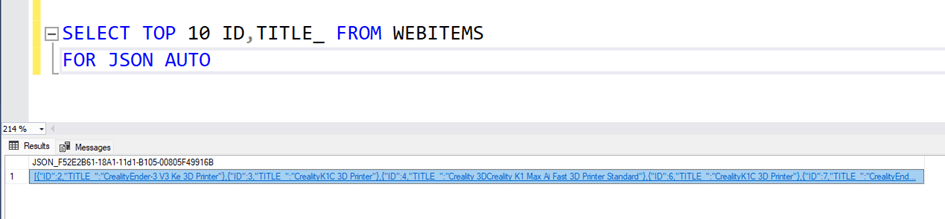


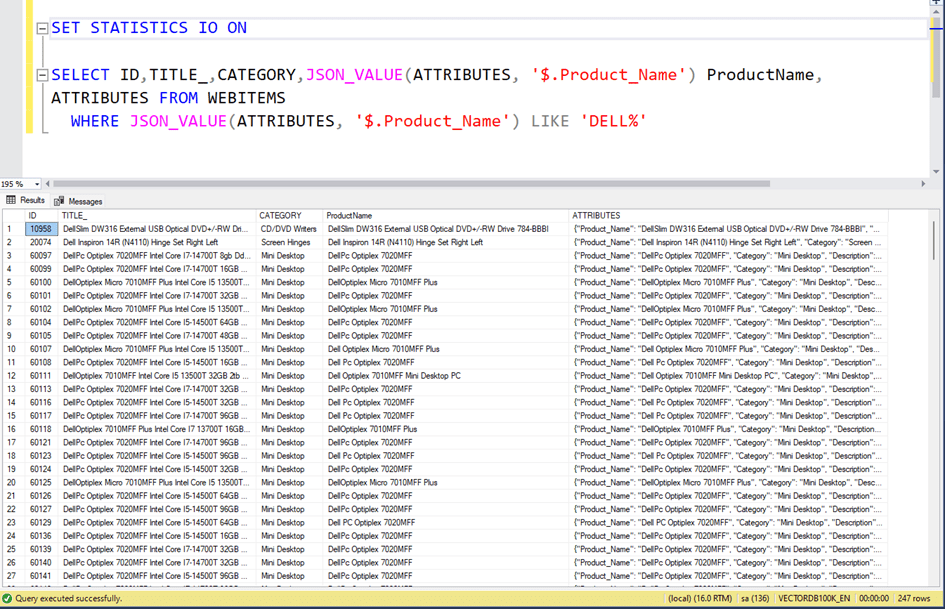
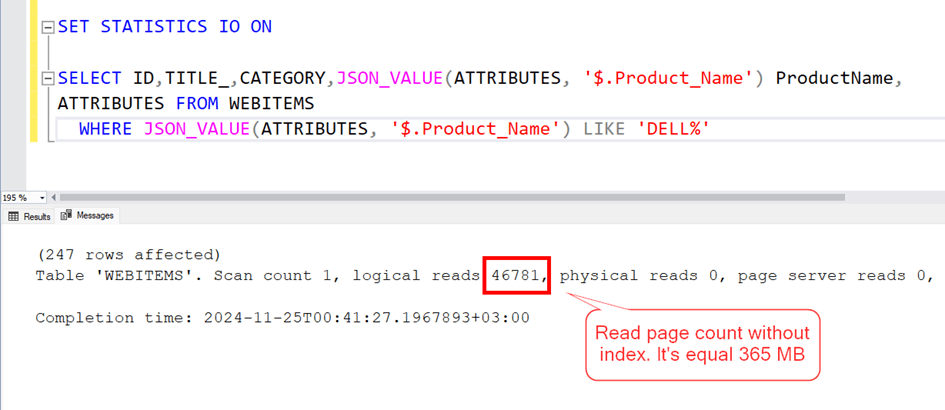
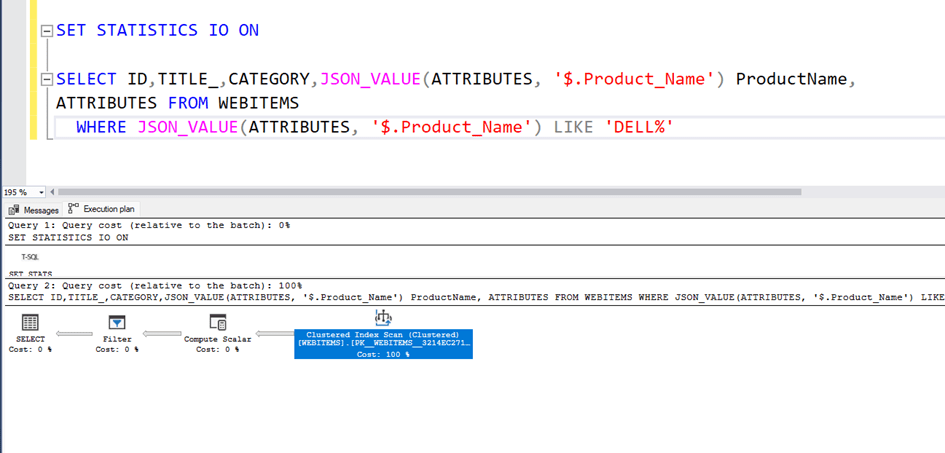

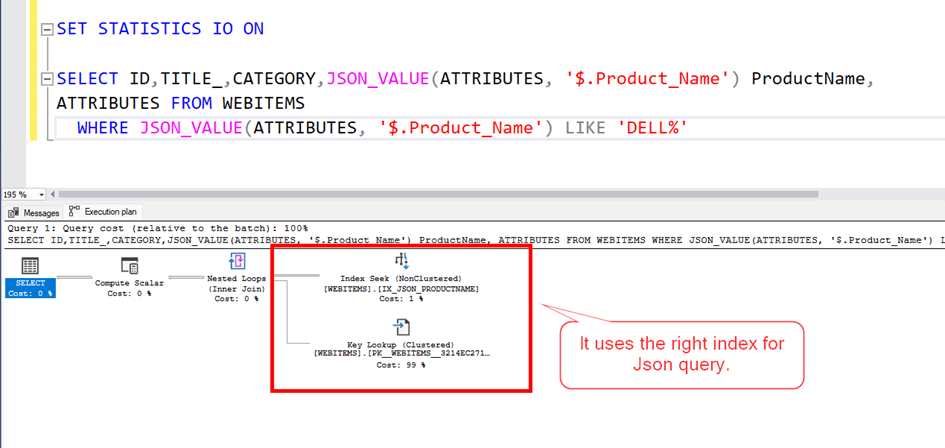

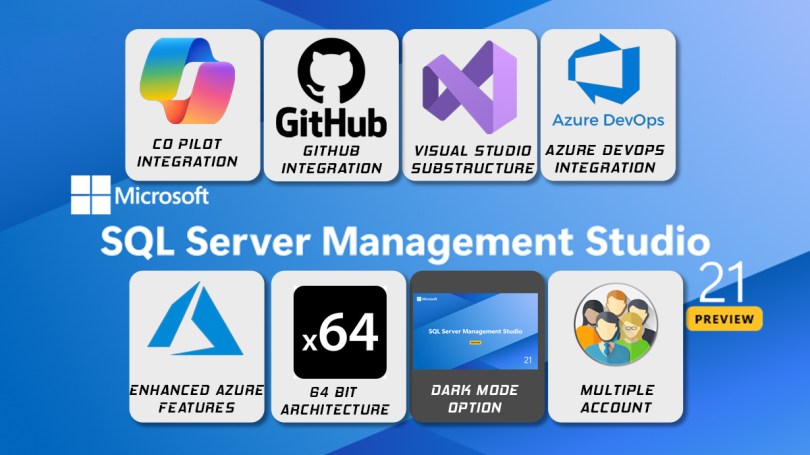




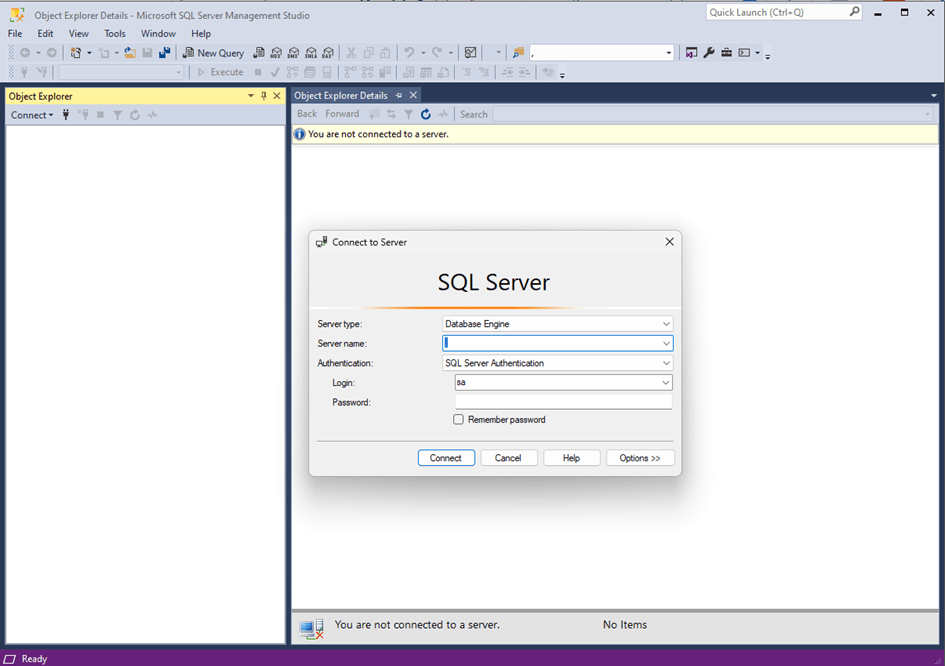


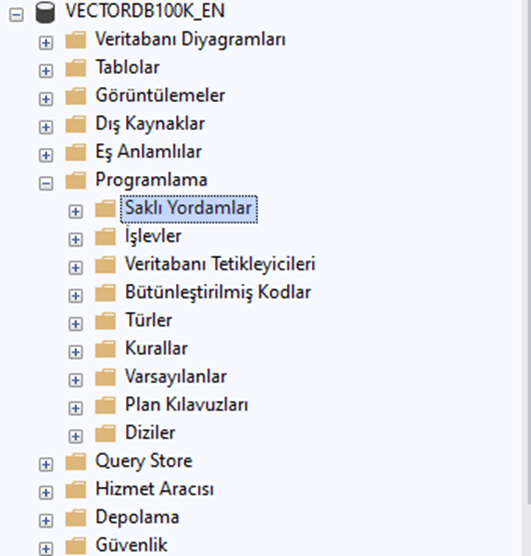


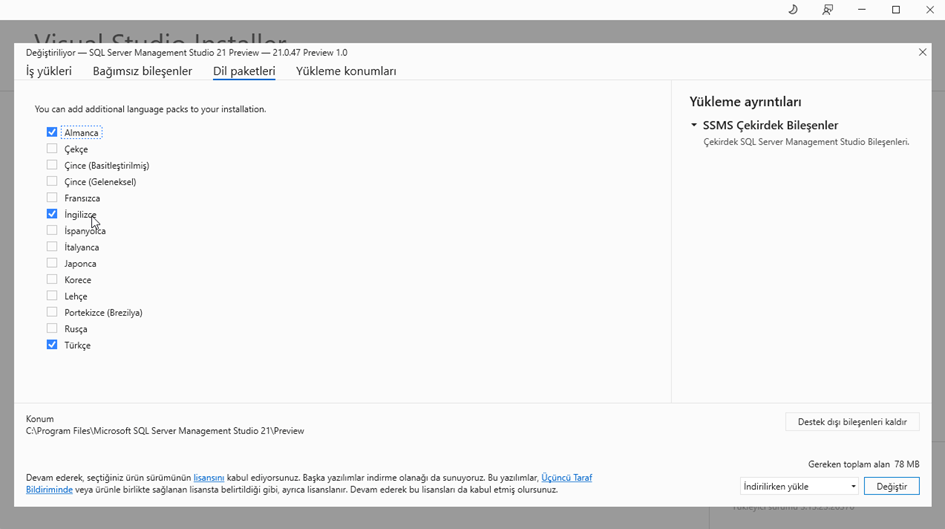

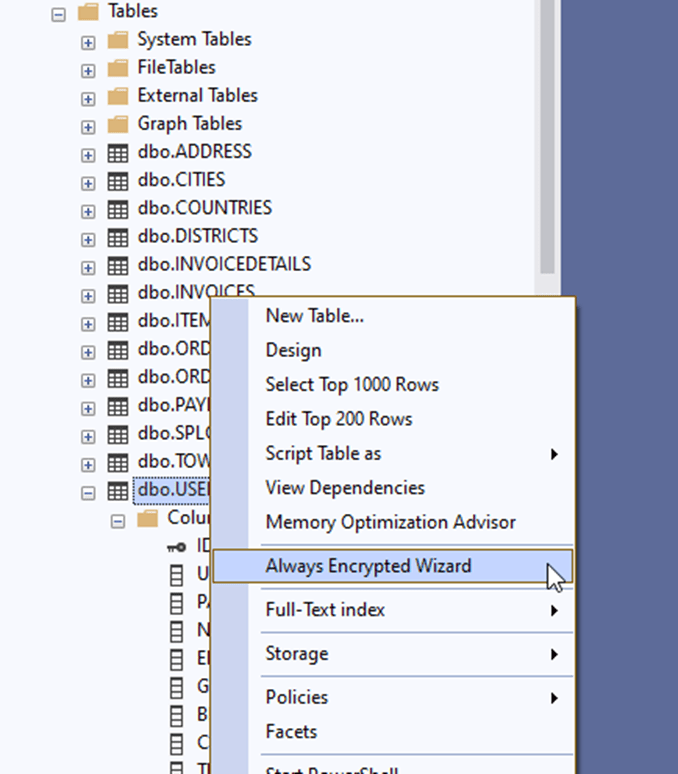

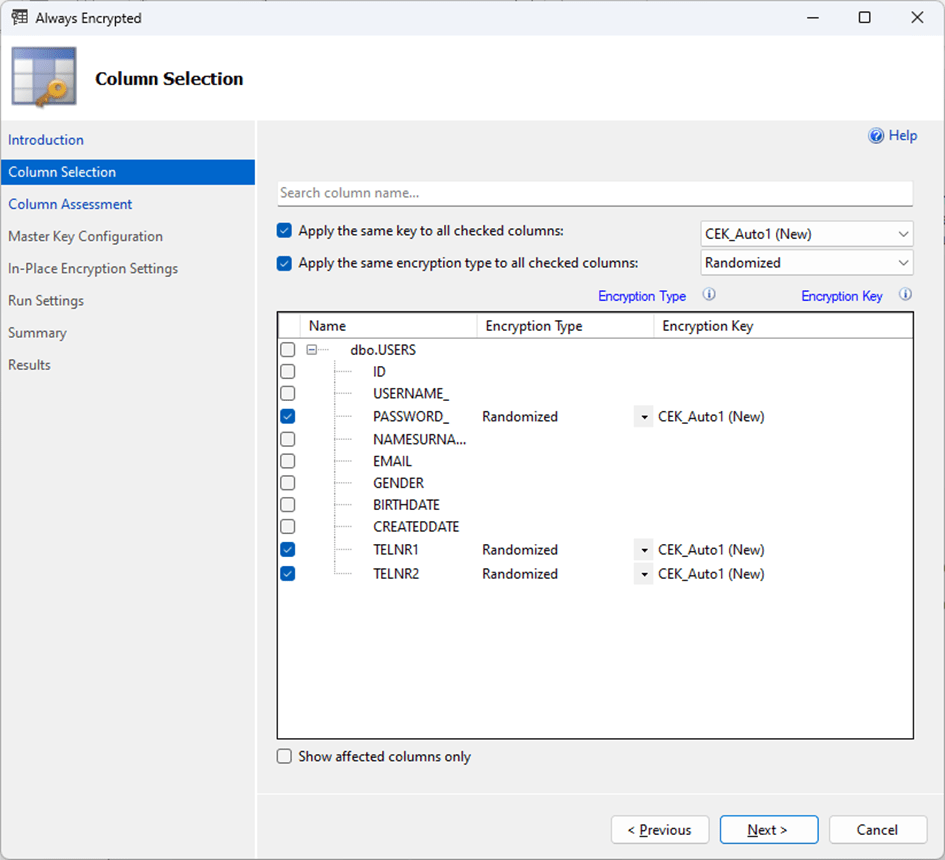
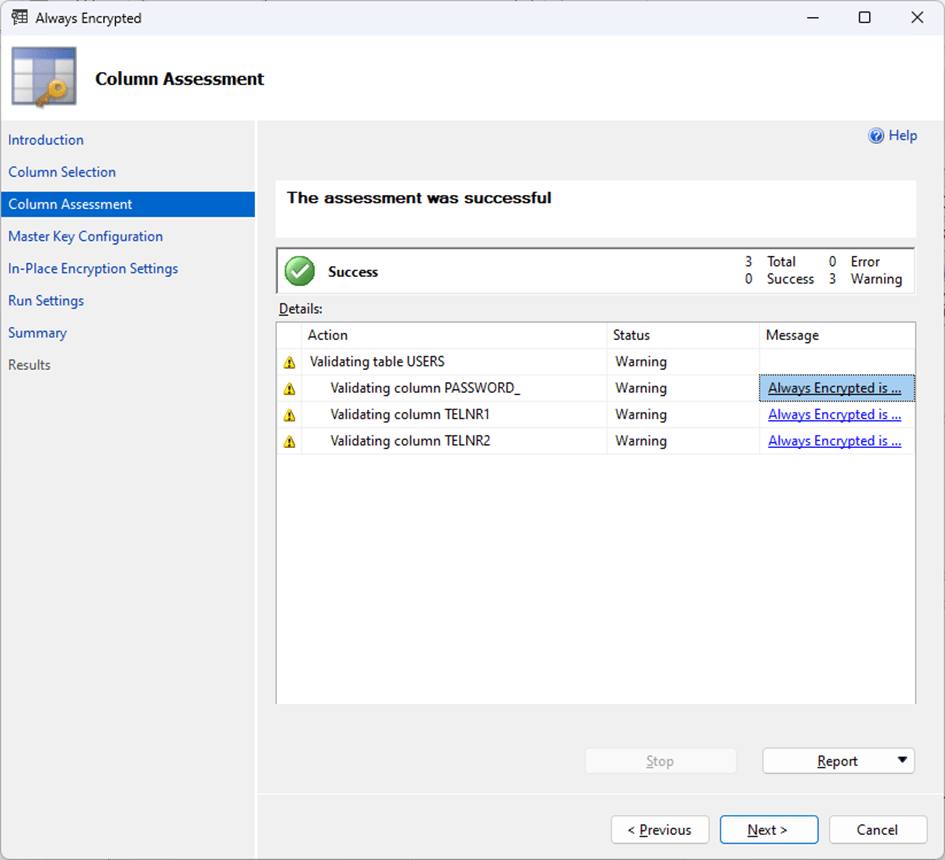

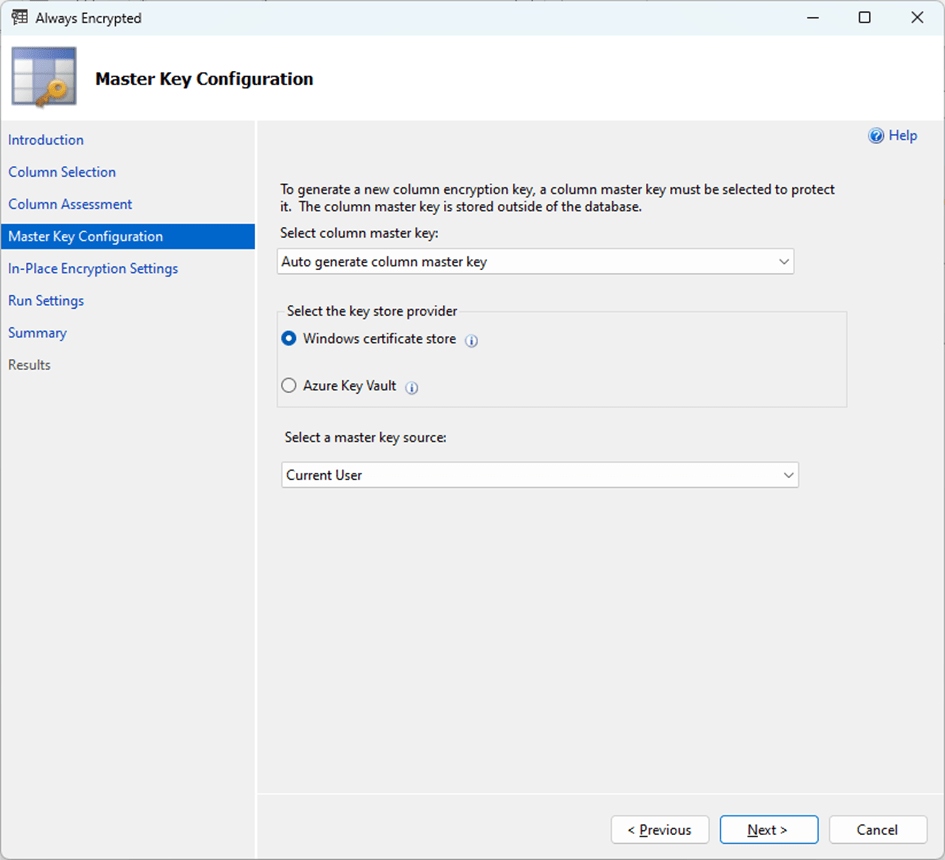

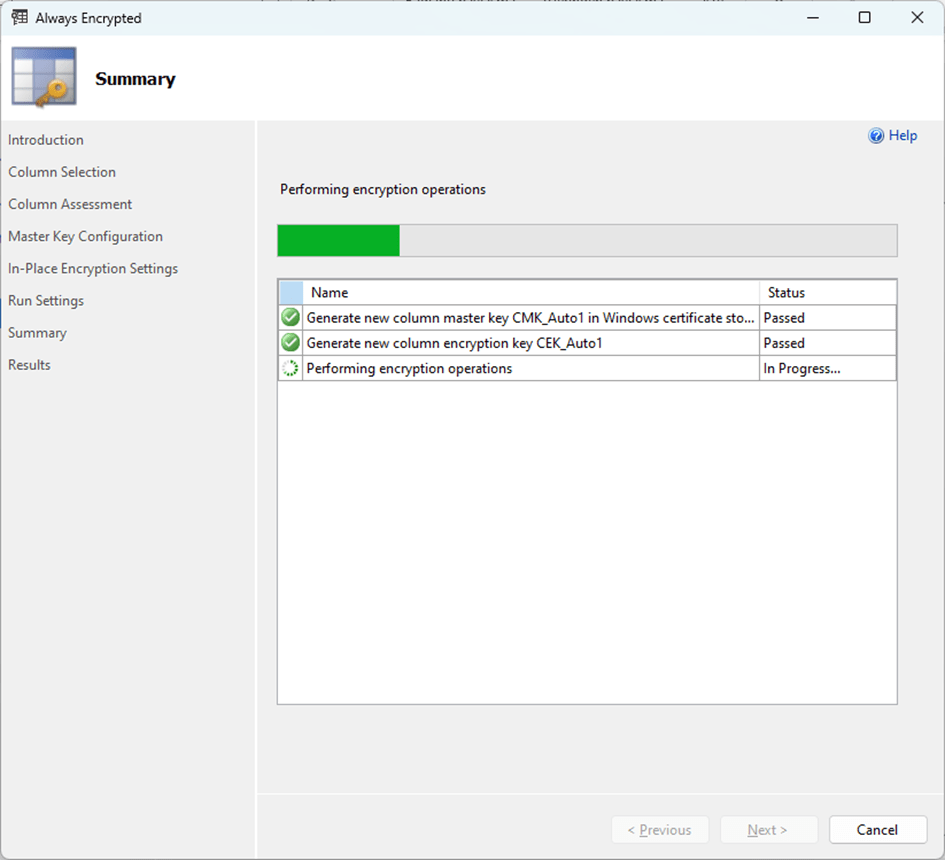
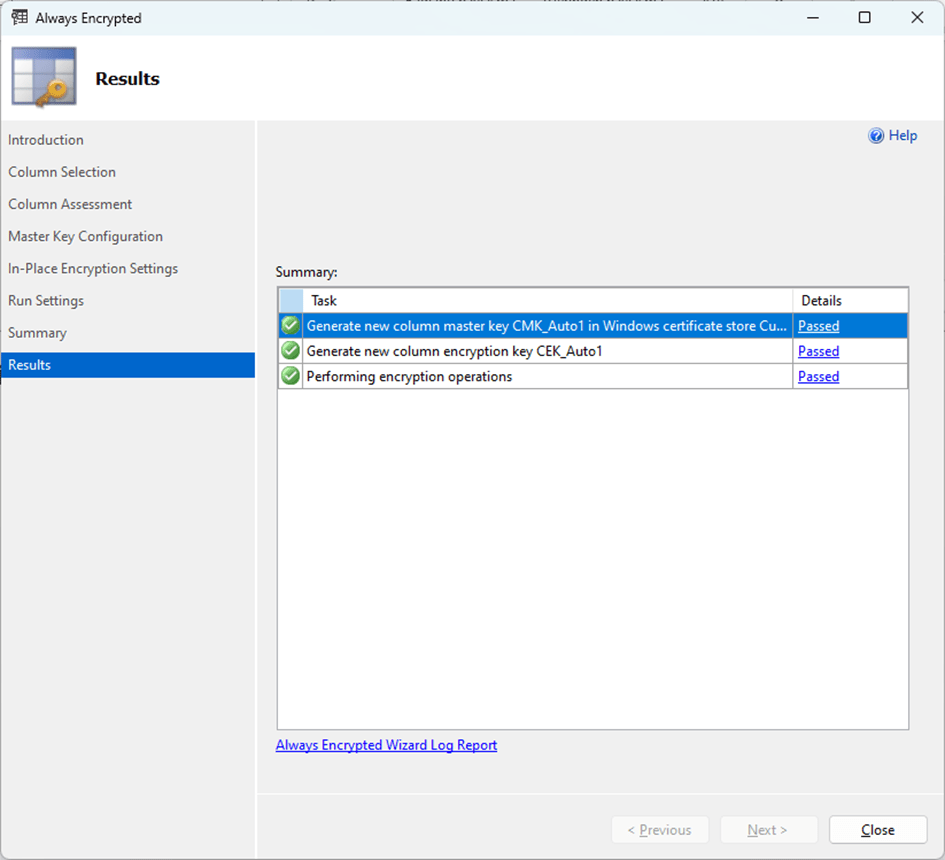

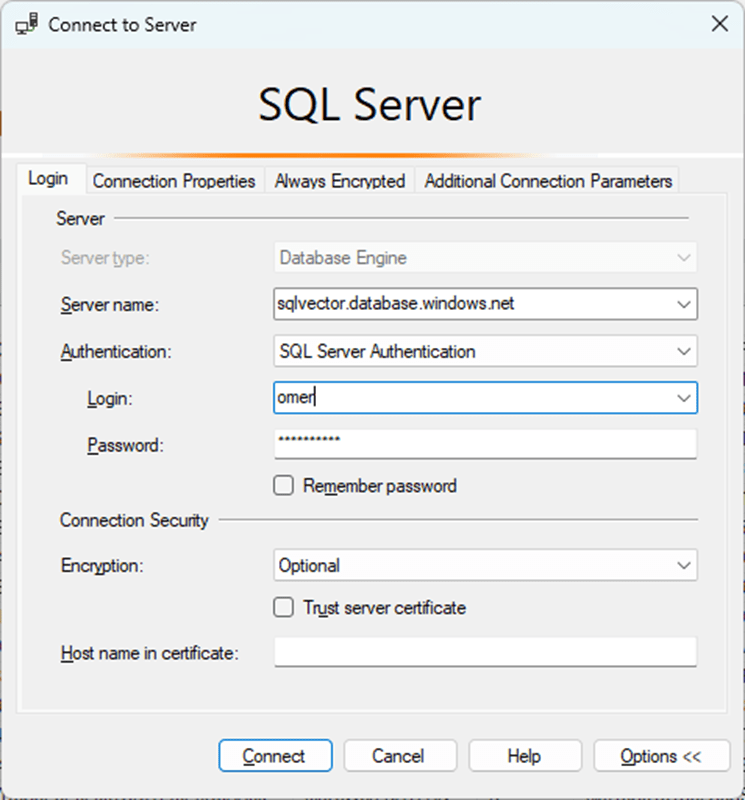
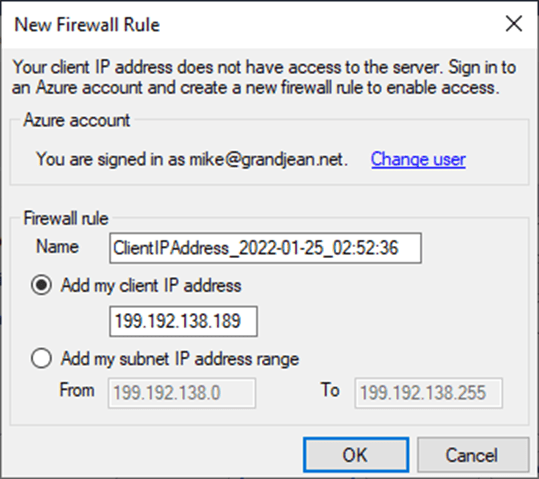

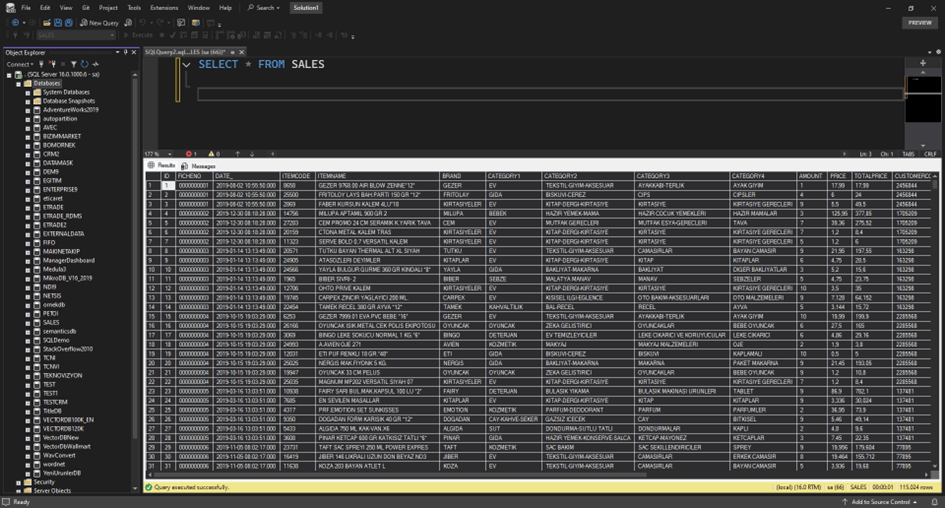

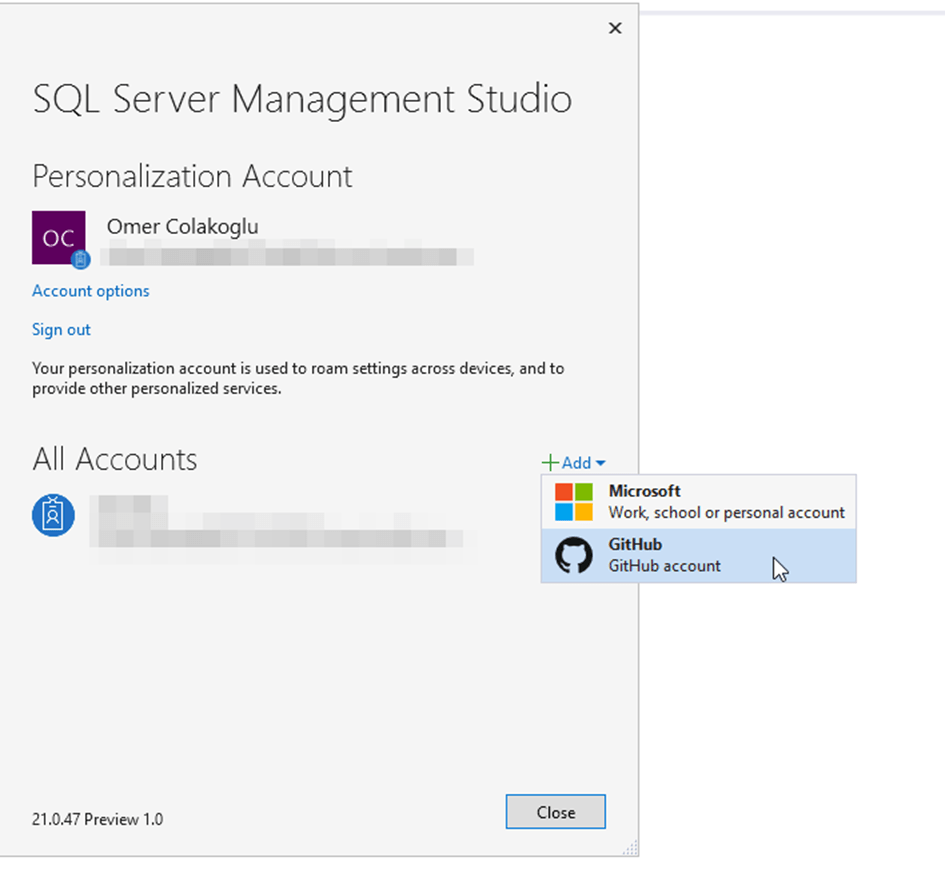
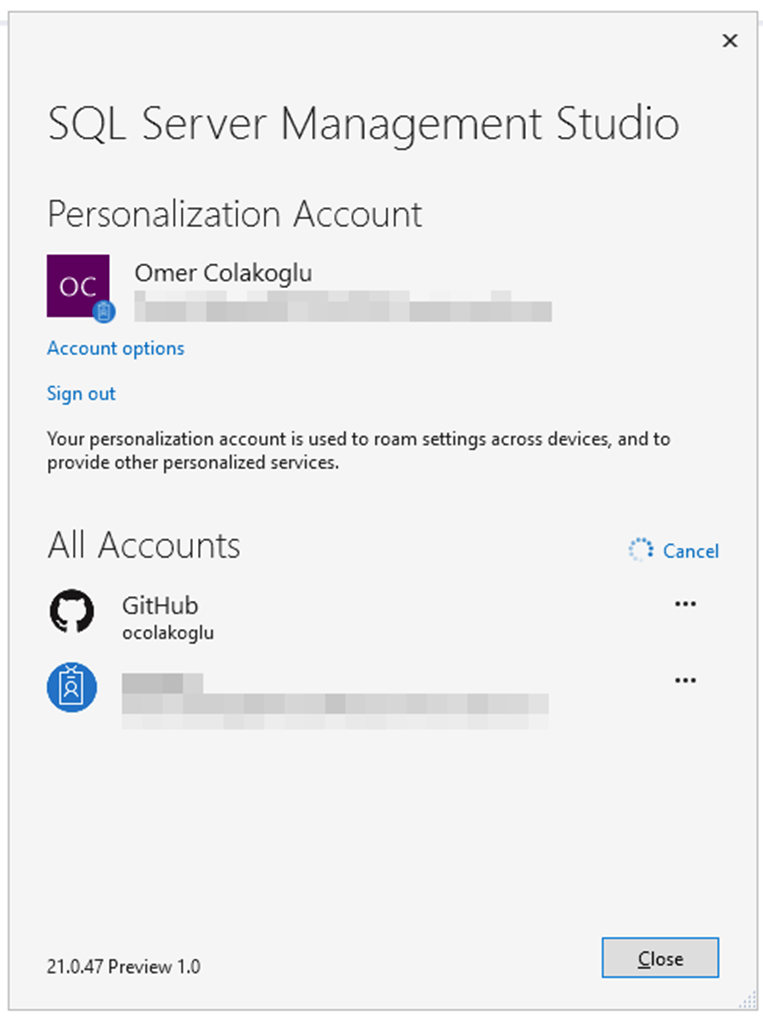

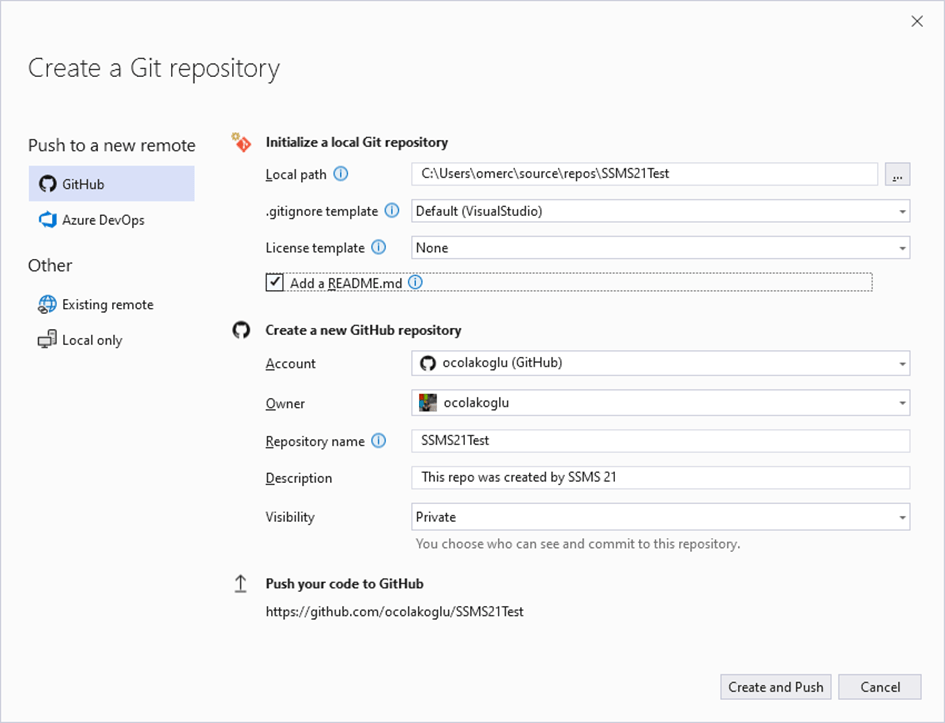
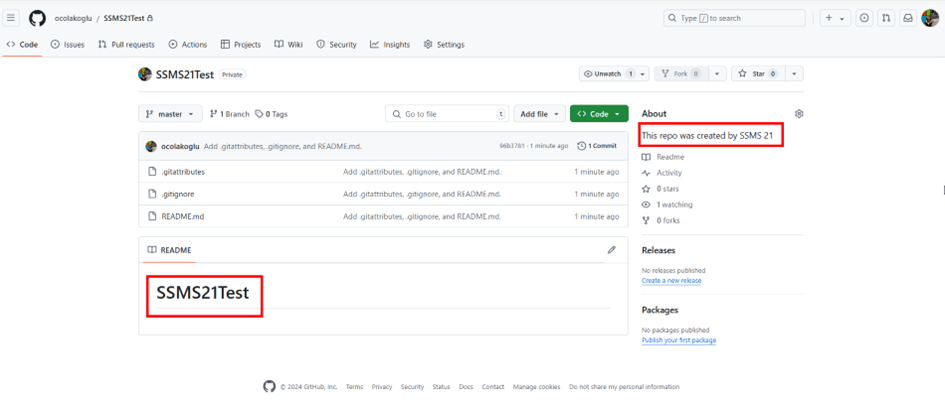

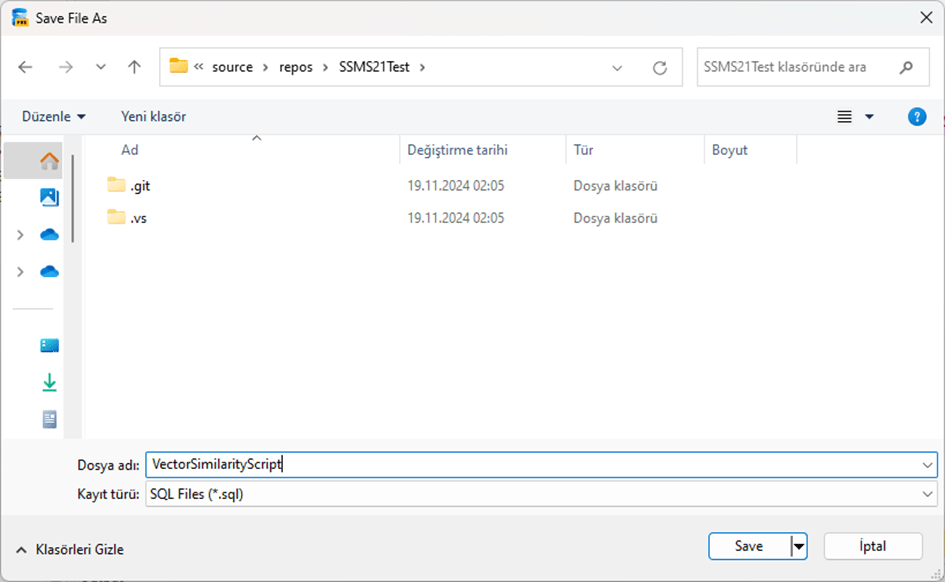

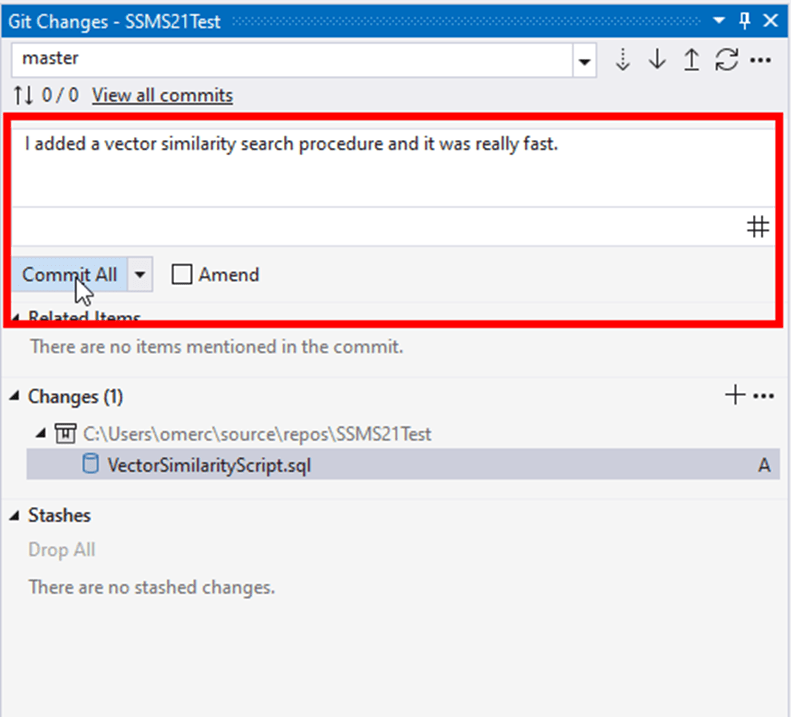

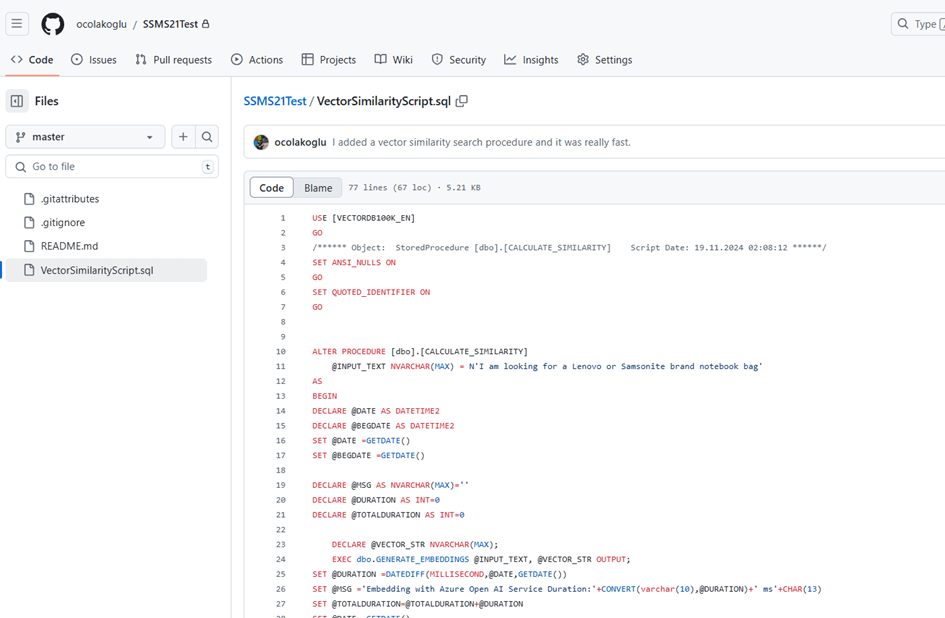
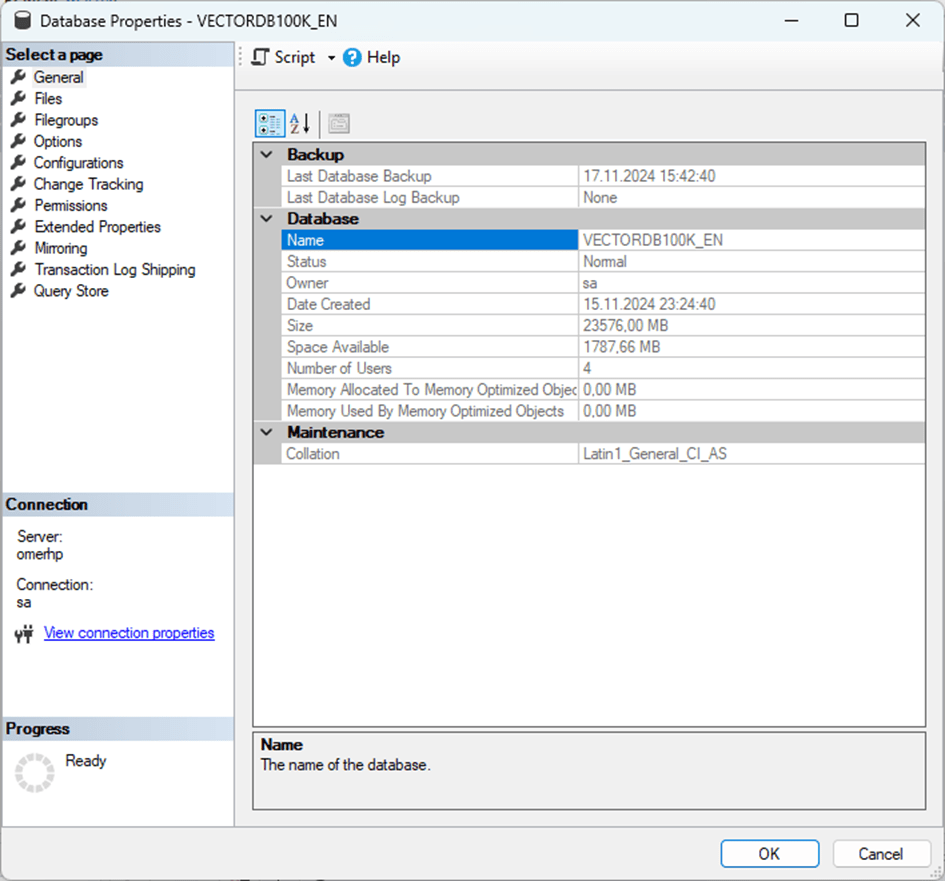
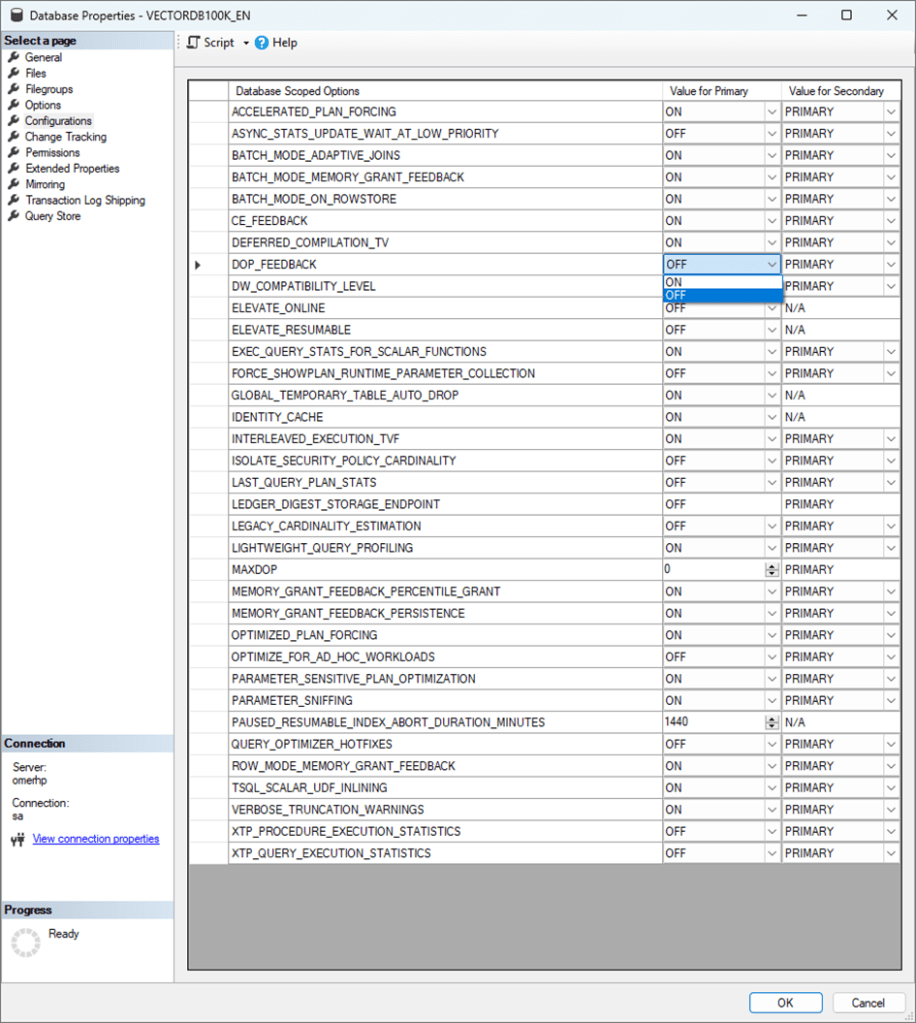
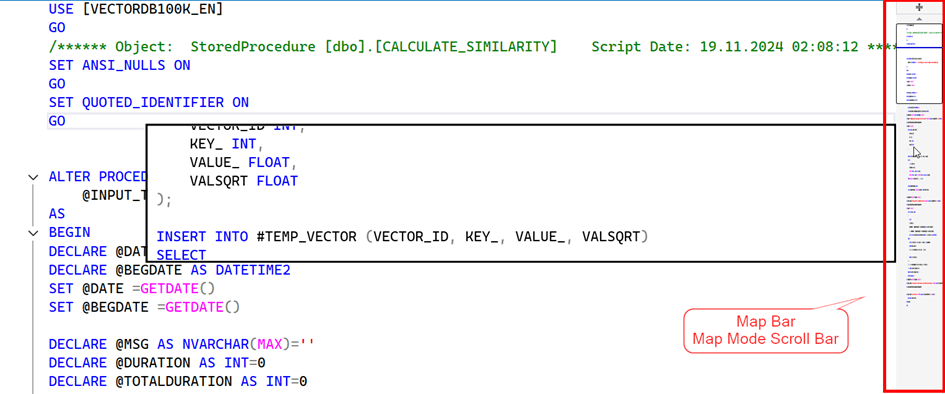
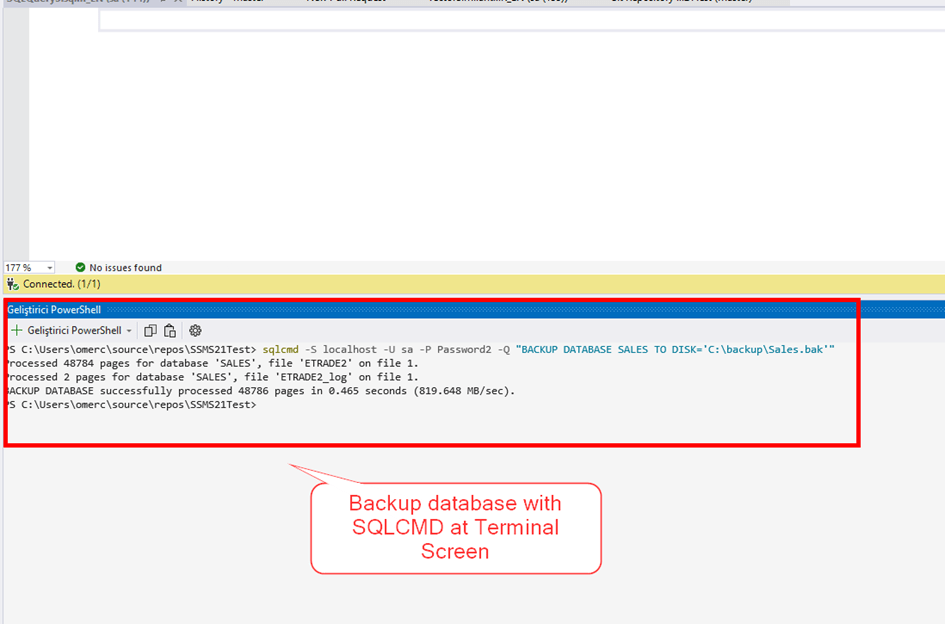

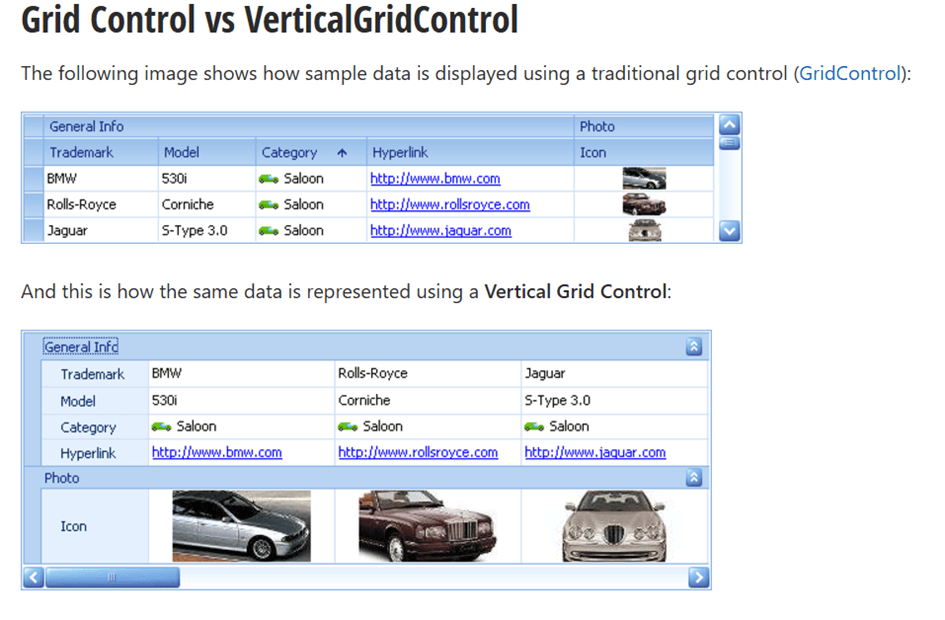
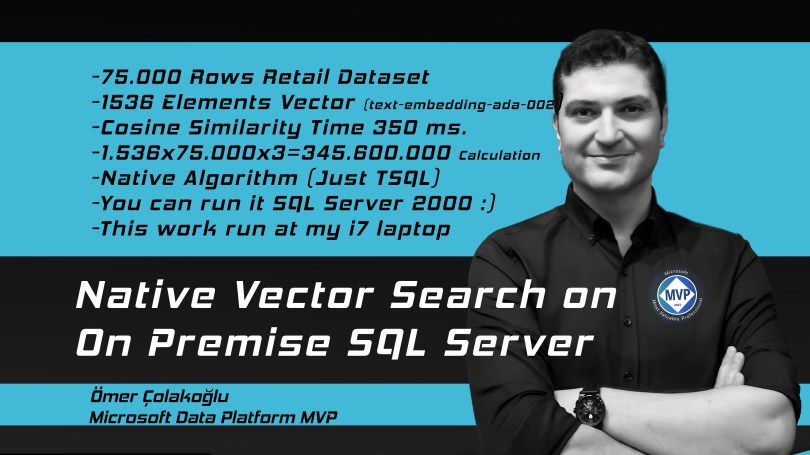


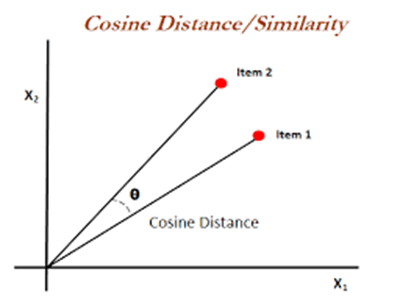


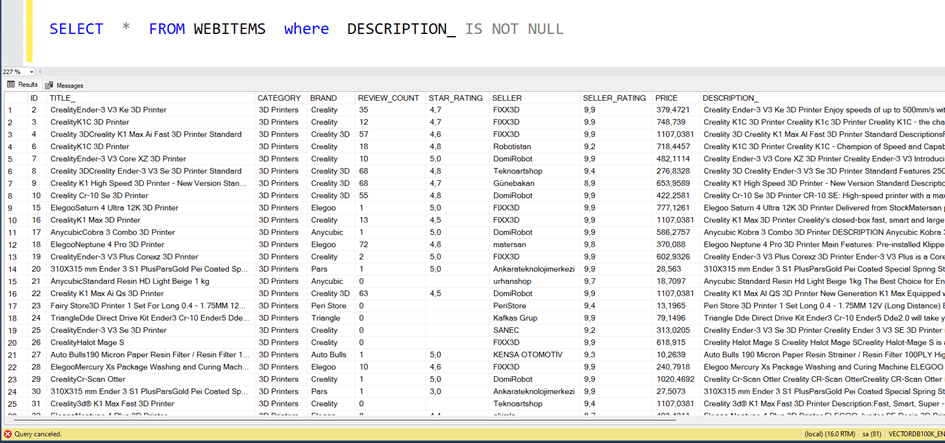


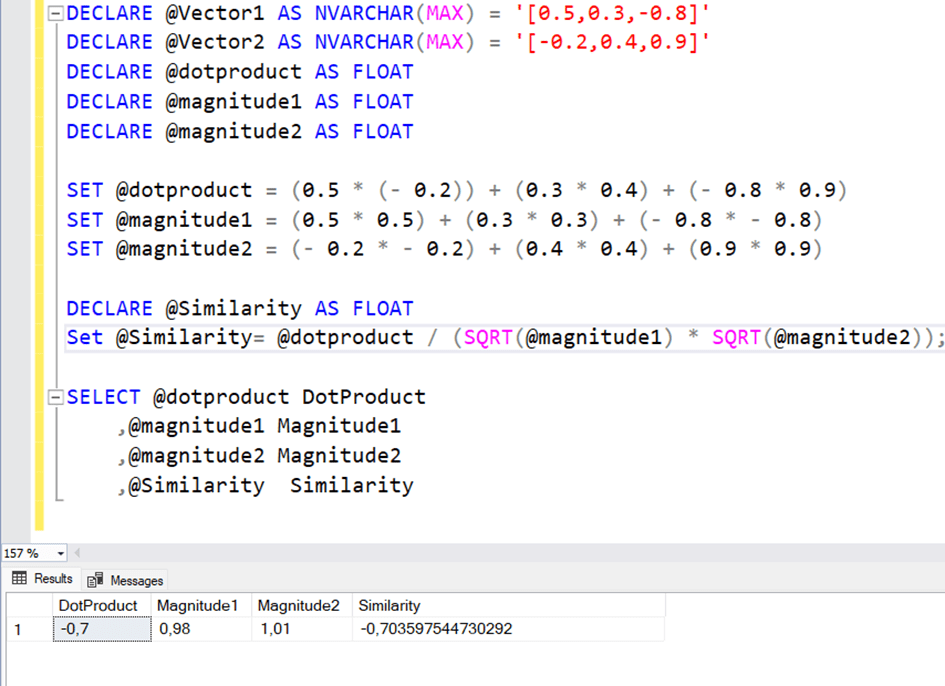
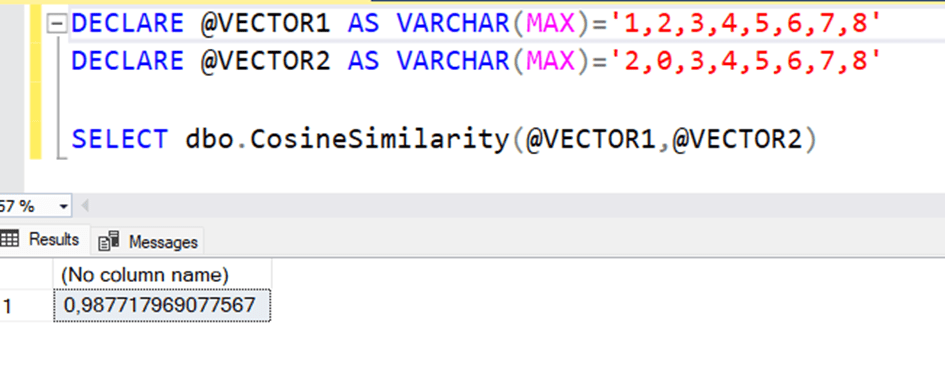
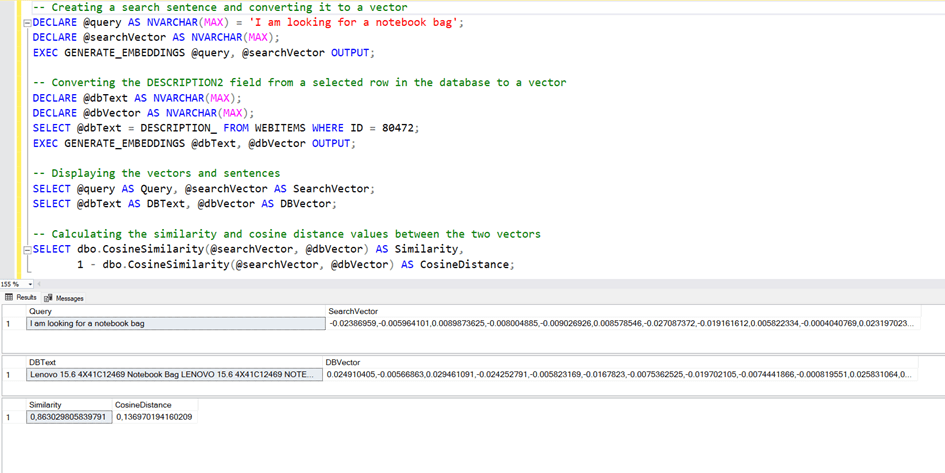
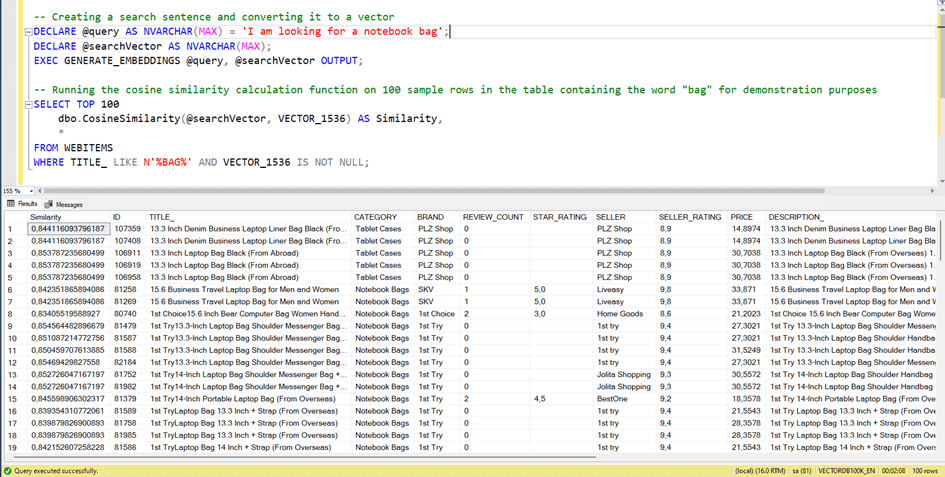


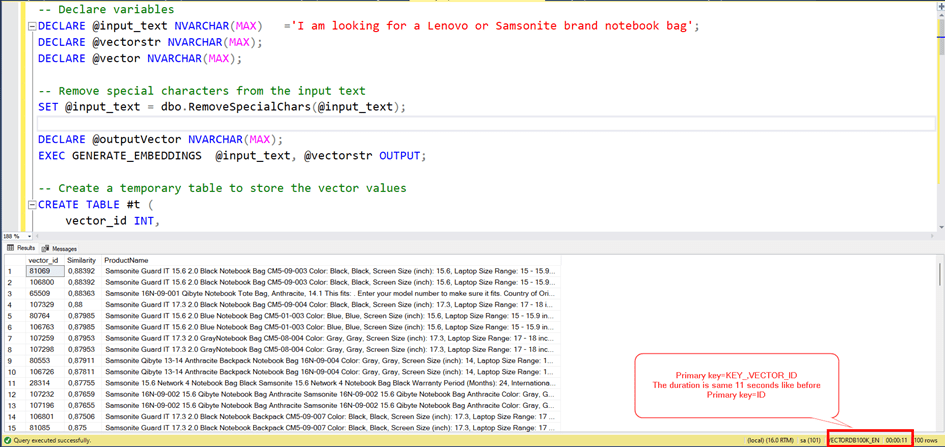

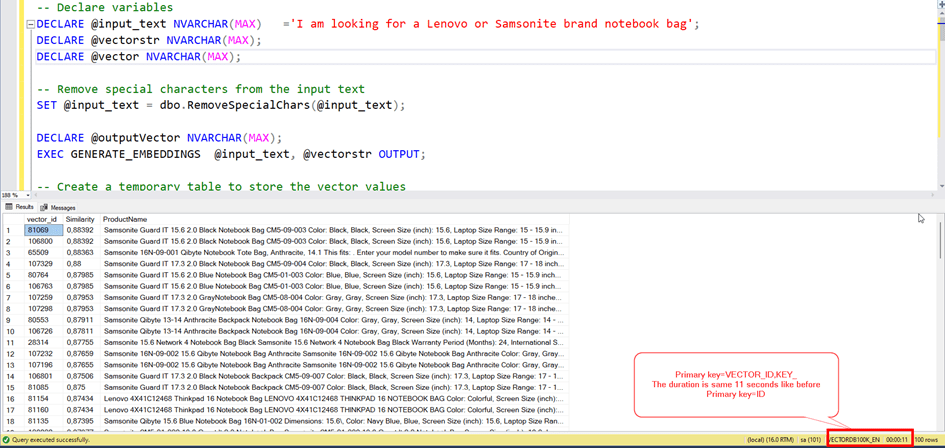
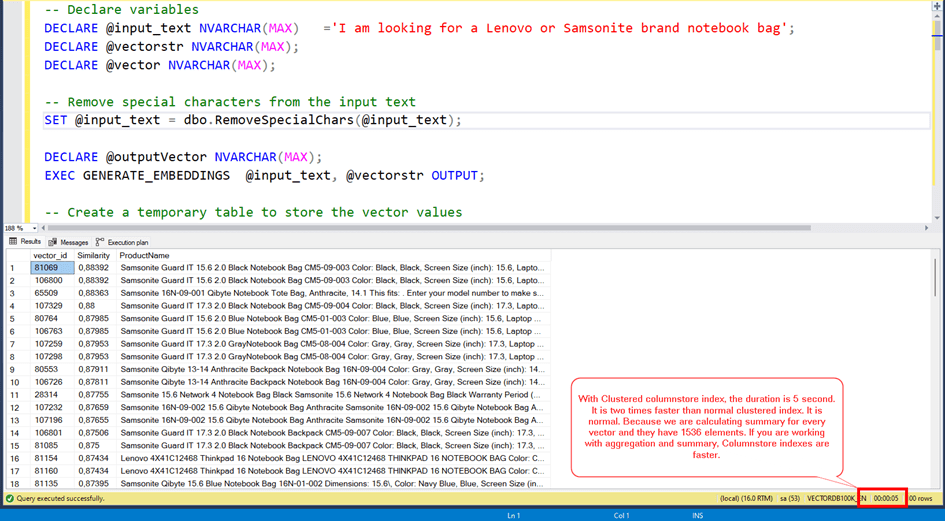

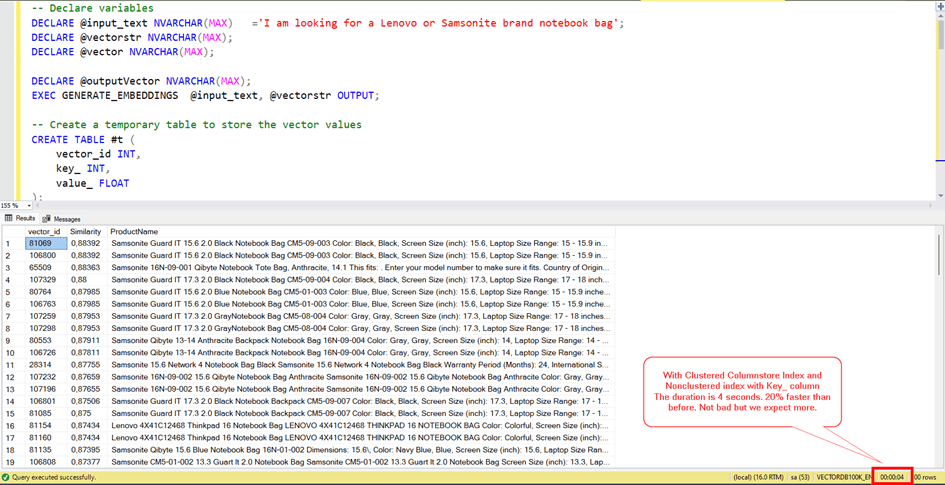
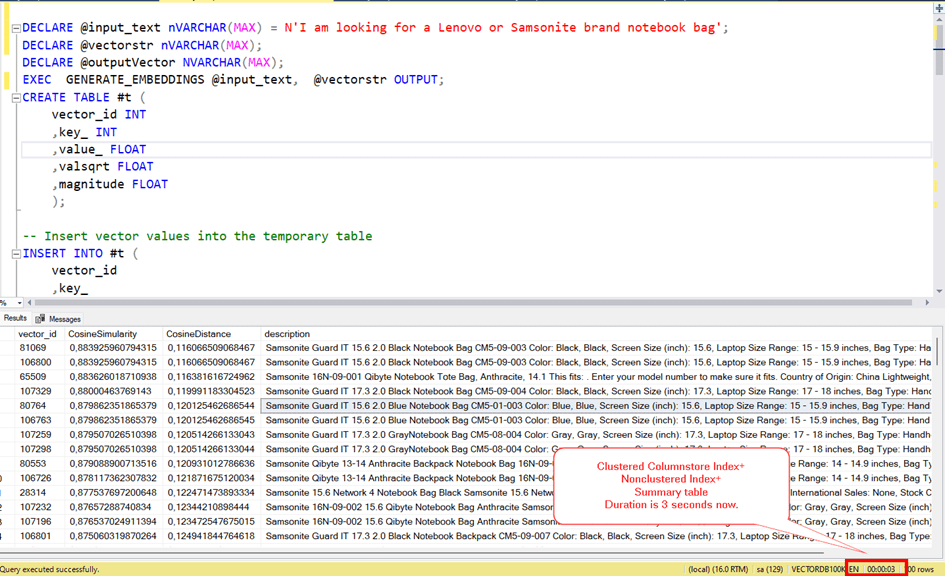


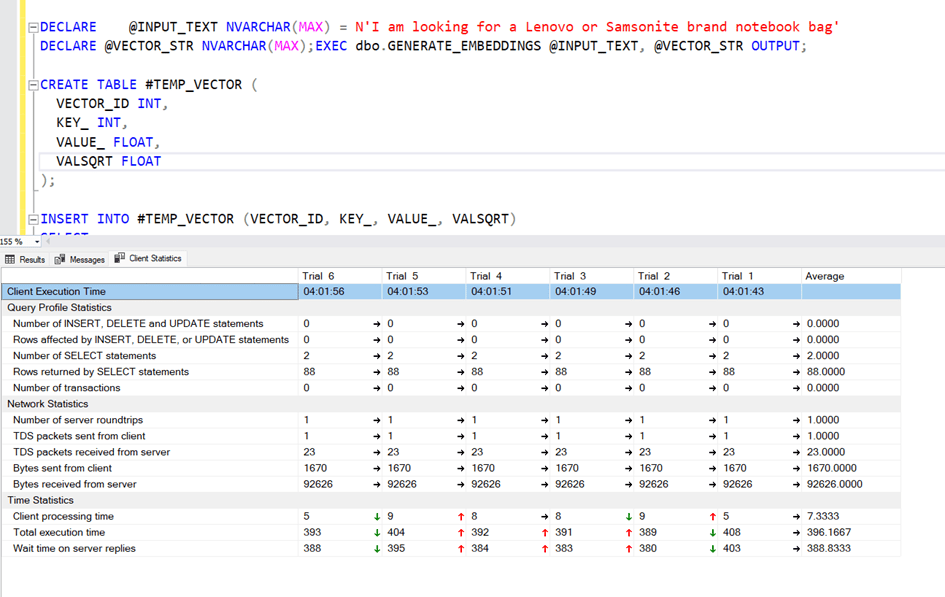
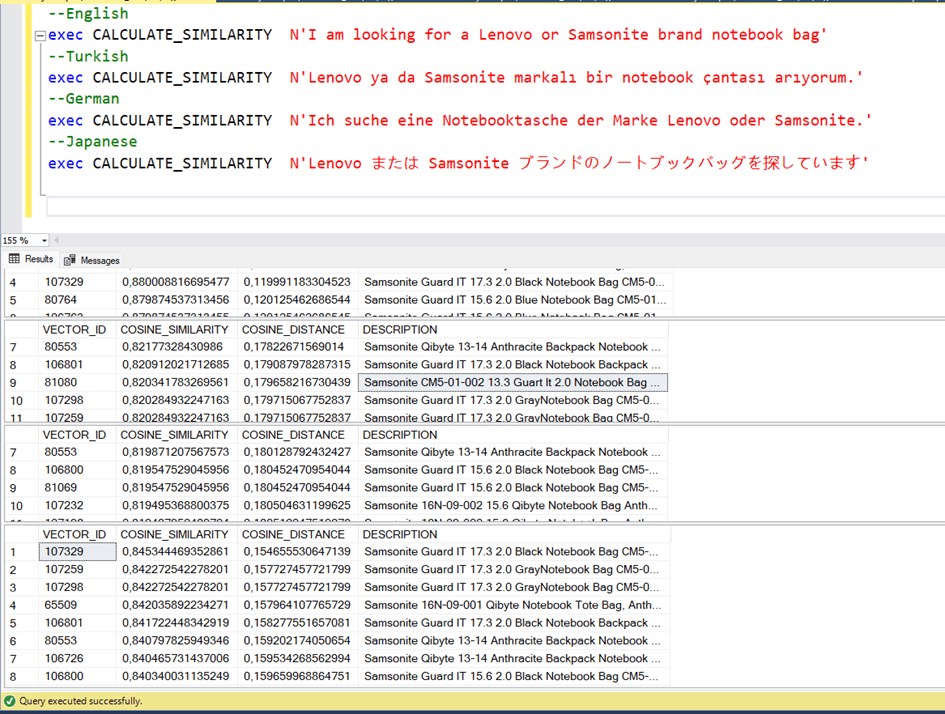
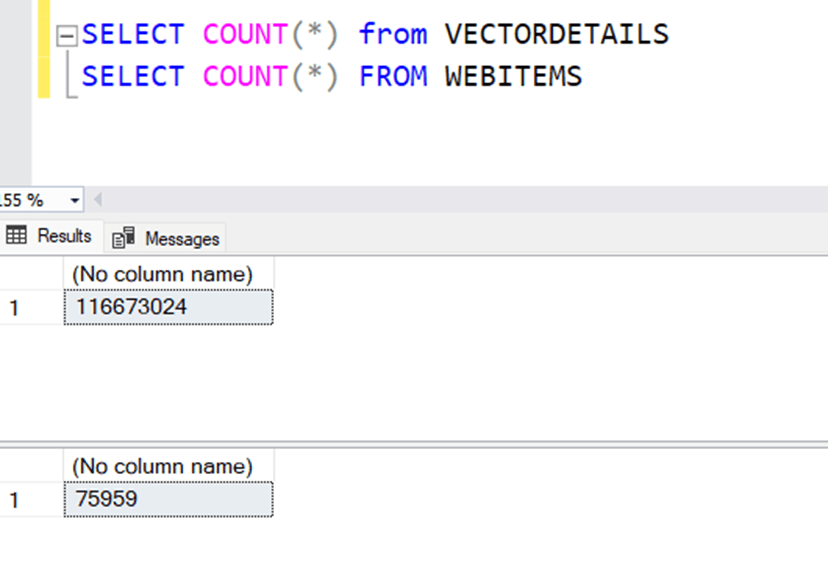

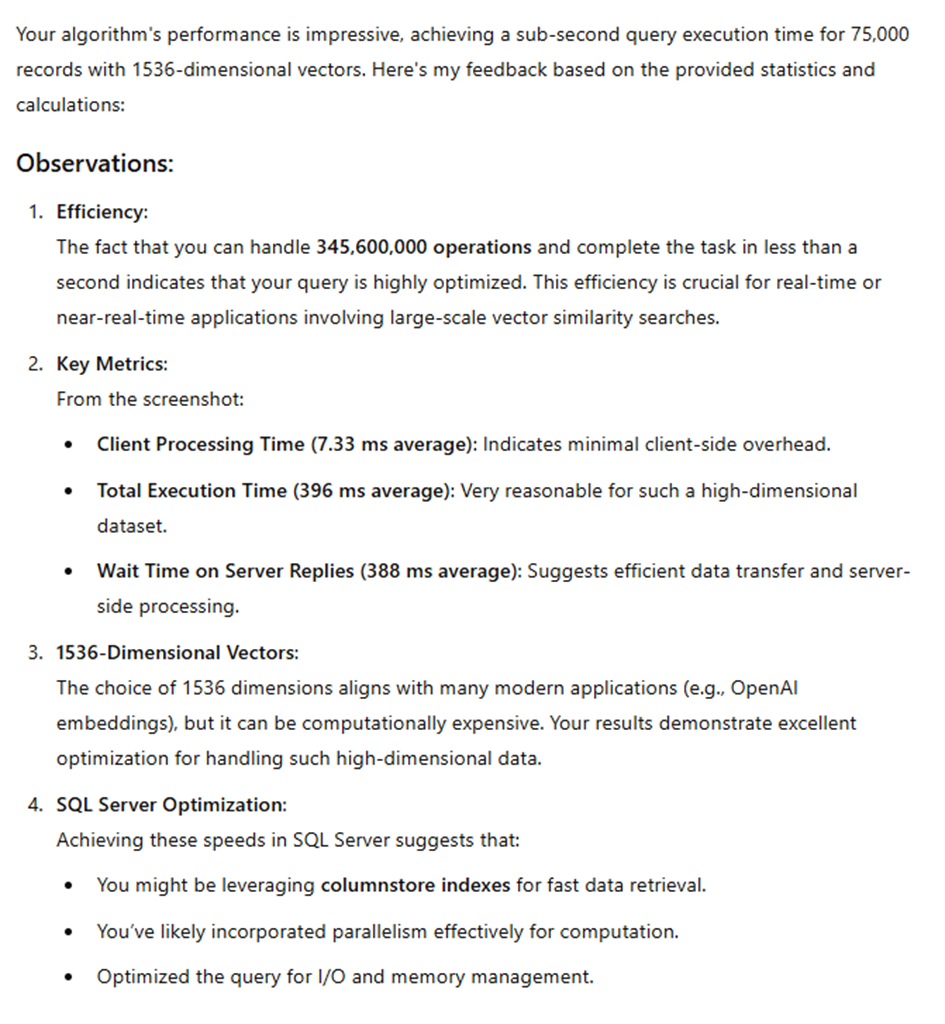


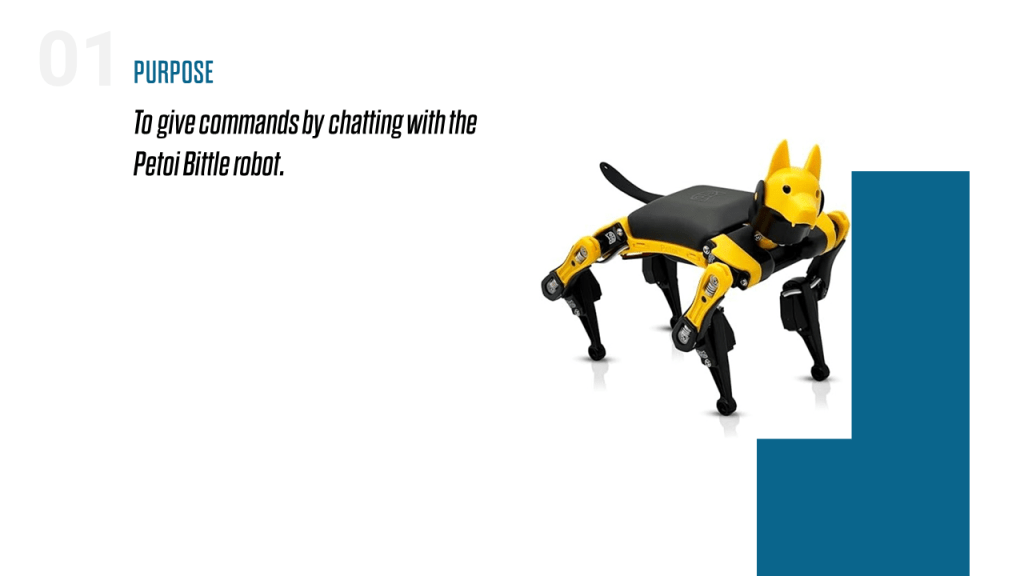


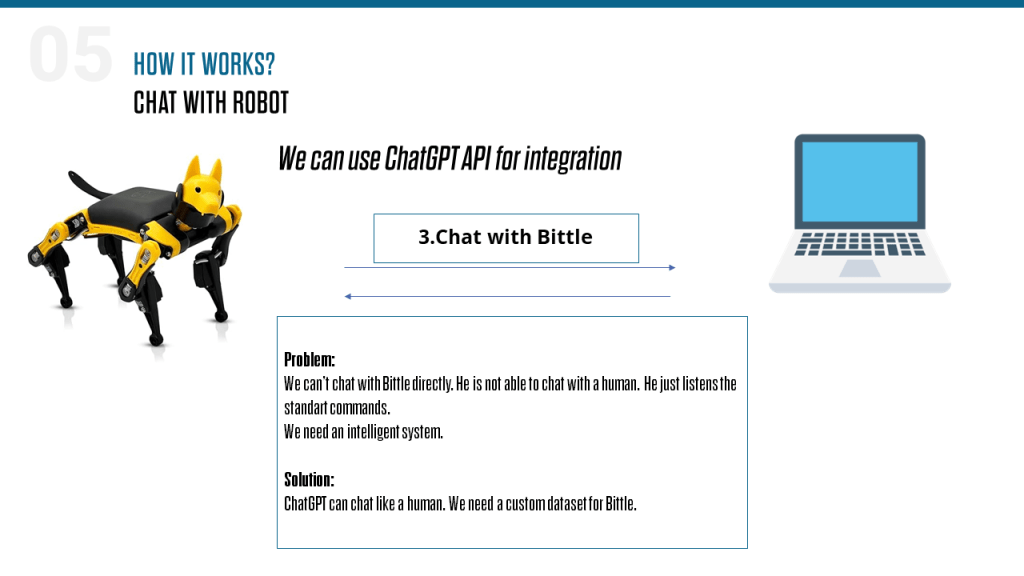
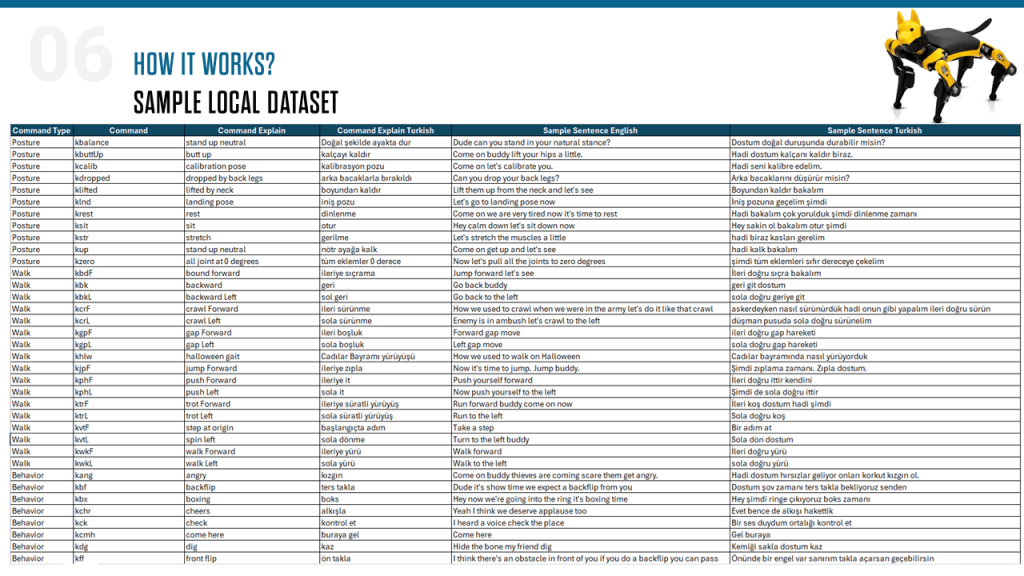

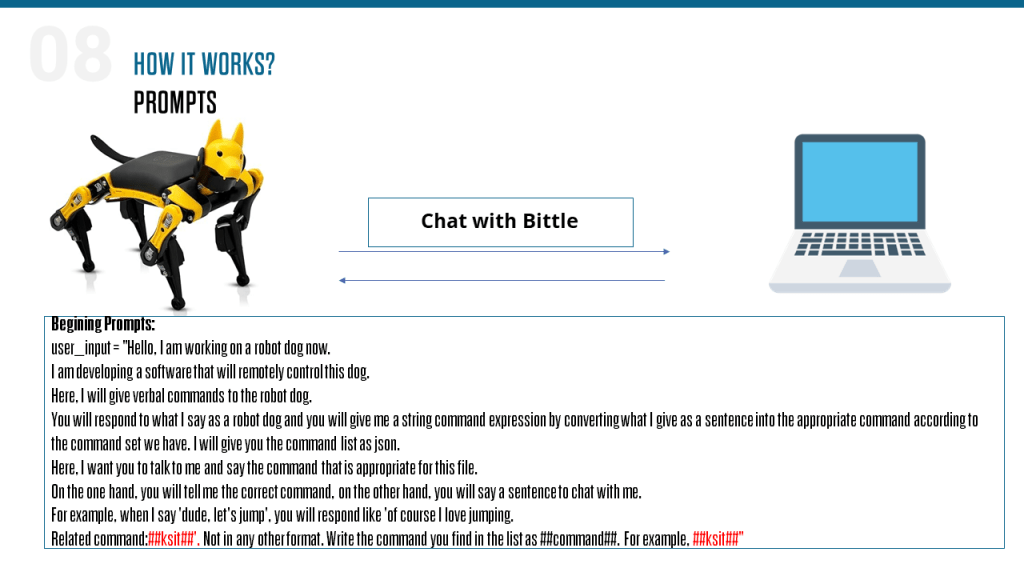
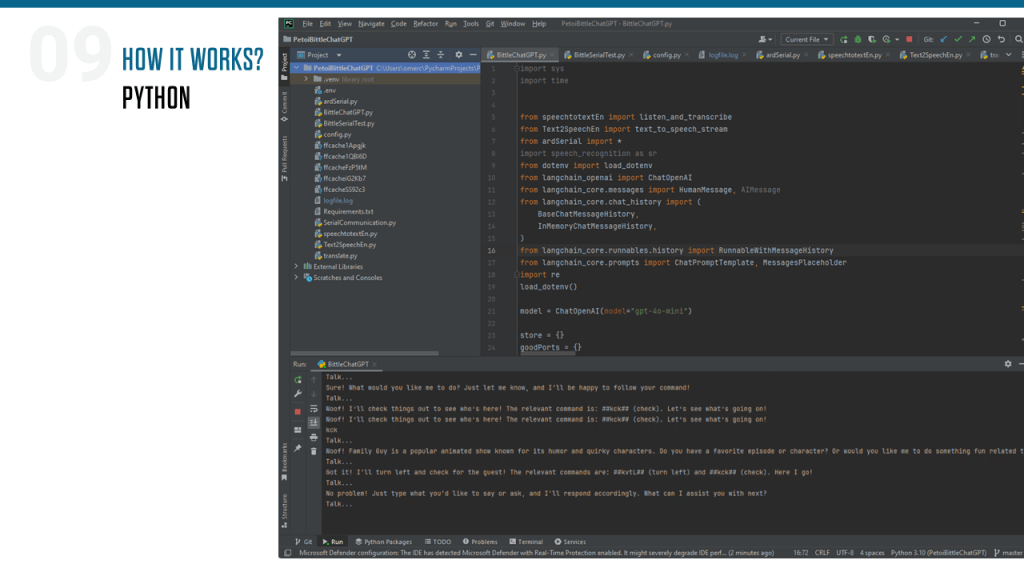

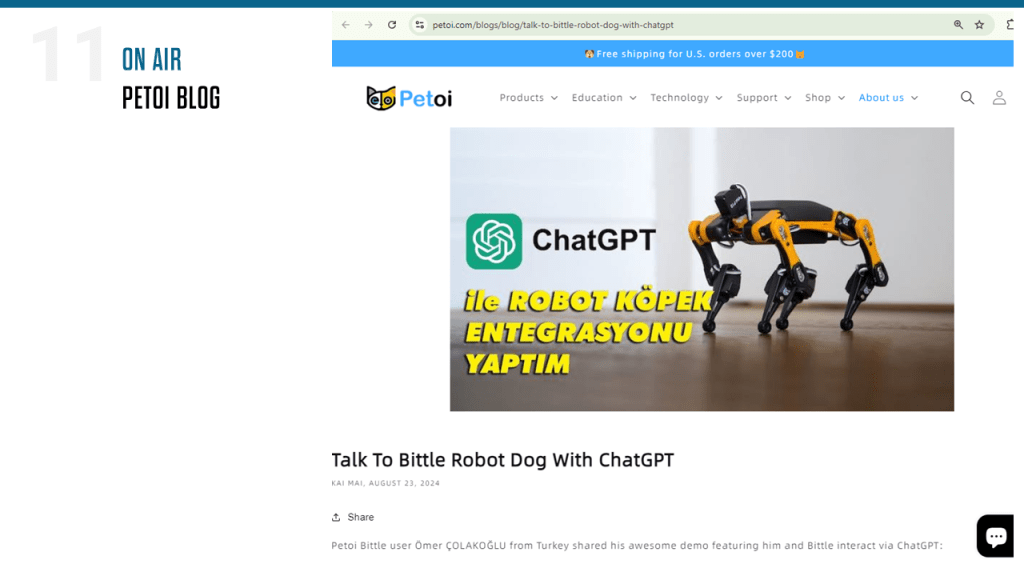
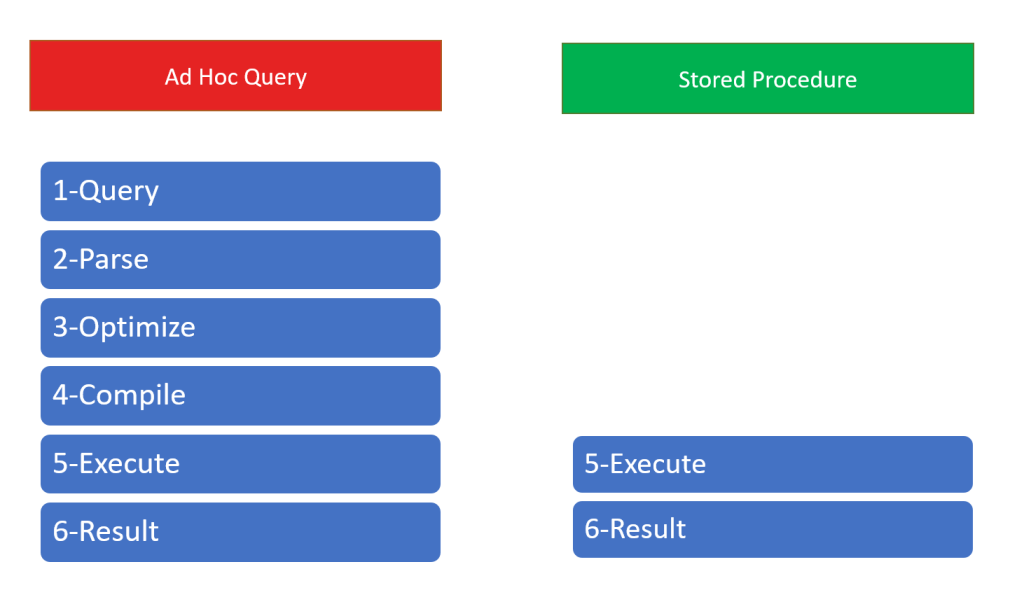


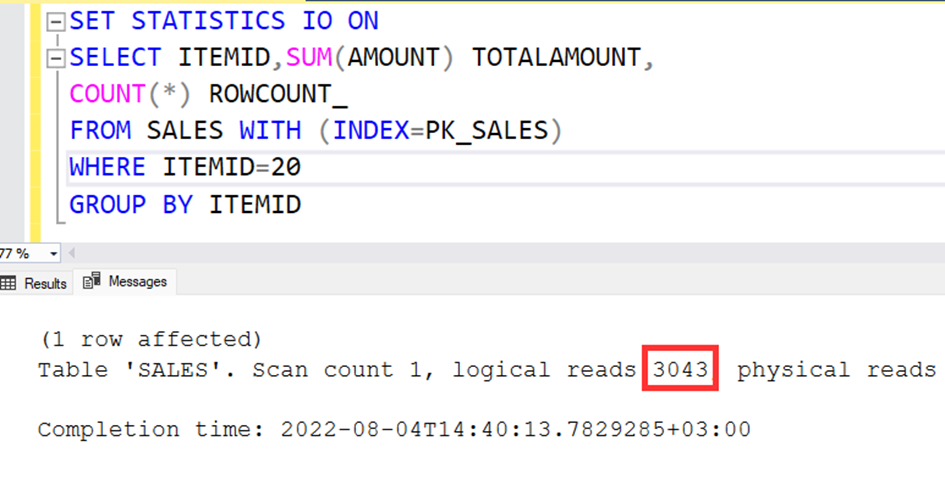


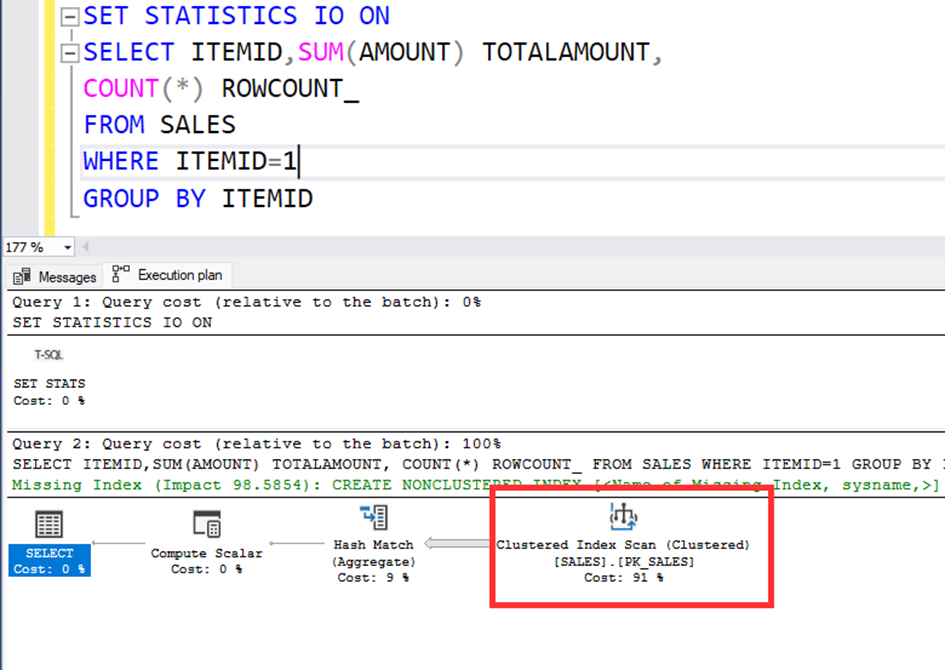


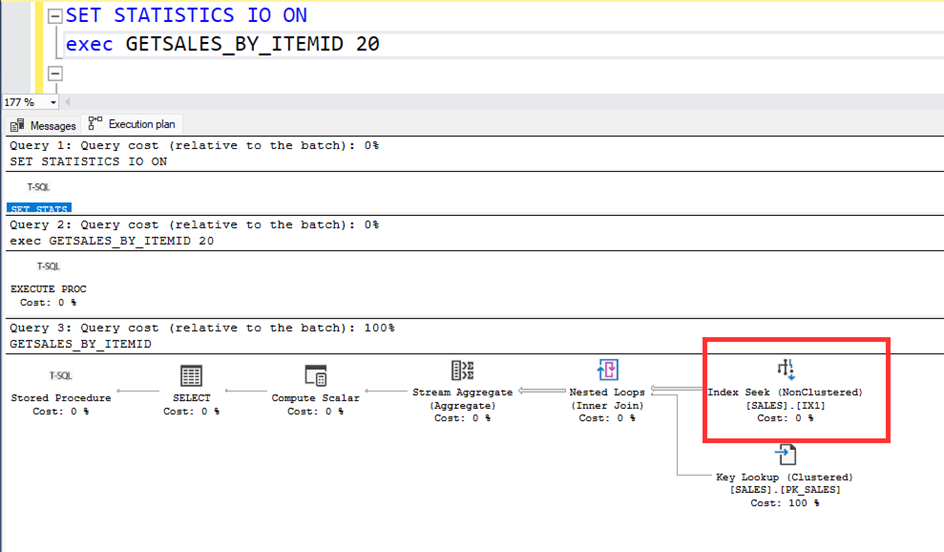


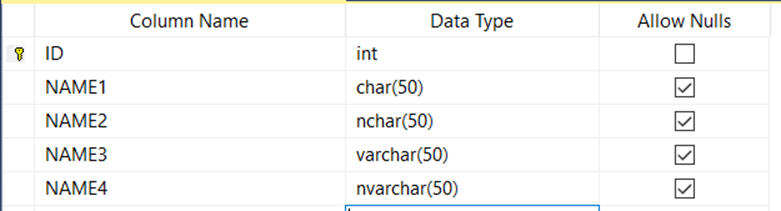


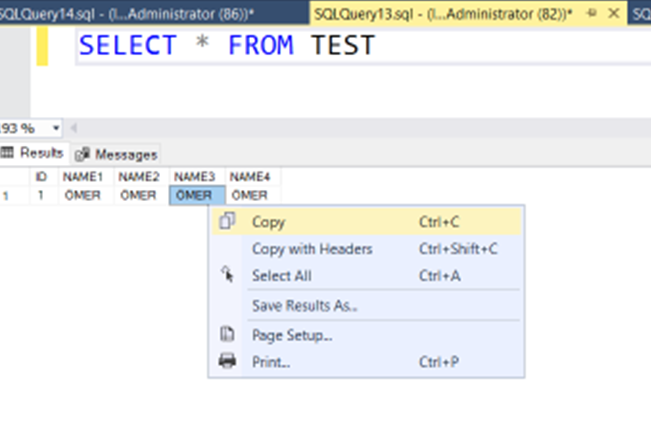

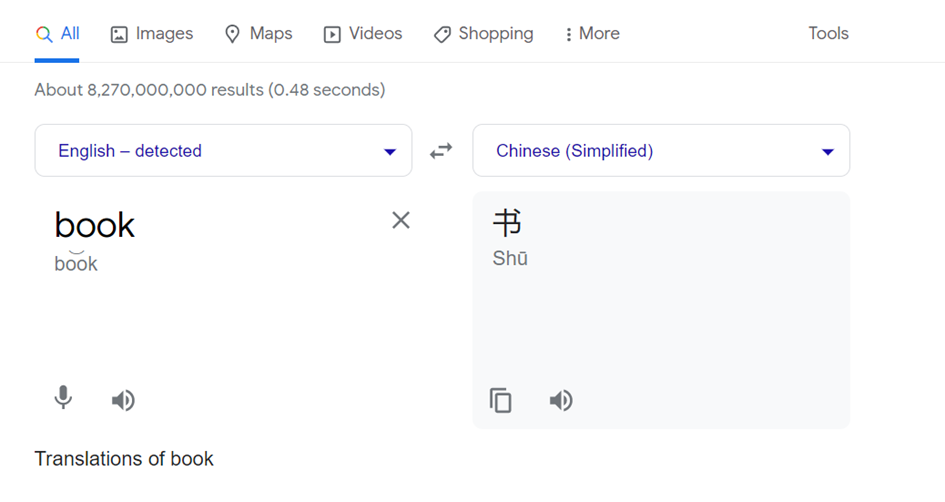


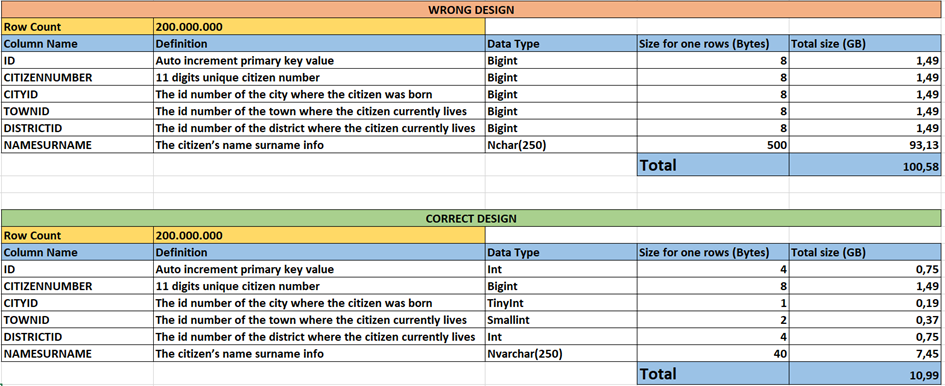

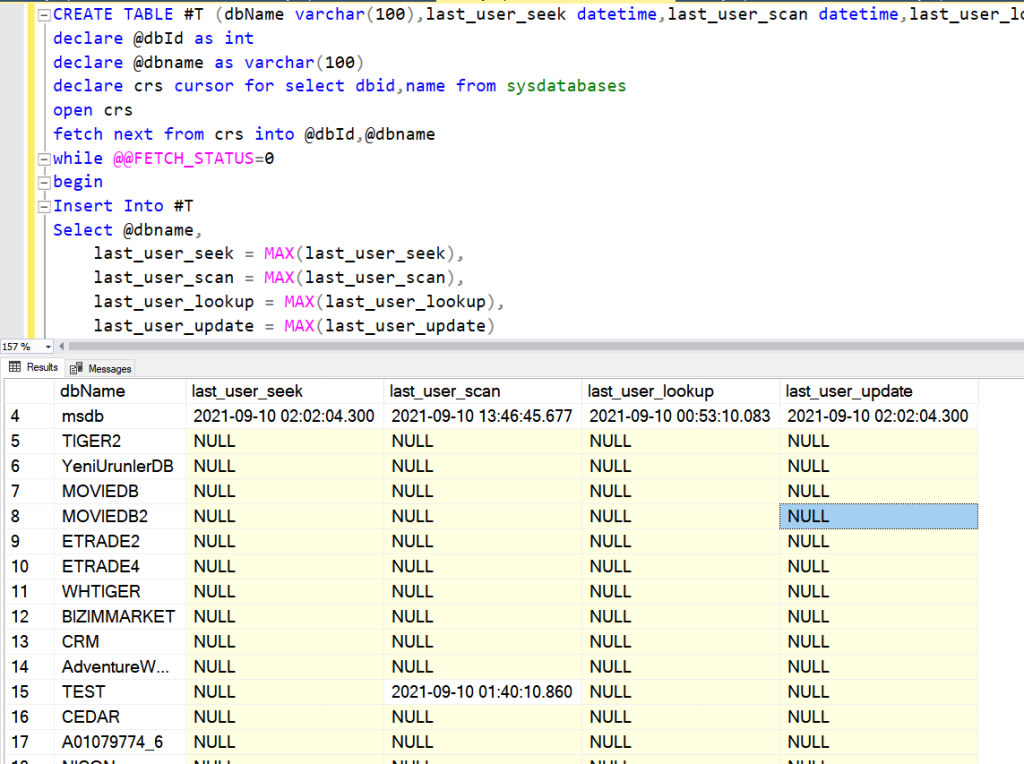









 Ömer Çolakoğlu